Working With Student Records
Find the right student, create a record when a student isn’t in SocialNote yet, keep their profile current, and know what happens when a student leaves or a record has to be removed.
What a student record is
Every service log, case, goal, group membership, crisis log, consent, Release of Information, referral, document, and form in SocialNote is attached to a student record. The record holds the student’s identity, school, and enrollment details, and the student’s workspace gathers all of that work in one place.
| A student record does | A student record does not |
|---|---|
| Identify one student in your district by name and Student ID. | Sync automatically with your district’s student information system. |
| Connect all documentation for that student. | Put the student on your caseload. You do that separately. |
| Control who can see the student, based on the student’s school. | Give family members or the student access to SocialNote. |
Before creating a student, always search for them. A duplicate record splits the student’s history across two workspaces and makes reports count them twice.
Find a student
- Open Students from the main navigation.
- Type in Search students…. Search matches part of the student’s name or Student ID.
- Narrow the list with All Schools, All Grades, and All Statuses.
- Select the student’s name to open their profile.
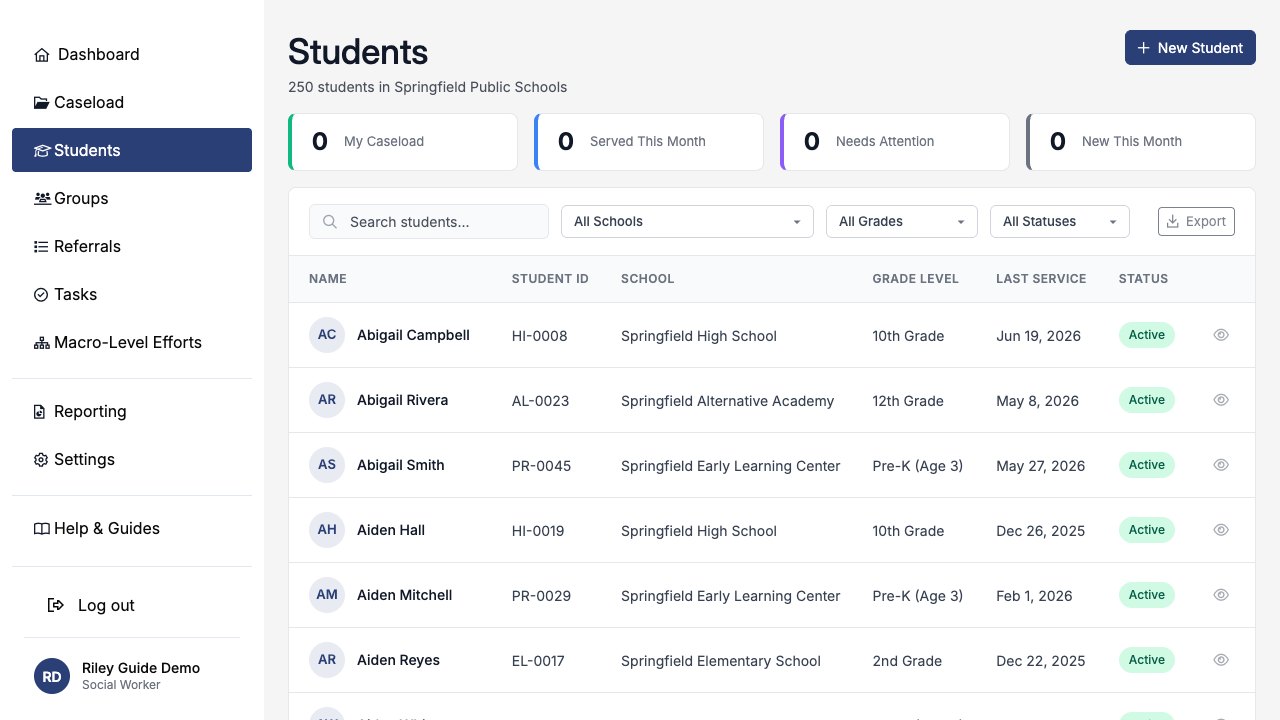
The list shows each student’s name, Student ID, school, grade level, last service date, and enrollment status, 25 students per page in name order. It includes only students at schools you have access to.
Names repeat and get spelled differently. A Student ID is the fastest way to land on the right record.
Create a student
Create a student only after you’ve searched by name and Student ID and confirmed the student isn’t already in SocialNote.
- On the Students page, select New Student.
- Under Personal Information, enter the student’s Name. Add date of birth, pronouns, gender, and primary language if you know them.
- Under School Information, choose the School, enter the Student ID, and choose the Enrollment Status. Add grade level and graduation year if you know them.
- Complete any contact, support plan, demographic, and cultural details your district records. These are all optional.
- Save. SocialNote opens the new student’s profile and shows Student created successfully.
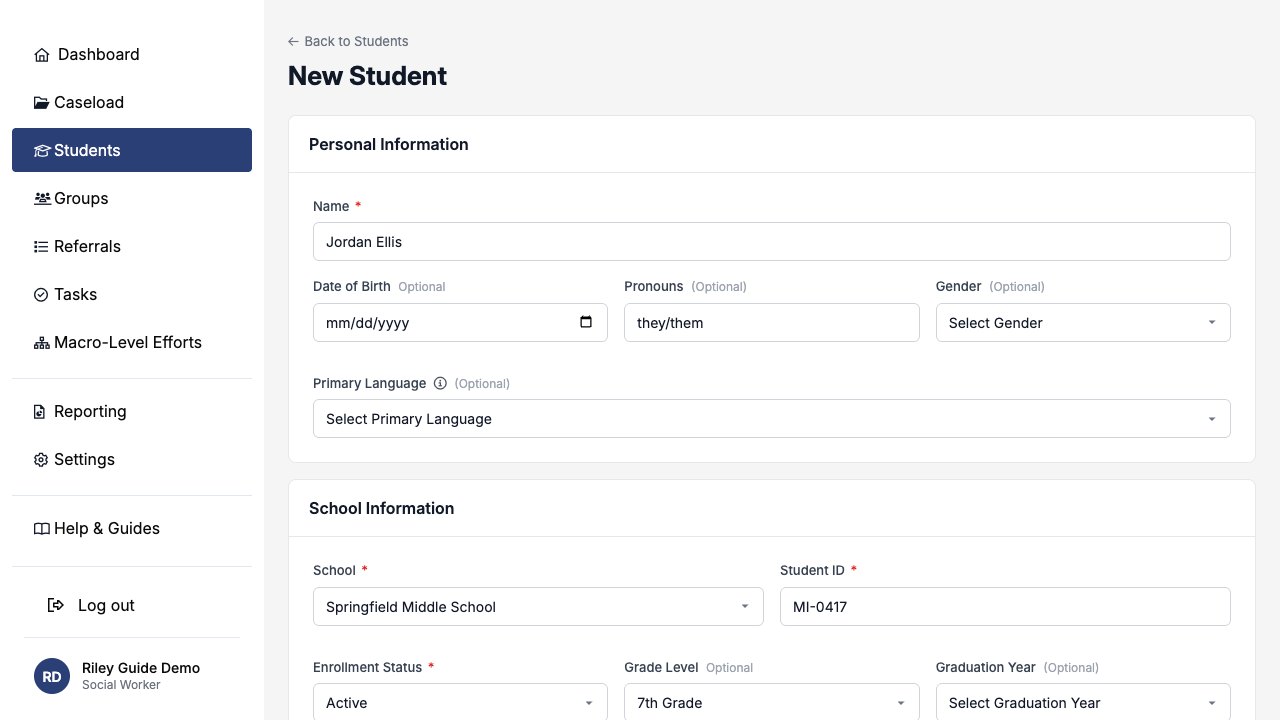
Name, School, Student ID, and Enrollment Status are required. The School list includes only active schools you have access to.
If you’ll be supporting the student, add them to your caseload from their profile. Add parents or guardians in Family Contacts.
Student ID rules
The Student ID is the district-issued identifier for the student. SocialNote uses it to keep each student to one record.
| Rule | What it means for you |
|---|---|
| Required for new students | The form won’t save without it and shows Student ID is required. |
| Unique within your district | SocialNote won’t save a student whose Student ID is already used by another student in your district, at any school. Capitalization doesn’t matter, so ab1234 and AB1234 count as the same ID. |
| Kept once entered | If a student has a Student ID, you can correct it but you can’t clear it. |
| Optional for older records without one | Some students, such as records moved from SocialNote 1.0, don’t have a Student ID. The Students list shows Not recorded, and their edit form shows the field as Optional, so you can still save other changes. Add the ID when you know it. See Moving From SocialNote 1.0. |
If the Student ID is already in use
SocialNote shows This Student ID is already in use in your district. This almost always means the student already has a record.
- Search the Students page for that Student ID.
- If you find the student, use that record. Don’t create a new one.
- If you can’t find the student, the record may be at a school you can’t access. Ask your SocialNote administrator to confirm it. Don’t change the ID to get the form to save.
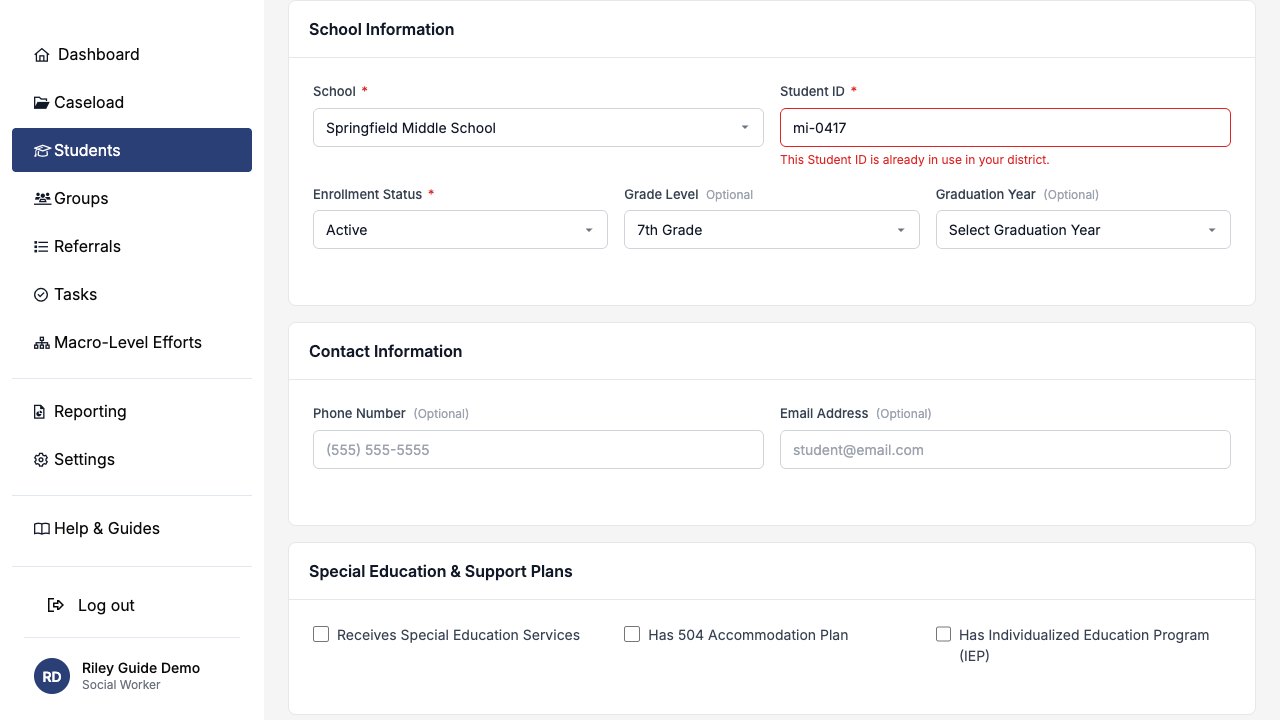
mi-0417 is rejected because MI-0417 already belongs to a student in the district.Read the student profile
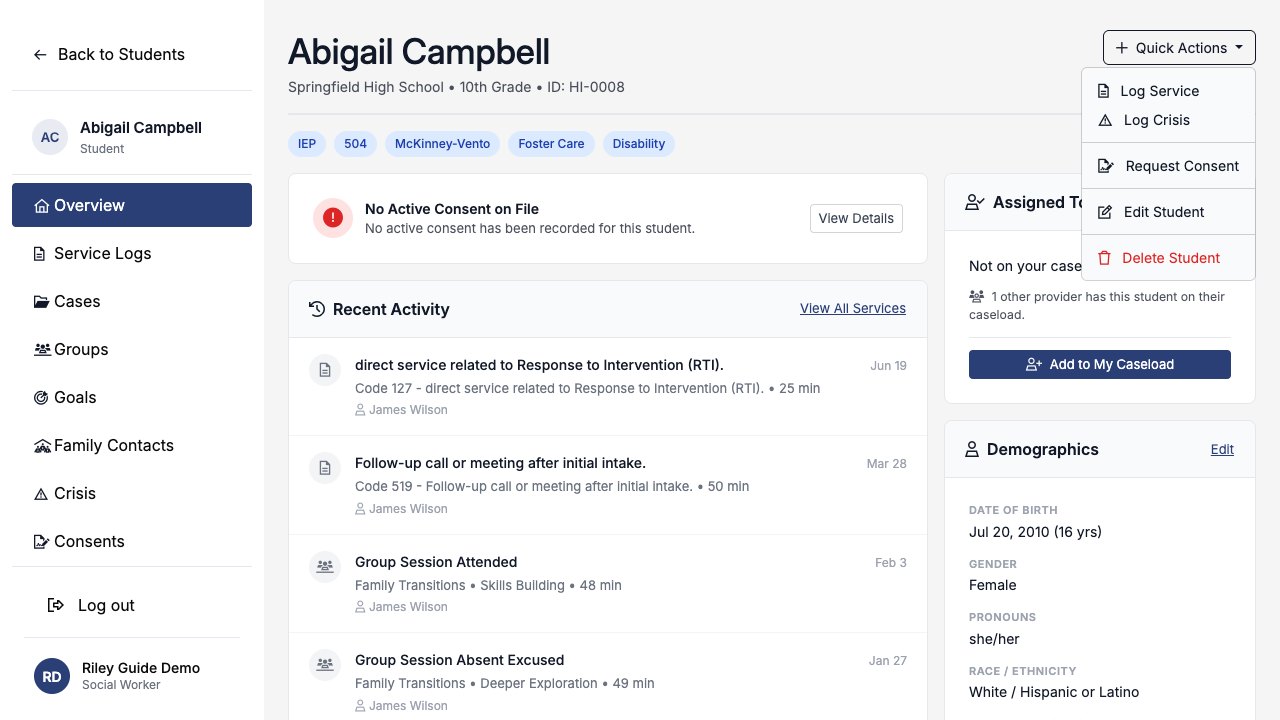
The profile header shows the student’s name, school, grade, and Student ID, with badges for support indicators such as IEP, 504, or foster care. The left sidebar opens each part of the student’s workspace.
| Sidebar item | What you’ll find |
|---|---|
| Overview | Current Release of Information, recent activity, current groups, caseload assignment, demographics, contact info, and family contacts. |
| Service Logs | Individual services documented for the student. See Service Logs. |
| Cases | Cases and Treatment Plans. See Cases. |
| Groups | Groups the student belongs to or attended, including groups migrated from SocialNote 1.0. See Groups. |
| Goals | Student goals and progress. See Goals. |
| Family Contacts | Parents, guardians, emergency contacts, and siblings. See Family Contacts. |
| Crisis | Crisis logs. See Crisis. |
| Consents | Consent requests and history. |
| Release of Information | Authorizations to share information. See Release of Information. |
| Referrals | Referrals linked to the student. See Referrals. |
| Documents | Uploaded files and attachments. |
| Forms | Completed forms for the student. |
Use Quick Actions at the top of the profile to log a service, start a crisis log, request consent, or choose Edit Student.
Keep the record current
- Open the student’s profile.
- Choose Quick Actions → Edit Student, or select Edit on the Demographics card.
- Update the details and save. SocialNote shows Student updated successfully.
Update the record when the student changes schools, grades, or enrollment status, or when you learn about a support plan. Changing the school changes which staff can see the student, so confirm the move before you save.
Use enrollment status instead of deleting
When a student leaves, change their enrollment status. Their history stays intact and they remain searchable.
| Status | Use it when |
|---|---|
| Active | The student is currently enrolled. |
| Inactive | The student isn’t currently attending but hasn’t formally left. |
| Graduated | The student completed school. |
| Transferred | The student moved to another school or district. |
| Withdrawn | The student withdrew from school. |
| Archived | Your district keeps the record for history only. |
Use All Statuses on the Students page to find students who are no longer active.
Delete a student
Deleting a student is permanent and can’t be undone. Use it only for a record created by mistake, such as a duplicate or a test record. For a student who left, change the enrollment status instead.
- Open the student’s profile.
- Choose Quick Actions → Delete Student.
- Read the warning, type the student’s name exactly, and select Delete Student.
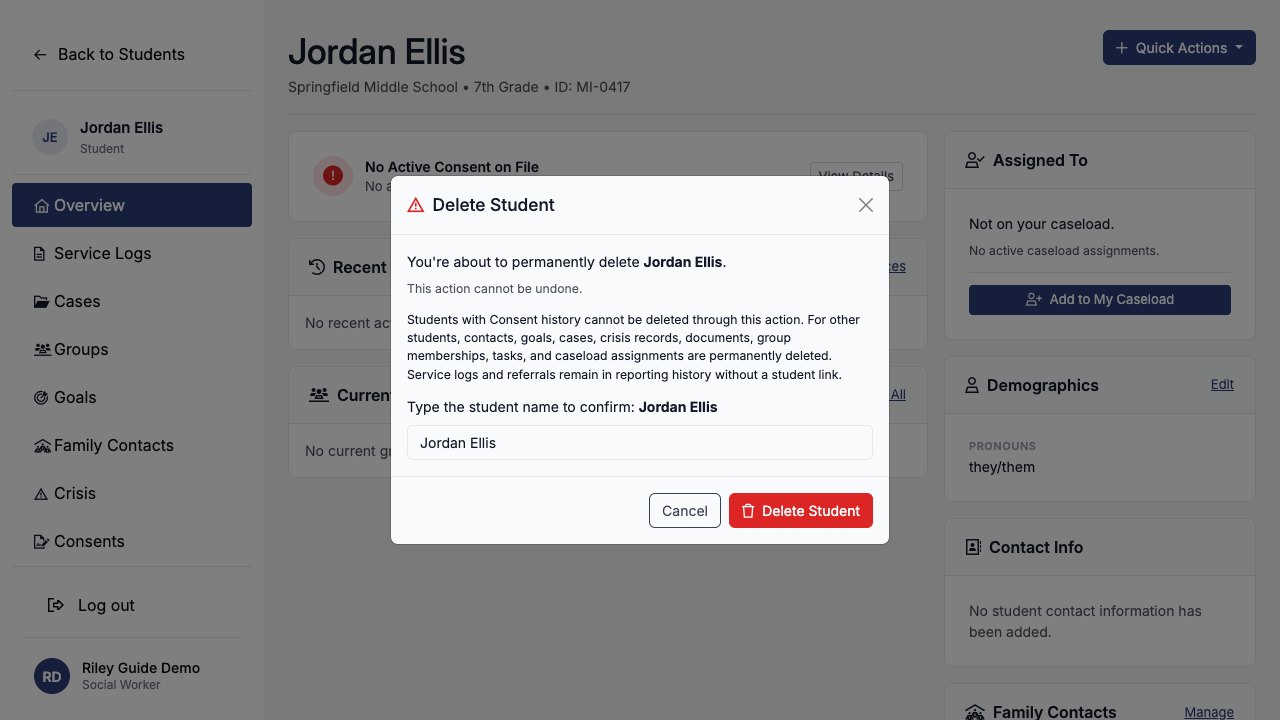
| When a student is deleted | What happens |
|---|---|
| Contacts, goals, cases, crisis records, documents, group memberships, tasks, and caseload assignments | Permanently deleted. |
| Service logs and referrals | Kept in reporting history, but no longer linked to a student. |
If a student has Consent or Release of Information history, including Release of Information history from SocialNote 1.0, SocialNote blocks the deletion so that history is preserved. Change the student’s enrollment status instead. If the record truly has to be removed, contact your SocialNote administrator about your district’s approved data-destruction process.
Who can see a student
- You can see, edit, and delete students only in your own district.
- If your account is limited to certain schools, you see only students at those schools. Students with no school are visible only to staff with access to every school in the district.
- Any staff member with a district account can create a student at a school they have access to.
- Creating, editing, and deleting a student is recorded in the audit log.
To change which schools you can access, ask your SocialNote administrator. See Managing Users.
Completed example
A counselor receives a new student, Jordan Ellis, who just enrolled in 7th grade at Springfield Middle School.
- The counselor searches Students for Jordan’s district ID,
MI-0417. There are no results. - The counselor selects New Student, enters Jordan’s name, chooses Springfield Middle School, enters
MI-0417, sets Enrollment Status to Active, and chooses 7th grade. - The counselor saves, and SocialNote opens Jordan’s profile.
- From the profile, the counselor adds Jordan to her caseload and adds Jordan’s guardian in Family Contacts.
Later that week, a colleague tries to create Jordan again and types mi-0417. SocialNote shows This Student ID is already in use in your district. The colleague searches for the ID, finds Jordan’s existing record, and documents there.
Field reference
| Section | Fields |
|---|---|
| Personal Information | Name (required), Date of Birth, Pronouns, Gender, Primary Language |
| School Information | School (required), Student ID (required, see rules), Enrollment Status (required), Grade Level, Graduation Year |
| Contact Information | Phone Number, Email Address |
| Special Education & Support Plans | Receives Special Education Services, Has 504 Accommodation Plan, Has Individualized Education Program (IEP) |
| Demographic Information | Race, Ethnicity, Student is in foster care, Student is experiencing homelessness, Student has a disability |
| Cultural and Language Information | Country of Origin, Socioeconomic Status, Family Structure, ELL Status, Religious/Cultural Background |
Demographic and support-plan details feed the demographic breakdowns in Reporting. Record them carefully and only from reliable sources.