Managing Your Caseload
How to maintain your student list, monitor assigned cases and follow-ups, recognize students who need contact, and close out your responsibility appropriately.
What your caseload is
Your caseload is your personal working list of students for whom you have an ongoing support or follow-up responsibility. It brings those students, your assigned cases, and your upcoming work into one focused workspace.
| Caseloads do | Caseloads do not |
|---|---|
| Give you a personal list of students to monitor. | Make you the only staff member who may support a student. |
| Surface your follow-ups, service activity, and open-case counts. | Automatically create a case, goal, task, or service. |
| Keep a history of when a student entered and left your caseload. | Replace the student’s full record or the district’s assignment procedures. |
Your assignment belongs to you. Adding or removing the student does not add or remove them from a colleague’s caseload.
When to add a student
Add a student when you are responsible for ongoing outreach, service delivery, monitoring, or coordination. Simply viewing a record or completing a one-time consultation does not necessarily require a caseload assignment.
Add a student from their profile
- Open Students and find the student by name, ID, school, or grade.
- Open the student profile and verify that it is the correct student.
- Find the Assigned To card.
- Select Add to My Caseload.
- Confirm that your name and the assignment date now appear in the card.
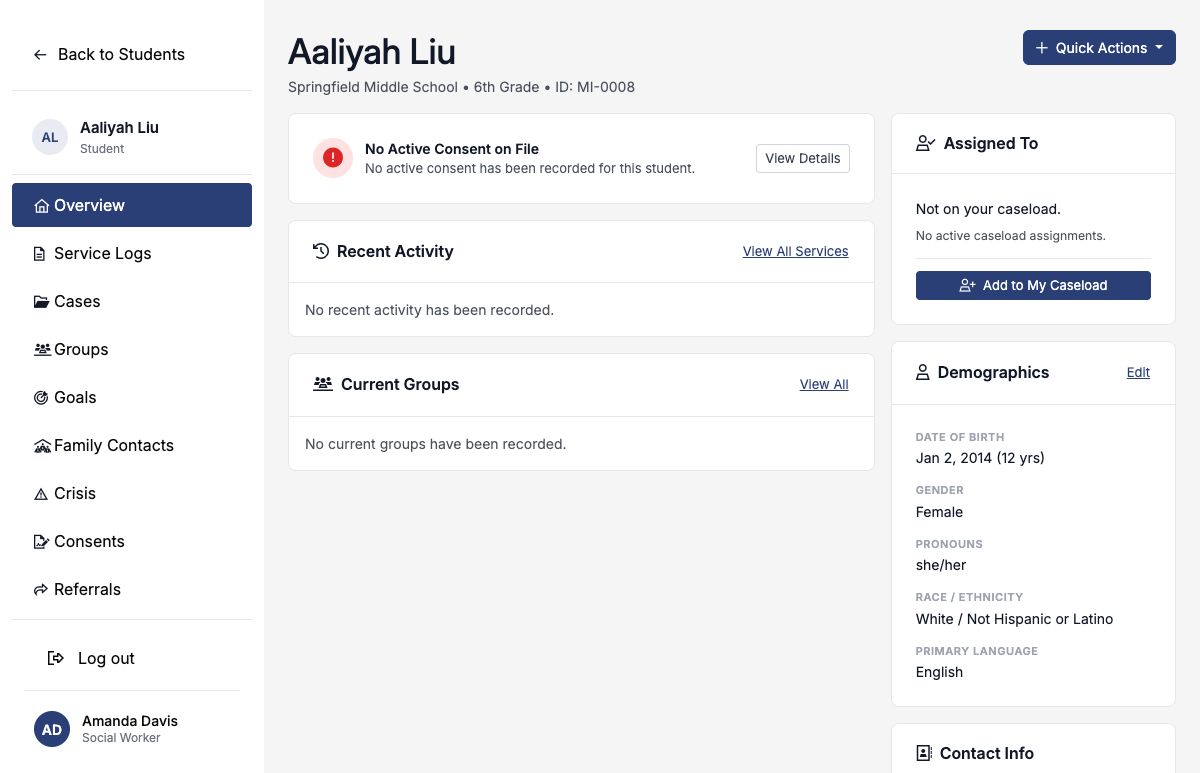
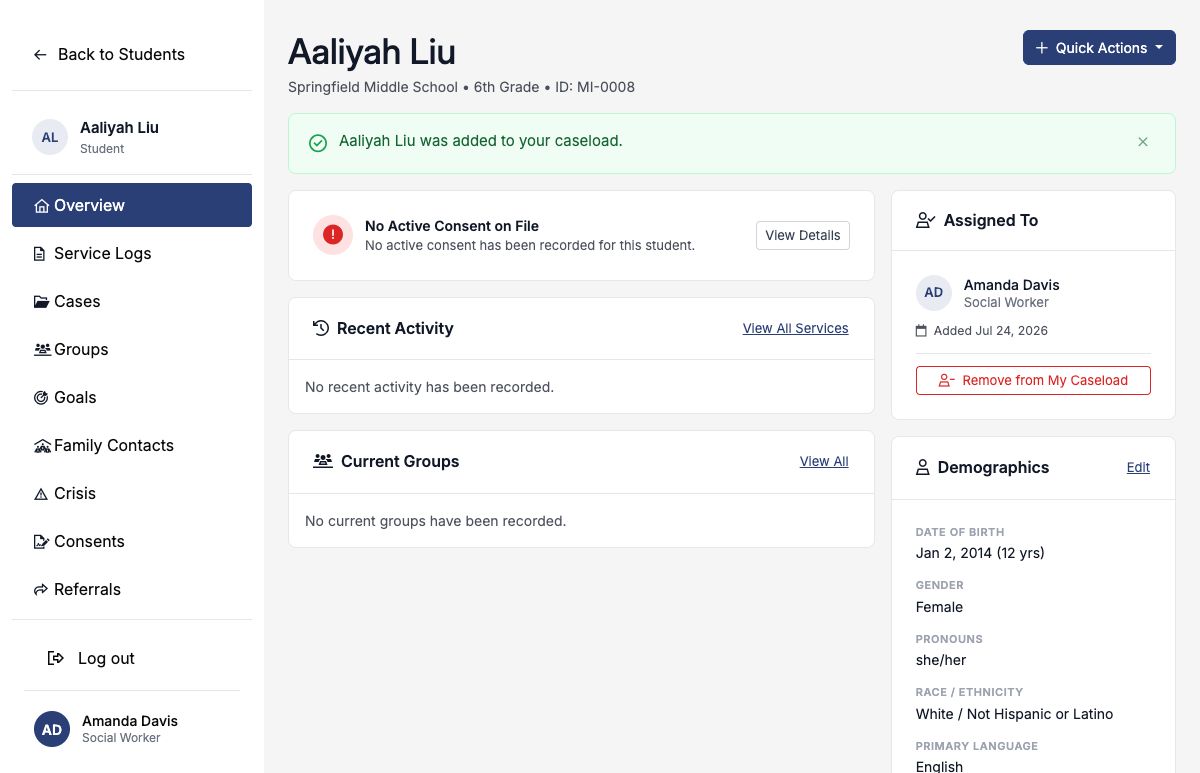
Caseload additions are limited to students in your district and schools you may access, but similar names can still occur within that scope. Compare school, grade, and student ID.
Understand the Caseload workspace
Open Caseload from the main navigation. The summary cards and tab counts are scoped to your own accessible work.
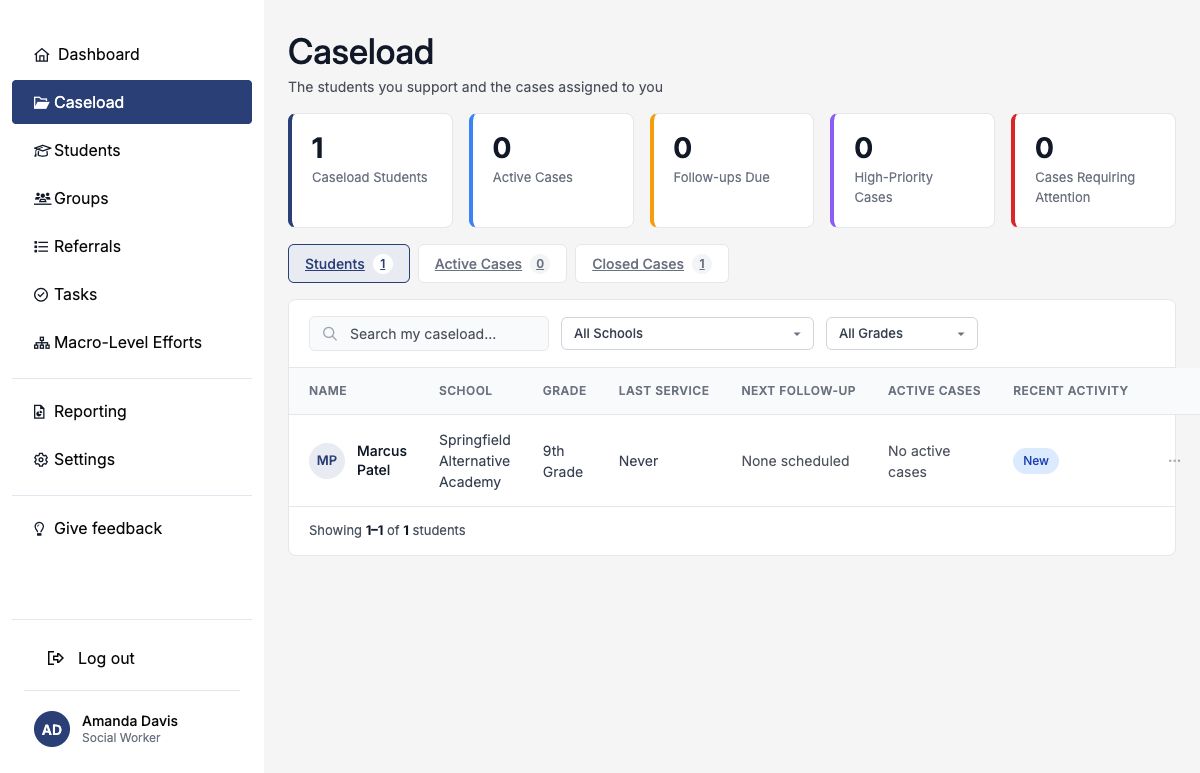
| Summary card | What it counts |
|---|---|
| Caseload Students | Your active student caseload entries that remain within your district and school access. |
| Active Cases | Open cases assigned to you. |
| Follow-ups Due | Your incomplete follow-up tasks due today or overdue for students on your caseload. |
| High-Priority Cases | Your open cases with High or Urgent priority. |
| Cases Requiring Attention | Your open cases whose student has one of your follow-up tasks due today or overdue. |
Caseload Students comes from students you added to your caseload. The case cards and case tabs come from cases assigned to you.
Work the Students tab
The Students tab is your active caseload list. Search by student name or student ID, or filter by school and grade.
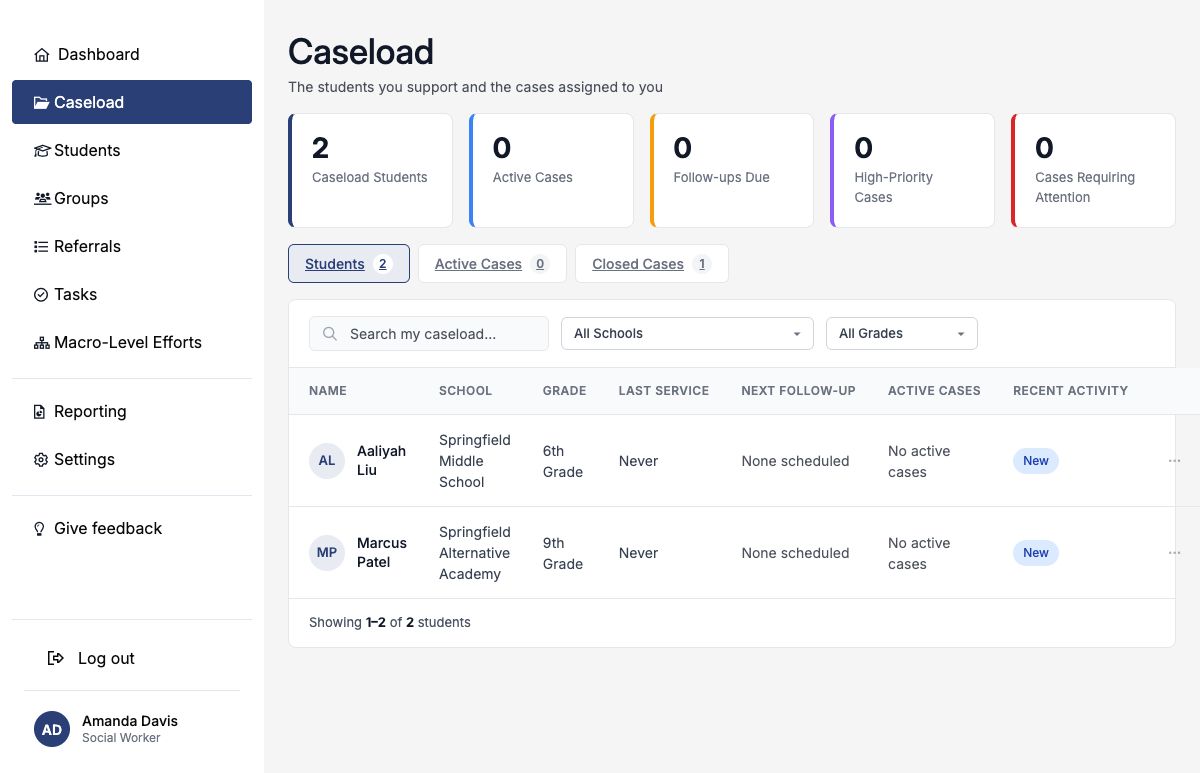
| Column | How to use it |
|---|---|
| Last Service | The latest service-log date for the student, regardless of which caseload row you are viewing. |
| Next Follow-up | Your earliest incomplete follow-up task for the student; overdue dates are highlighted. |
| Active Cases | The number of your own open cases for the student. |
| Recent Activity | A quick indicator based on assignment date and recent service contact. |
| Actions | Open the profile or remove the student from your caseload. |
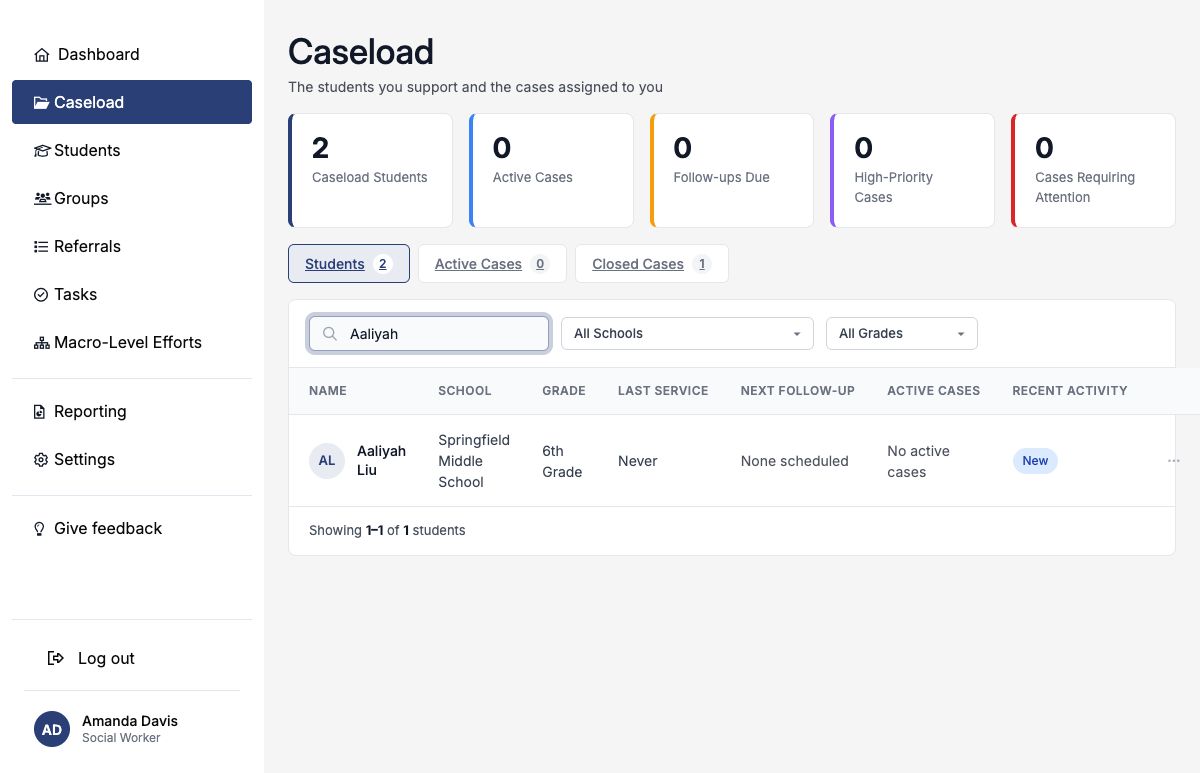
Select a student row to open the full profile, where you can review services, cases, goals, consents, referrals, family contacts, and other authorized information.
Use activity indicators as prompts
| Indicator | Meaning | Suggested response |
|---|---|---|
| New | The student was added to your caseload within the last 14 days. | Confirm the reason for assignment and record the first planned action. |
| Active | The student has a service logged within the last 14 days and is no longer in the New period. | Continue the plan and keep the next follow-up current. |
| Needs Contact | The assignment is older than 14 days and no service has been logged within the last 14 days. | Review whether contact, documentation, or caseload closure is needed. |
It is based on dates. Review the student’s actual plan and circumstances before deciding what action is appropriate.
Work your Active and Closed Cases tabs
The Active Cases and Closed Cases tabs list cases assigned to you. Search by student or case number, then filter by school, status, or priority.
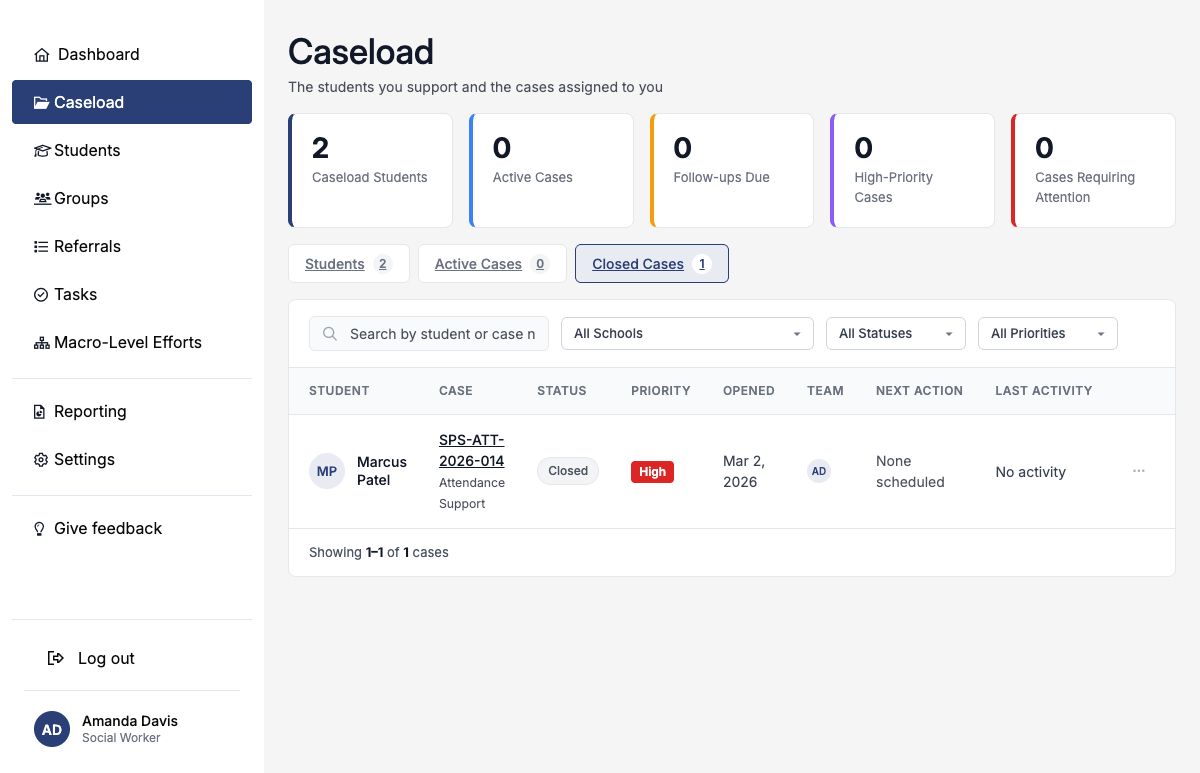
Use Active Cases for current intervention work and Closed Cases when you need to review completed or transferred history. See the Cases guide for opening, working, and closing a case.
A suggested daily caseload routine
- Review Follow-ups Due and Cases Requiring Attention.
- Scan the Students tab for overdue dates and Needs Contact indicators.
- Open the relevant student or case and confirm the next action.
- Complete the outreach, service, or coordination work.
- Log the service or communication and update the related task or case.
- Remove students whose ongoing responsibility has ended, recording a useful reason and note.
The caseload workspace reads follow-up dates from your incomplete follow-up tasks and recent activity from service logs. Timely documentation makes the workspace more useful.
Remove a student responsibly
Open the row’s action menu or the student’s Assigned To card and select Remove from My Caseload. A closure reason and exit note are optional, but they make the history more useful.
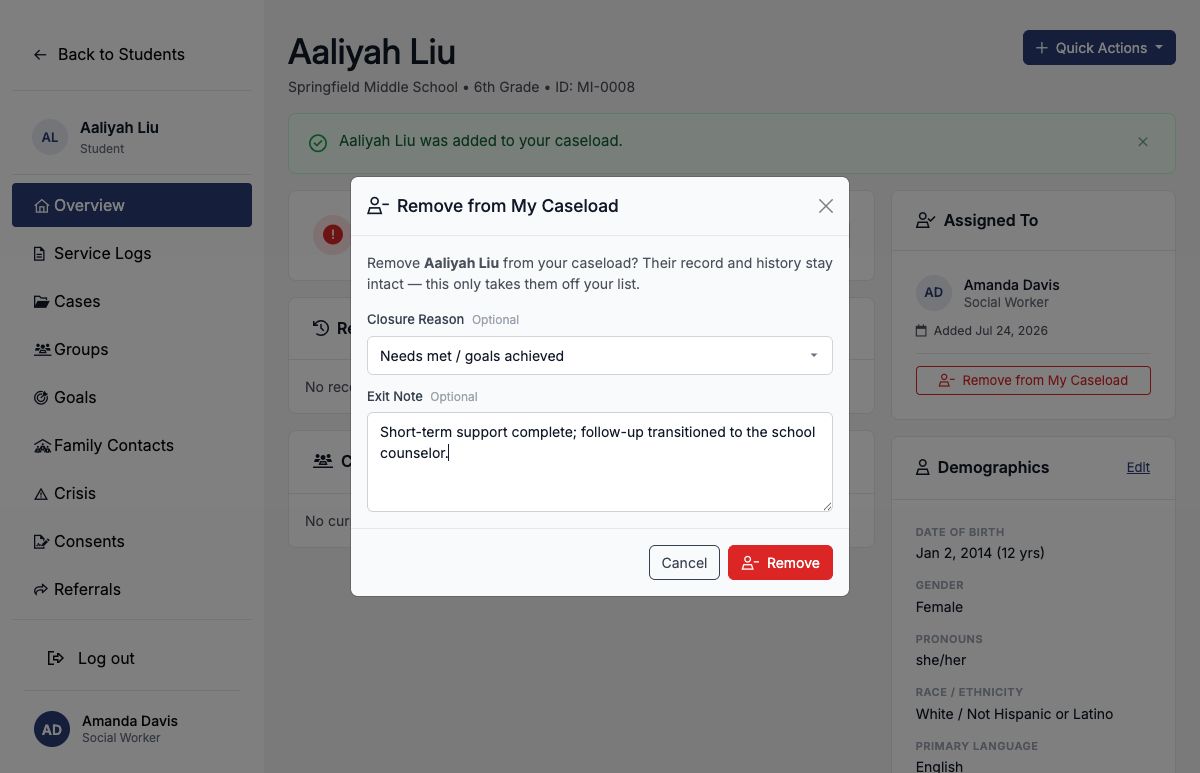
| What removal does | What removal does not do |
|---|---|
| Ends your active caseload assignment and records the removal date. | Delete the student or any student history. |
| Stores the optional closure reason and exit note. | Close cases, goals, tasks, or referrals automatically. |
| Removes the student from your active Students tab. | Remove the student from another provider’s caseload. |
If responsibility returns later, you may add the student again. SocialNote creates a new active assignment and preserves the earlier entry-and-exit history.
Access and shared students
- Any authenticated user may manage their own caseload.
- You may add only students in your district and within your school access.
- Your Caseload workspace does not display a colleague’s caseload.
- The student profile may show how many other providers currently carry the student without exposing their names in that summary.
- Authorized cross-staff caseload review belongs in the Caseload by Staff reporting area.
Good caseload practice
- Add students only when you have an ongoing responsibility.
- Confirm student identity before adding.
- Use follow-up tasks for the next concrete action.
- Log services promptly so recent-activity indicators remain meaningful.
- Keep case status and priority aligned with current work.
- Review Needs Contact students rather than treating the badge as an automatic conclusion.
- Remove students when responsibility ends instead of leaving inactive work on the list.
- Record a closure reason and concise exit note whenever practical.