Goals
How to write a measurable student goal, log progress against it, and close it out — with a full worked example.
What a goal is
A goal in SocialNote is a measurable target attached to one student. It answers four questions:
- Where is the student now? — the baseline
- Where do we want them to be? — the target
- By when? — the target date
- How will we know? — the measurement method and success criteria
Because every goal carries a numeric baseline and a numeric target, SocialNote can calculate progress for you. Each time you log a measurement, the system works out how far along the goal is and labels it Not Started, Improving, No Progress, Regressing, or Met. Those labels roll up into district-level Goal Outcomes reporting, so the care you take writing a goal is what makes reporting meaningful later.
A case is the container for your work with a student. A service log records a session you delivered. A goal is the outcome you are steering toward. Goals and service logs are linked to each other so you can show how much service time went into a given outcome.
Finding goals
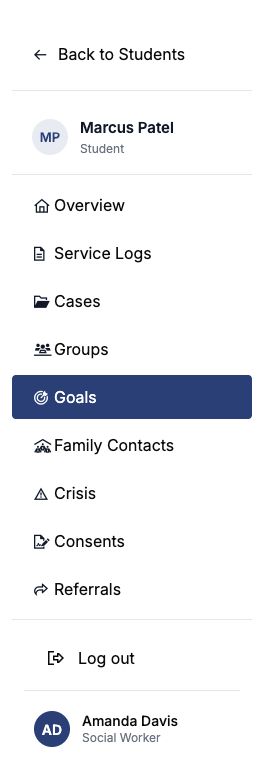
Goals always live under a student. Open the student, then choose Goals in the student sidebar.
The Goals list
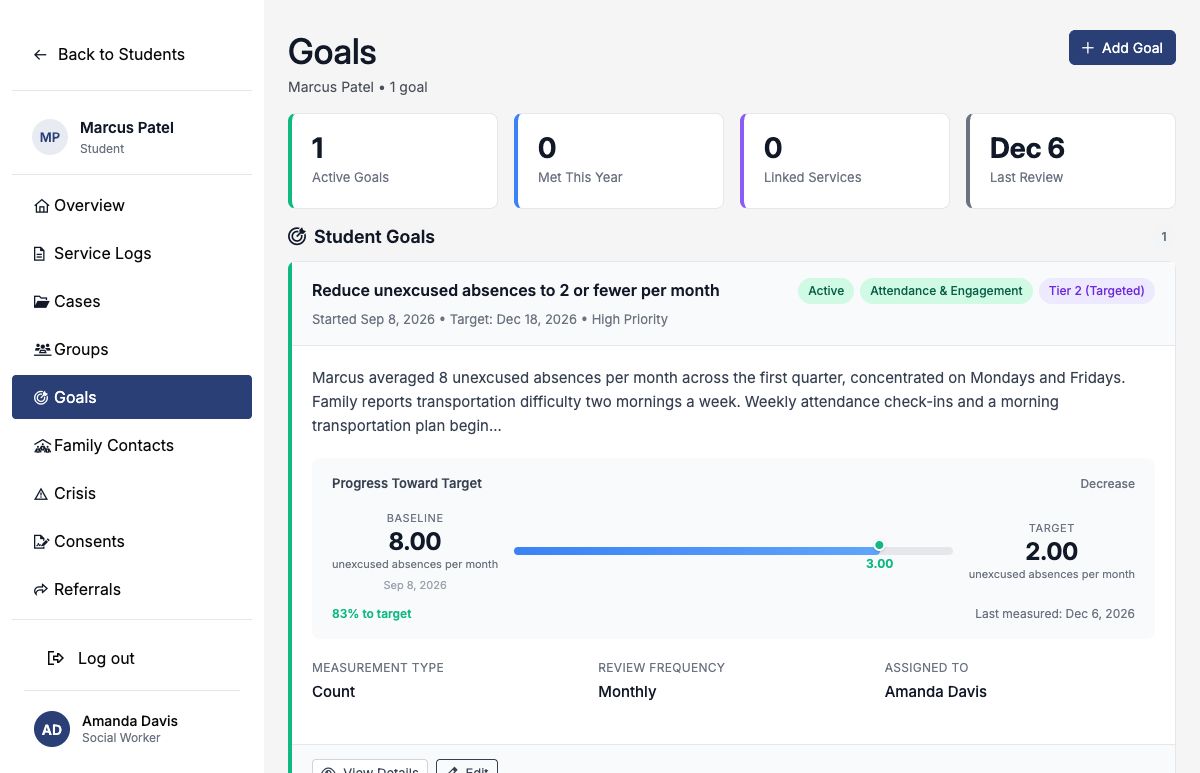
The Goals page opens with four summary tiles across the top, then a card for each goal.
| Tile | What it counts |
|---|---|
| Active Goals | Goals whose status is Active — still being worked. |
| Met This Year | Goals closed with a status of Met. |
| Linked Services | Total service log links across all of this student's goals. |
| Last Review | The most recent progress entry date on any of this student's goals. |
Each goal card shows the title, status, domain, MTSS tier, priority, and a progress bar. Click the title to open the goal. Use Add Goal at the top right to create a new one.
Creating a goal
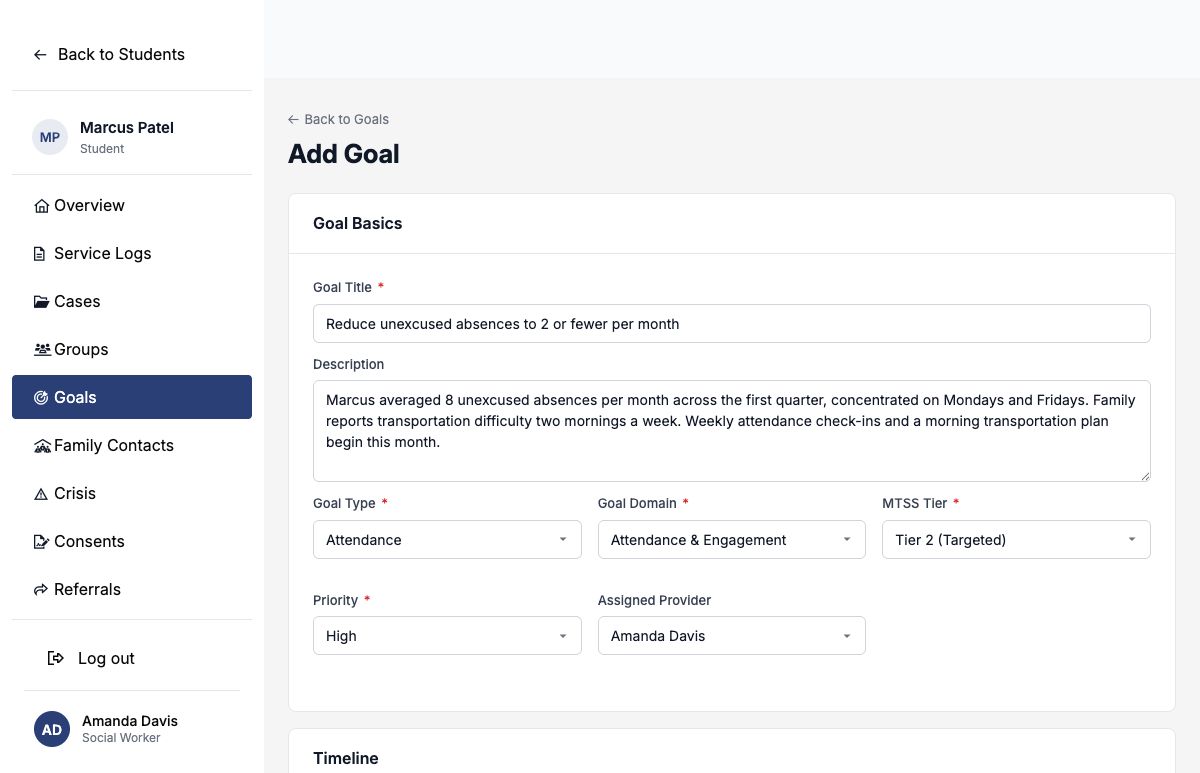
Click Add Goal. The form is grouped into four sections. Fields marked * are required.
1. Goal Basics
| Field | What to enter |
|---|---|
| Goal Title * | One sentence naming the outcome, not the activity. Prefer "Reduce unexcused absences to 2 or fewer per month" over "Attendance check-ins." You will need to retype this exactly if you ever delete the goal, so keep it readable. |
| Description optional | Context a colleague would need to pick this up: what's driving the concern, what's been tried, relevant history. Encrypted at rest. |
| Goal Type * | Broad category: Academic, Behavioral, Social-Emotional, or Attendance. |
| Goal Domain * | The finer-grained bucket used in reporting — Academic Support, Attendance & Engagement, Behavior & Self-Regulation, Mental Health & Emotional Well-Being, Social Skills & Relationships, Family Support, Basic Needs & Resources, College & Career Readiness, or Other. Pick deliberately; the Goal Outcomes by Domain report groups on this. |
| MTSS Tier * | Tier 1 (Universal), Tier 2 (Targeted), or Tier 3 (Intensive) — the intensity of support this goal represents. |
| Priority * | Low, Medium, High, or Urgent. Defaults to Medium. This is for your own triage; it does not change any calculation. |
| Assigned Provider optional | Who owns this goal. Leave it on Assign to me to take it yourself. The list shows active staff in the student's district who have access to that student's school. |
New goals are always created as Active. The Status dropdown (Active / Met / Not Met / Paused) shows up on the edit form, so you can pause a goal without closing it.
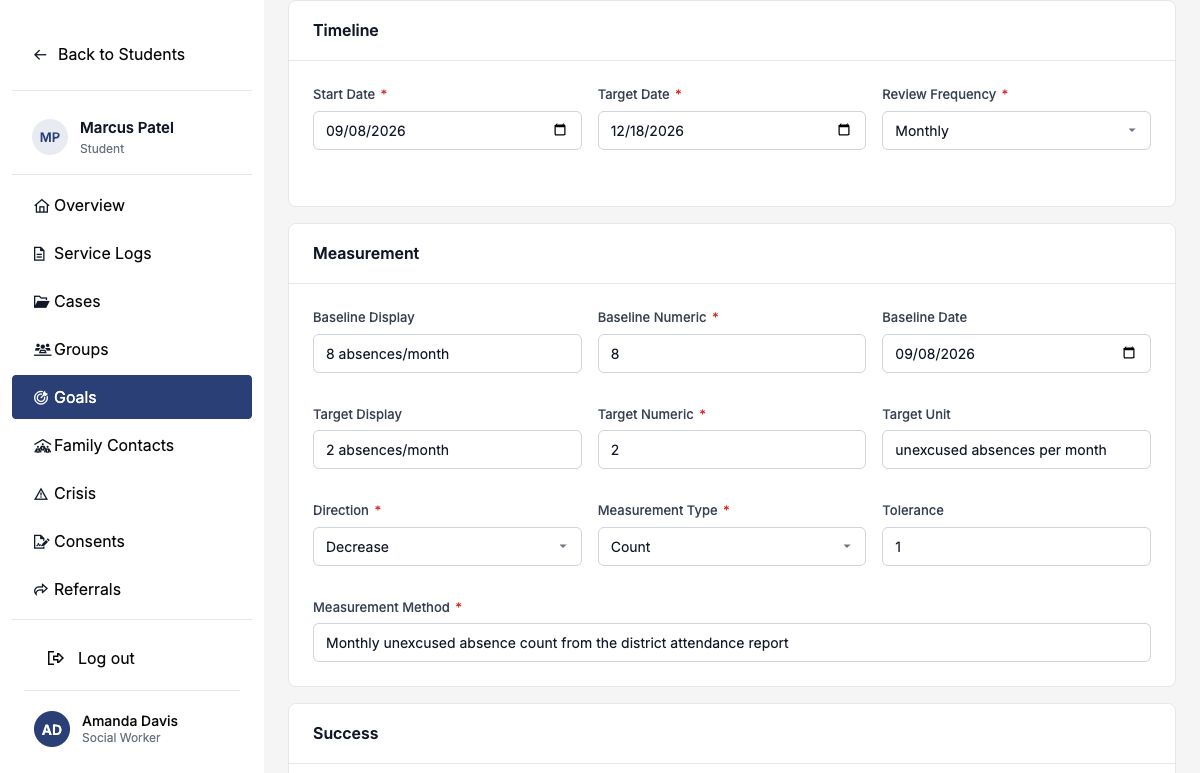
2. Timeline
| Field | What to enter |
|---|---|
| Start Date * | When the goal period begins. Defaults to today. SocialNote uses this date to file the goal under the right academic year automatically. |
| Target Date * | When you expect the target to be reached. Must be on or after the start date. A grading period or semester end is usually a good choice. |
| Review Frequency * | Weekly, Monthly, or Quarterly. Drives the "Next Review Due" reminder on the goal page. |
3. Measurement
This is the section that makes the goal calculable. Each value has a numeric field (used for math) and an optional display field (shown to humans).
| Field | What to enter |
|---|---|
| Baseline Display optional | The starting point in plain language — 8 absences/month. |
| Baseline Numeric * | The same starting point as a bare number — 8. Required. |
| Baseline Date optional | When the baseline was measured. Defaults to today. |
| Target Display optional | The target in plain language — 2 absences/month. |
| Target Numeric * | The target as a bare number — 2. Required. |
| Target Unit optional | What the numbers are counted in — unexcused absences per month. Displayed next to the numbers on the goal page. |
| Direction * | Increase, Decrease, or Maintain. This tells SocialNote which way is "better" — get it wrong and improvement will read as regression. |
| Measurement Type * | Frequency, Percent, Scale, Count, Days, or Custom. A label for the kind of number you're tracking. |
| Tolerance optional | A margin around the baseline, in the same units. Movement inside this margin counts as no real change rather than improvement or regression. See How progress is calculated. |
| Measurement Method * | Where the number comes from — Monthly attendance report from PowerSchool. Be specific enough that a colleague could pull the same number. |
4. Success
| Field | What to enter |
|---|---|
| Success Criteria * | The written condition for calling this goal met — including how long the change has to hold. Encrypted at rest. |
| Framework Alignment optional | A standard or framework this maps to, such as an ASCA mindset/behavior standard or an IEP objective number. |
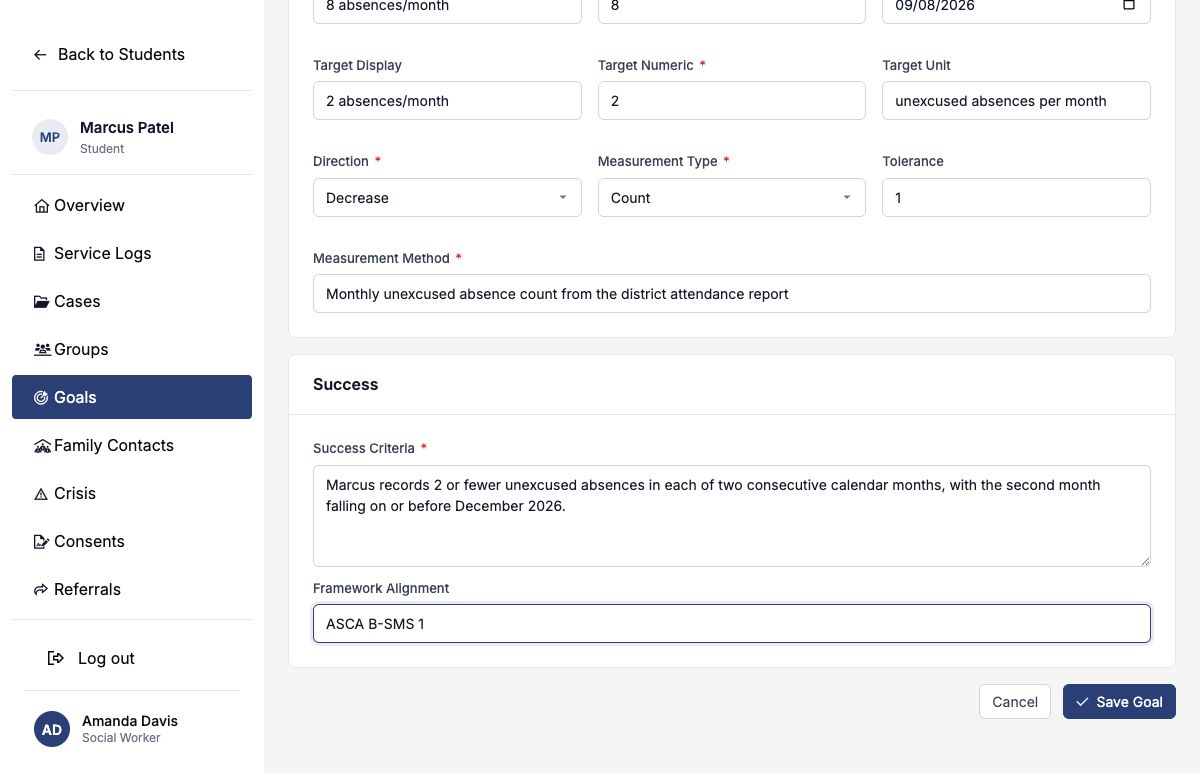
Worked example: reducing absences
Marcus is a 9th grader averaging eight unexcused absences a month. You're picking him up for Tier 2 attendance support this semester. Here is the goal, field by field.
- Goal Title
- Reduce unexcused absences to 2 or fewer per month
- Description
- Marcus averaged 8 unexcused absences per month across the first quarter, concentrated on Mondays and Fridays. Family reports transportation difficulty two mornings a week. Weekly attendance check-ins and a morning transportation plan begin this month.
- Goal Type
- Attendance
- Goal Domain
- Attendance & Engagement
- MTSS Tier
- Tier 2 (Targeted)
- Priority
- High
- Assigned Provider
- Assign to me
- Start Date
- 2026-09-08
- Target Date
- 2026-12-18
- Review Frequency
- Monthly
- Baseline Display
- 8 absences/month
- Baseline Numeric
- 8
- Baseline Date
- 2026-09-08
- Target Display
- 2 absences/month
- Target Numeric
- 2
- Target Unit
- unexcused absences per month
- Direction
- Decrease
- Measurement Type
- Count
- Tolerance
- 1
- Measurement Method
- Monthly unexcused absence count from the district attendance report
- Success Criteria
- Marcus records 2 or fewer unexcused absences in each of two consecutive calendar months, with the second month falling on or before December 2026.
- Framework Alignment
- ASCA B-SMS 1
Month-to-month attendance bounces around for reasons that have nothing to do with the intervention — a single illness, a short month. Setting tolerance to 1 means a month at 7 or 8 absences reads as No Progress rather than being celebrated as improvement or flagged as regression. A move to 6 is real movement, and that's what gets labeled Improving.
How progress is calculated
Every time you log a progress entry, SocialNote compares three numbers — the baseline, the target, and the value you just logged — and produces a percentage plus a status. The percentage is always clamped between 0% and 100%.
Decrease goals
percent = (baseline − current) ÷ (baseline − target) × 100Then the status, checked in this order:
| Condition | Status | Meaning |
|---|---|---|
| current ≤ target | Met | Target reached. |
| current < baseline − tolerance | Improving | Meaningfully below the starting point. |
| current ≤ baseline + tolerance | No Progress | Still inside the noise band around baseline. |
| anything higher | Regressing | Moving away from the target. |
Running Marcus's goal — baseline 8, target 2, tolerance 1 — through a semester:
| Month logged | Value | Percent | Status | Why |
|---|---|---|---|---|
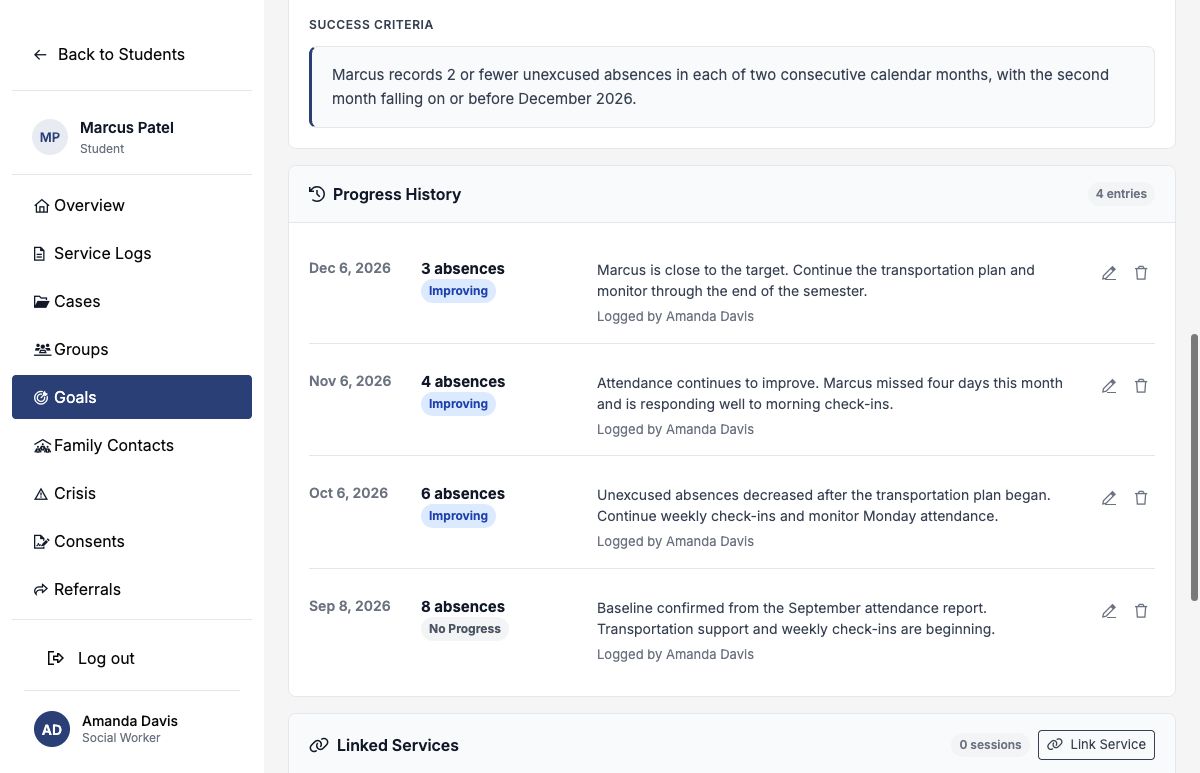
| September | 8 | 0% | No Progress | Inside the tolerance band around baseline. |
| October | 6 | 33% | Improving | Below 8 − 1, so it counts as real movement. |
| November | 4 | 67% | Improving | Two thirds of the way from 8 down to 2. |
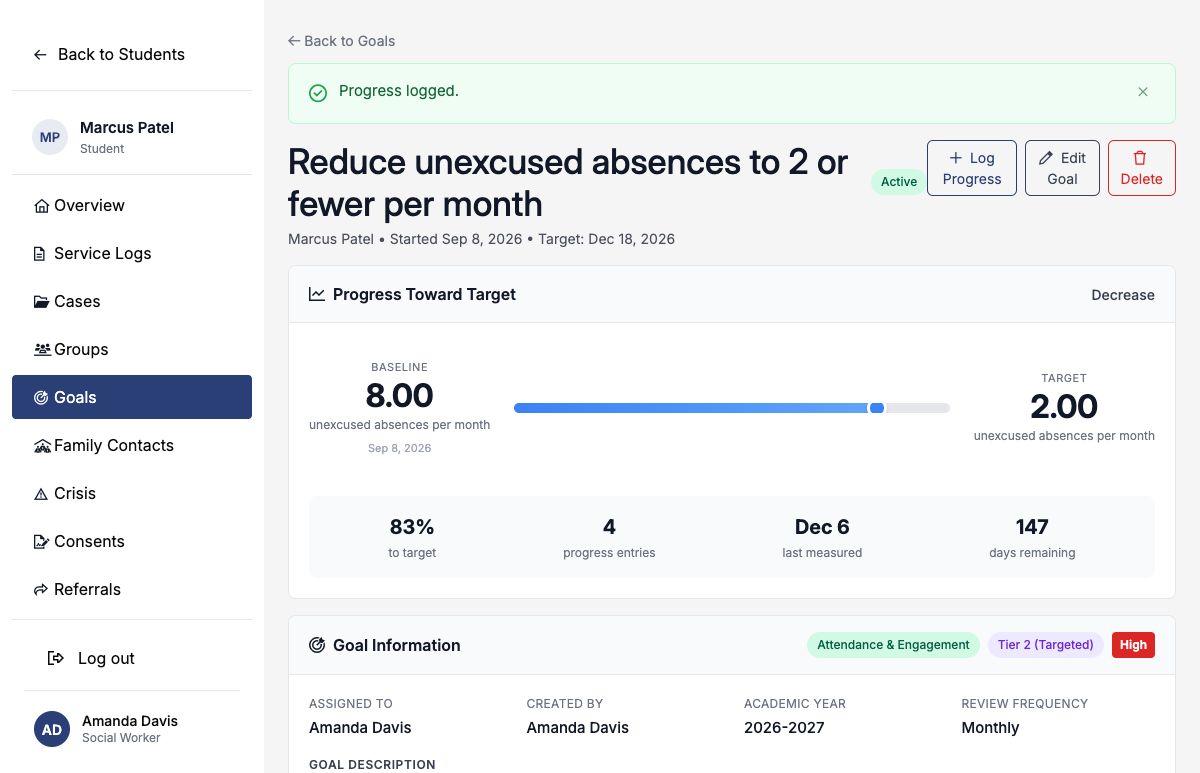
| December review | 3 | 83% | Improving | Close to the target, but not there yet. |
| December target date | 2 | 100% | Met | Reached the numeric target. |
Had November come in at 10, the raw percentage would be negative, so it clamps to 0%, and because 10 is above 8 + 1 the entry would be labeled Regressing.
Increase goals
percent = (current − baseline) ÷ (target − baseline) × 100Same logic mirrored: Met once current reaches or passes the target, Improving once it rises above baseline + tolerance, No Progress while it stays within tolerance of baseline, and Regressing if it falls below that band.
Maintain goals
Maintain goals ignore the target entirely and only ask whether the student has stayed near the baseline. If the current value is within tolerance of the baseline, the goal is Met at 100%. Otherwise it is Regressing at 0% — there is no middle ground.
With tolerance left blank it is treated as zero, so any movement off the baseline — even by 0.5 — flags the goal as Regressing. If you want a student to hold at roughly 90% attendance, set the baseline to 90 and the tolerance to something like 3.
Each progress entry keeps its own calculated status and percentage, so the history shows the trajectory. SocialNote recalculates the goal summary whenever an entry is saved. When entering historical measurements, save them in chronological order so the headline percentage stays aligned with the latest dated measurement. The workflow status remains Active until the goal is edited or formally closed.
Logging progress
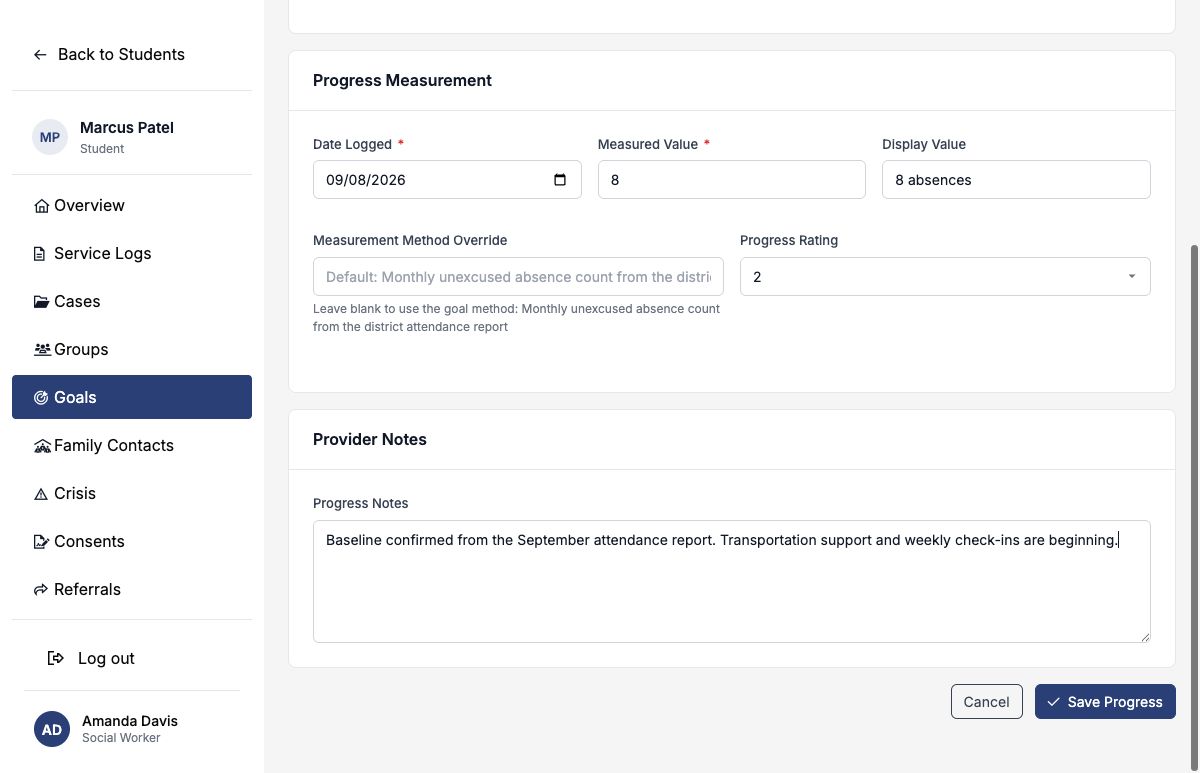
From the goal page, click Log Progress. The form shows the goal's baseline, current value, and target for context, then asks for the new measurement.
| Field | What to enter |
|---|---|
| Date Logged * | The date the measurement applies to — not necessarily today. Defaults to today. |
| Measured Value * | The number. This is what drives the calculation. For Marcus in October, 6. |
| Display Value optional | A human-readable version shown in the history — 6 absences. |
| Measurement Method Override optional | Only if this particular number came from somewhere other than the goal's usual method. Leave blank to use the goal's method. |
| Progress Rating optional | Your own 1–5 read on how things are going. Purely subjective context — it does not affect the calculated status or percentage. |
| Progress Notes optional | What's behind the number: what you tried, what shifted, what's in the way. Encrypted at rest. |
Saving recalculates the goal's status and percentage immediately and stamps the goal's "last measured" date.
Linking services to a goal
Service logs record the sessions you deliver. Linking them to a goal connects the effort to the outcome — how many sessions and how many minutes went into this particular target.
- Open the goal and find the Linked Services card.
- Click Link Service. You'll see recent service logs for this student that aren't already linked to this goal.
- Tick every session that contributed to this goal, then save.
A service log can be linked to more than one goal, which is normal — a single check-in often serves both an attendance goal and a social-emotional one.
Only existing service logs for this student that are not already linked to this goal are offered. Record the service first, then return to Link Service.
Reviewing a goal
At the bottom of the goal page, a Next Review Due note calculates when the next progress check should happen: the date of the most recent progress entry (or the goal's start date, if there is none yet) plus the review frequency. A monthly goal last measured on October 6 is due again on November 6.
The goal page also carries a Linked Outcome Measures card. This displays external assessment data associated with the goal; it is read-only from this screen.
Closing a goal
When a goal period ends — met or not — close it rather than leaving it Active. Closing is what feeds accurate district reporting.
The closing workflow below reflects SocialNote's intended behavior. In the July 2026 local build, the Close Goal card is visually collapsed. Correct that UI issue before distributing this section as an actionable workflow.
Use the Close Goal form on the goal page. You'll choose a closure reason and can add a summary.
| Closure Reason | Resulting status | When to use it |
|---|---|---|
| Met | Met at 100% | Success criteria satisfied. |
| Not Met | Not Met | Goal period ended without reaching the target. |
| Referred Out | Not Met | Handed to an outside provider or agency. |
| Moved | Not Met | Student left the school or district. |
| Escalated Tier | Not Met | Support intensified; a new goal at a higher tier replaces this one. |
| Other | Not Met | Anything else — explain in the summary. |
Every other closure reason records the goal as Not Met, including Referred Out, Moved, and Escalated Tier. That's a reporting decision, not a judgment on your work — the target wasn't reached at this tier. Use the closure summary to record what actually happened, because the reason code alone won't tell that story.
Once closed, the goal keeps a Goal Closure card showing the date, reason, who closed it, and the summary.
Deleting a goal removes it and its progress history permanently, and requires you to retype the goal title exactly to confirm. Close goals; delete only genuine mistakes.
More examples
Increase — classroom participation
| Title | Increase voluntary class participation to 4 times per week |
| Domain / Tier | Social Skills & Relationships · Tier 2 (Targeted) |
| Baseline → Target | 1 → 4 (unit: voluntary contributions per week) |
| Direction / Type | Increase · Frequency |
| Tolerance | 0.5 |
| Method | Weekly teacher tally sheet, collected each Friday |
| Success criteria | Four or more voluntary contributions per week for three consecutive weeks. |
Decrease — office discipline referrals
| Title | Reduce office discipline referrals to 0 per month |
| Domain / Tier | Behavior & Self-Regulation · Tier 3 (Intensive) |
| Baseline → Target | 5 → 0 (unit: office referrals per month) |
| Direction / Type | Decrease · Count |
| Tolerance | 0 |
| Method | Monthly discipline report from the student information system |
| Success criteria | Zero office discipline referrals in two consecutive months. |
Maintain — holding an attendance gain
| Title | Maintain attendance at or above 92% through spring semester |
| Domain / Tier | Attendance & Engagement · Tier 1 (Universal) |
| Baseline → Target | 92 → 92 (unit: % days present) |
| Direction / Type | Maintain · Percent |
| Tolerance | 3 |
| Method | Monthly attendance percentage from the district attendance report |
| Success criteria | Monthly attendance stays between 89% and 95% for the full semester. |
Who can do what
| Action | Who |
|---|---|
| View goals | Any staff member in the student's district who has access to that student's school. |
| Create a goal | Same as above. |
| Edit, close, or log progress | The goal's creator, the assigned provider, or an administrator. |
| Delete a goal | The goal's creator or an administrator. |
If the Log Progress and Edit buttons aren't visible on a goal, it's because the goal belongs to another provider. Ask them to reassign it, or have an administrator make the change.
Goal descriptions, success criteria, and progress notes are encrypted in the database. Write them as clinical documentation — accurate, professional, and appropriate for a record that a family could request.
Field reference
| Field | Required | Notes |
|---|---|---|
| Goal Title | Required | Max 255 characters. |
| Description | Optional | Encrypted. |
| Goal Type | Required | Academic · Behavioral · Social-Emotional · Attendance. |
| Goal Domain | Required | Nine options; drives domain reporting. |
| MTSS Tier | Required | Tier 1 · Tier 2 · Tier 3. |
| Priority | Required | Low · Medium · High · Urgent. Defaults to Medium. |
| Assigned Provider | Optional | Blank assigns the goal to you. |
| Start Date | Required | Determines the academic year. |
| Target Date | Required | Must be on or after the start date. |
| Review Frequency | Required | Weekly · Monthly · Quarterly. |
| Baseline Display | Optional | Max 100 characters. |
| Baseline Numeric | Required | Used in every calculation. |
| Baseline Date | Optional | Defaults to today. |
| Target Display | Optional | Max 100 characters. |
| Target Numeric | Required | Used in every calculation. |
| Target Unit | Optional | Max 50 characters. |
| Direction | Required | Increase · Decrease · Maintain. |
| Measurement Type | Required | Frequency · Percent · Scale · Count · Days · Custom. |
| Tolerance | Optional | Cannot be negative. Treated as 0 if blank. |
| Measurement Method | Required | Max 100 characters. |
| Success Criteria | Required | Encrypted. |
| Framework Alignment | Optional | Max 100 characters. |