Working With Referrals
How to receive, triage, link, coordinate, and follow up on inbound and outbound student referrals.
Inbound and outbound referrals
| Type | Purpose | Example |
|---|---|---|
| Inbound | Requests support from the school or district. It may arrive through a public form or be entered by staff. | A teacher reports a pattern of absences and asks the student-support team to review it. |
| Outbound | Coordinates a connection from the school to an external or community provider. | The attendance team connects the family with a community resource center for transportation support. |
Use a case for a structured intervention and a goal for the measurable student outcome. Referrals preserve how support was requested and where the student was connected.
The referral lifecycle
Public inbound intake: attendance example
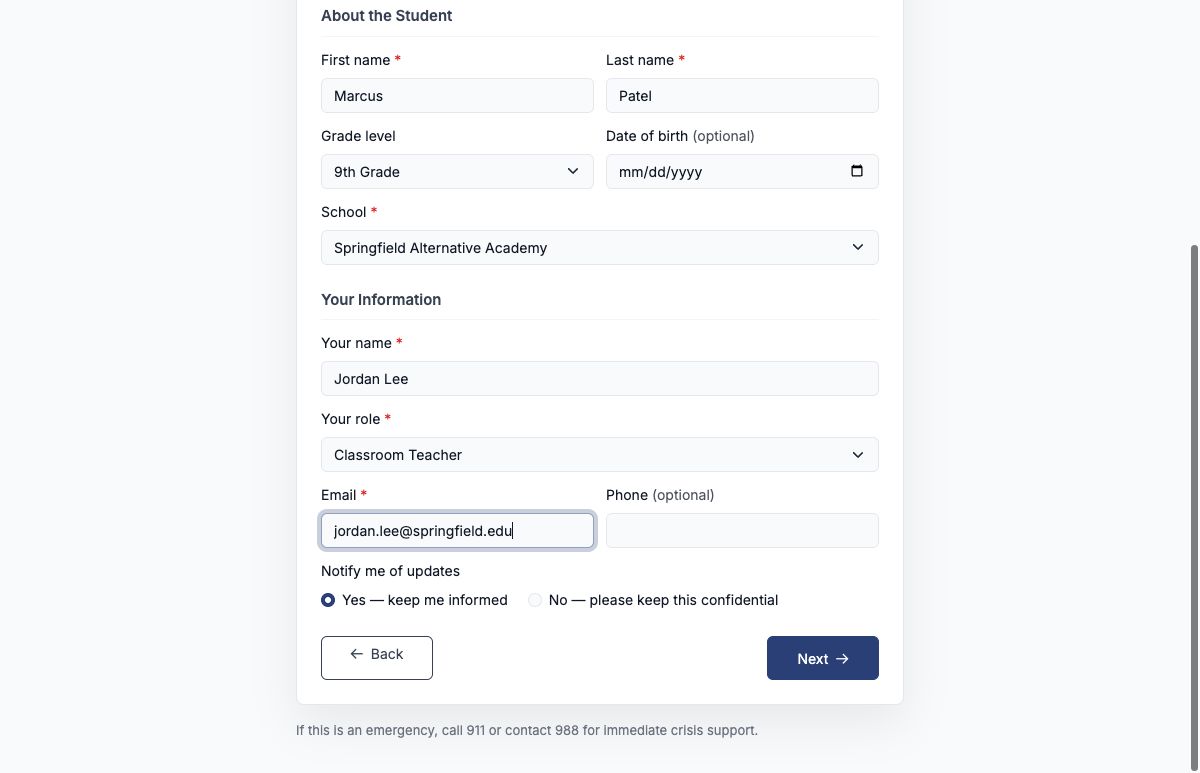
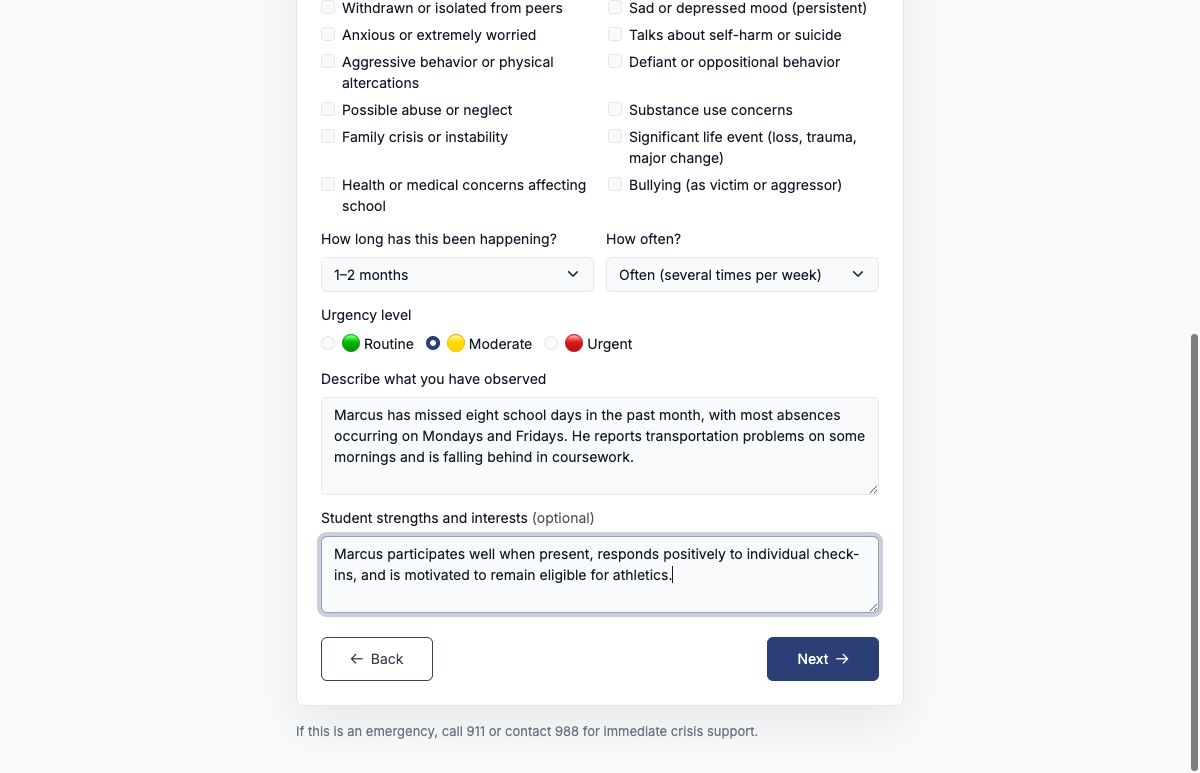
In this example, teacher Jordan Lee refers Marcus Patel after a repeated pattern of morning absences. The district’s public staff form collects the information in three stages.
Step 1: Identify the student and referrer
Enter enough student information for the support team to find the correct record. Depending on district settings, the form asks for the student’s name, Student ID, grade, and school. Complete the referrer fields required by district policy so staff can clarify the concern.
If the submitter doesn’t know the student’s school and the district allows it, they can choose I’m not sure / not listed. The form never confirms whether a Student ID matches a student; staff confirm the match after the referral arrives.
Step 2: Describe the concern
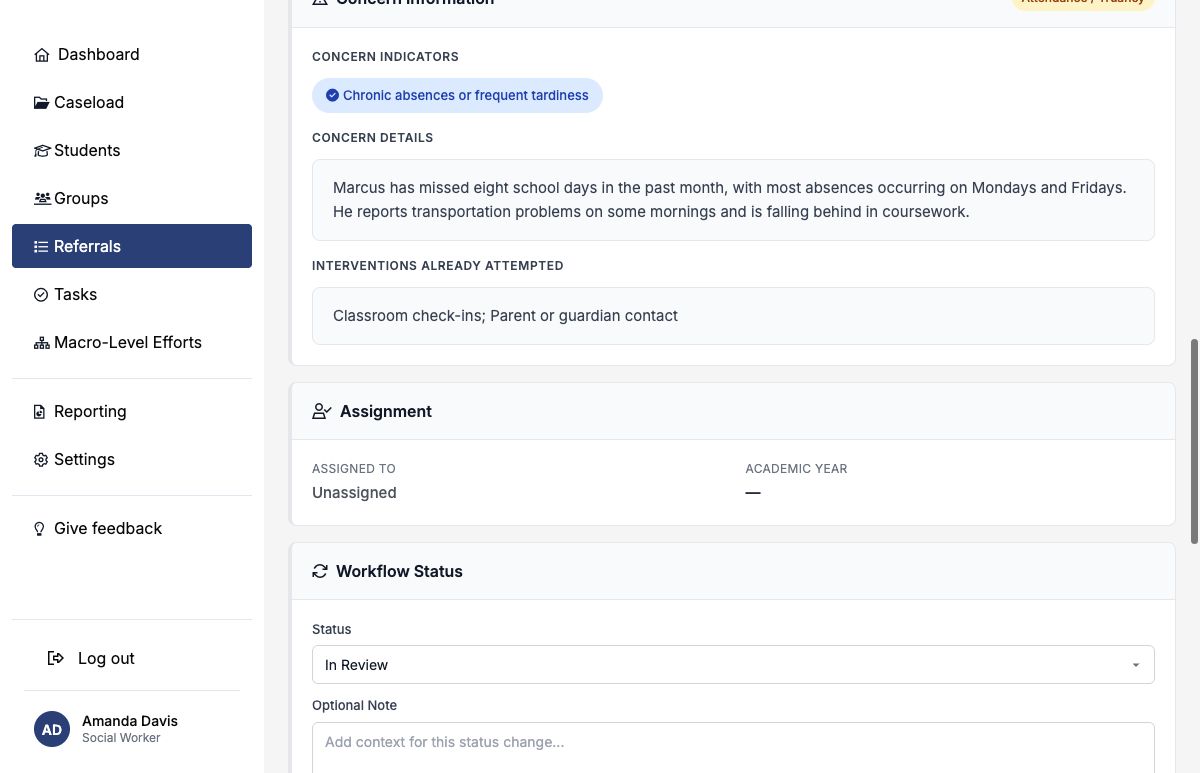
Select the main concern and relevant indicators, then add duration, frequency, urgency, observations, and strengths. Describe observable patterns rather than diagnosing the student.
Step 3: Add context and acknowledge the form
Record interventions already attempted, caregiver awareness, and other context. Review the privacy or consent acknowledgment before submitting.
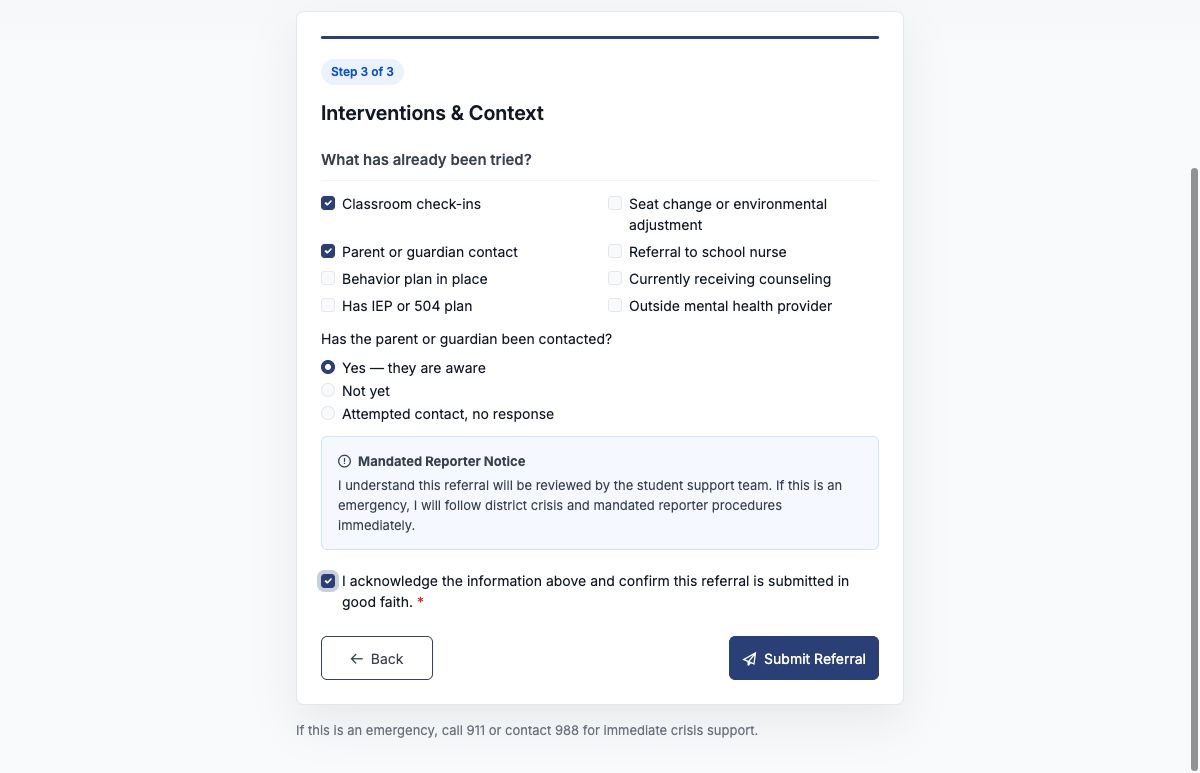
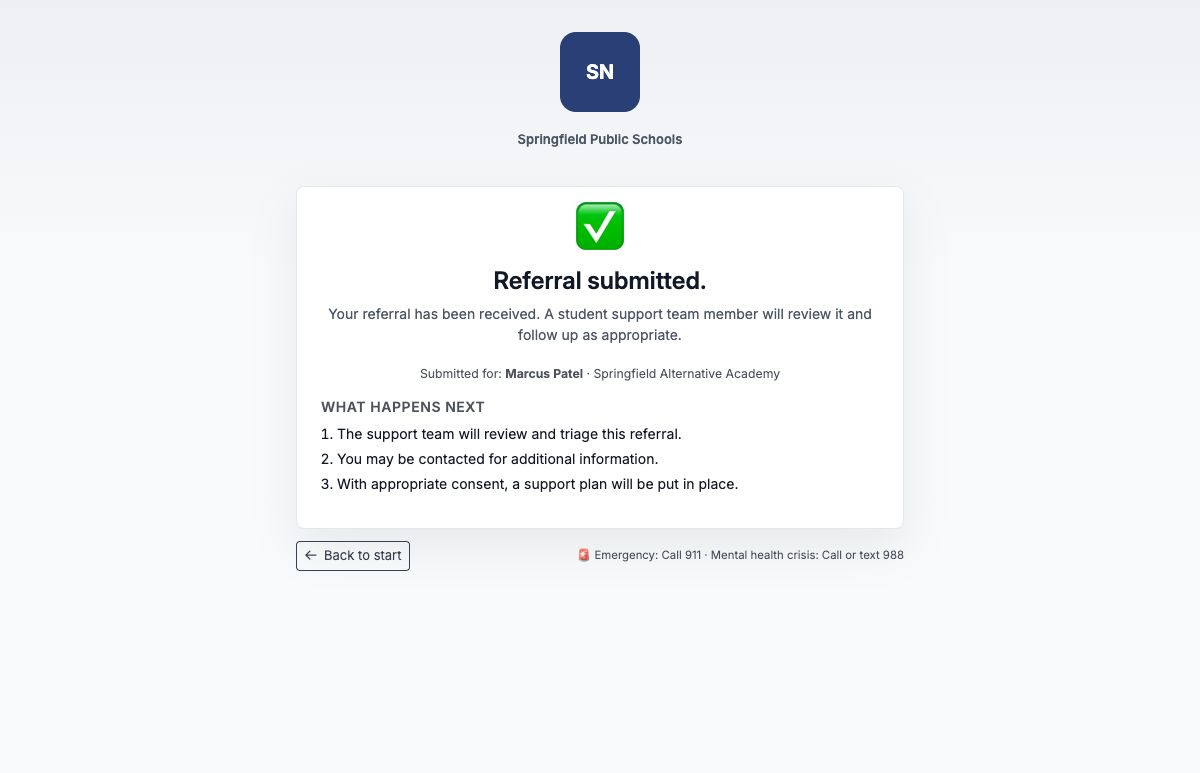
Follow the district’s emergency or crisis procedure whenever there is an immediate threat to safety. A crisis indicator can flag a submission for review, but it does not summon emergency help.
Review and prioritize the inbound queue
Open Referrals to see pending, in-progress, high-priority, and completed work. Search by student or referrer, filter by school, concern, status, or priority, and use the export when an authorized operational report is needed.
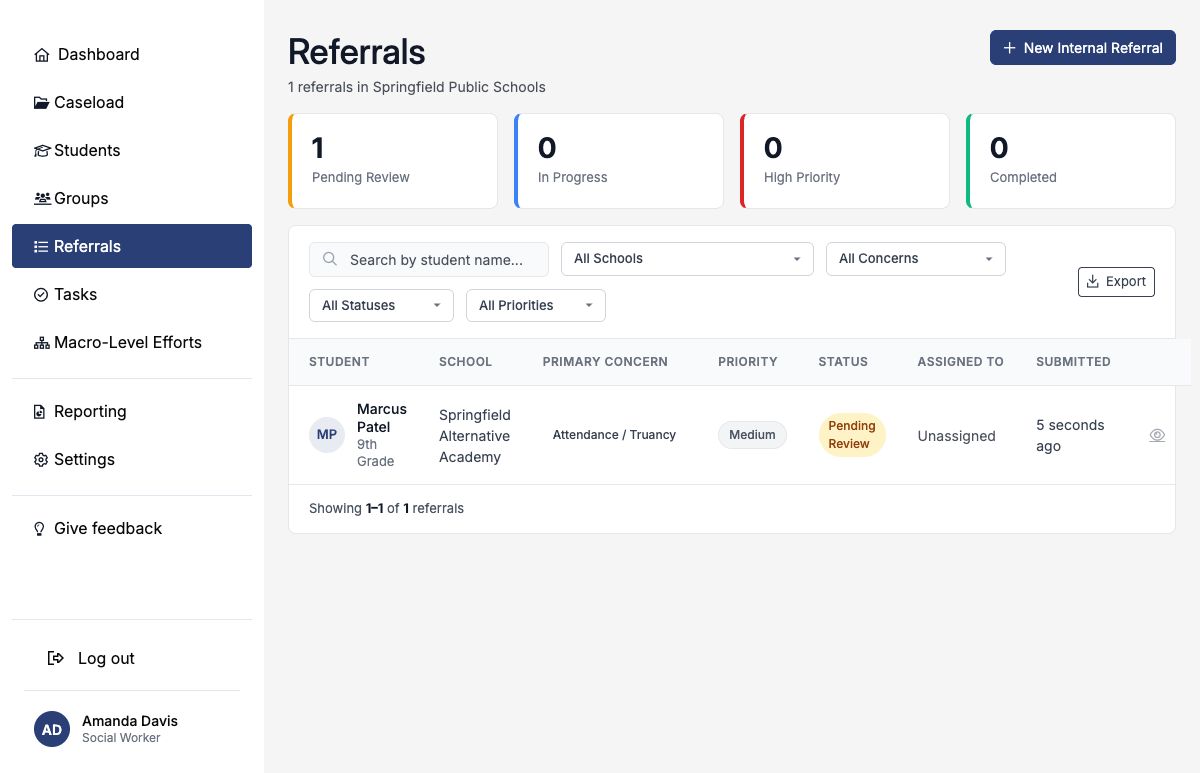
- Open the referral and confirm its source, concern, urgency, student details, and submitter contact information.
- Address immediate safety concerns using district procedure.
- Confirm the school and identify the appropriate referral owner. If you are taking ownership, choose Assign to me.
- Link the correct student record before creating connected work.
- Update status and leave a concise triage note.
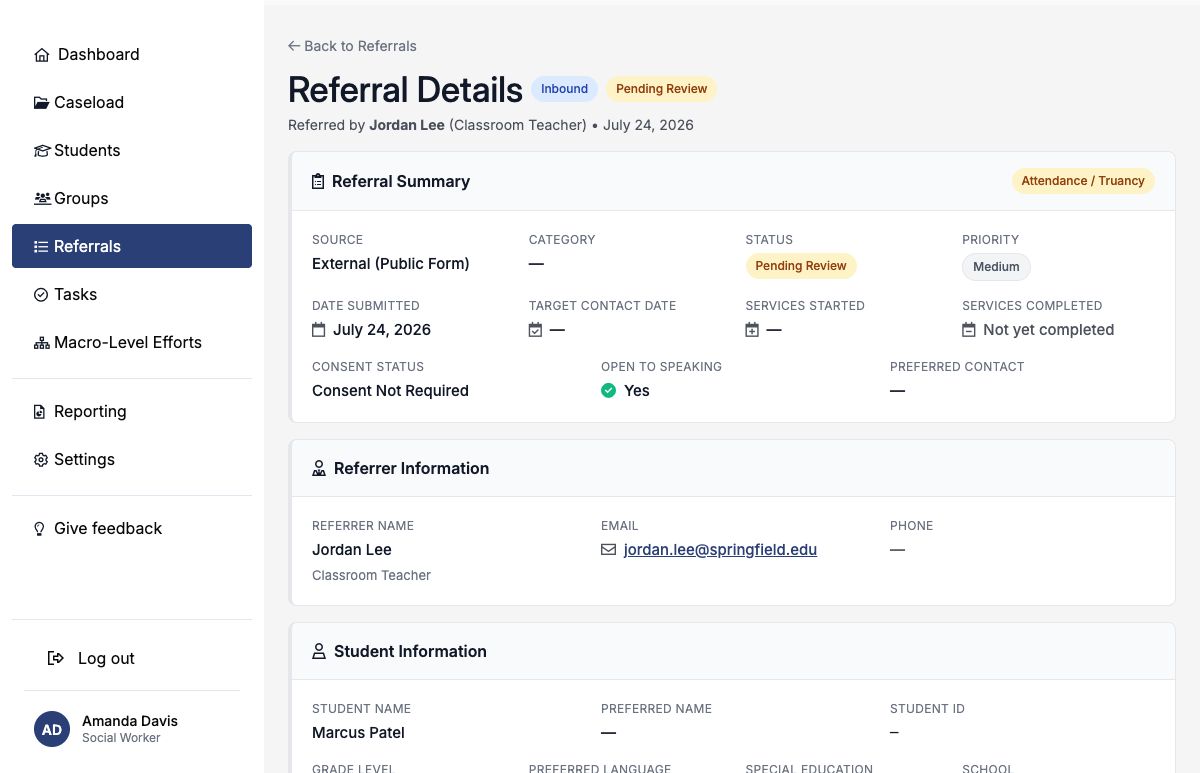
Assign a referral to yourself
When a referral you can view has no assignee, the Assignment card on its details page shows Assign to me. This works for referrals submitted through public forms too; their submitted content stays read-only. If someone else claims the referral first, SocialNote tells you it has already been assigned.
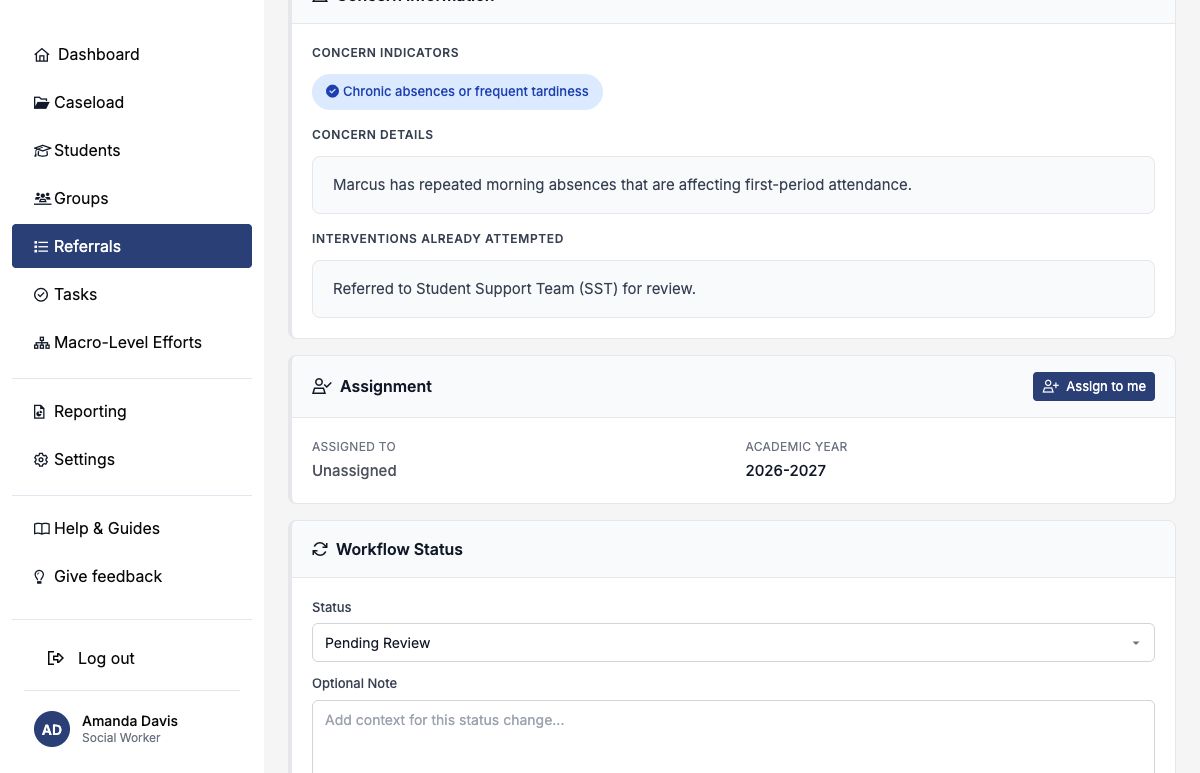
To release a referral you own, choose Unassign me. Only the current assignee can unassign themselves this way. Both actions are recorded in the referral’s audit history.
If you can only see a referral because it is assigned to you, such as one at a school outside your access, unassigning yourself removes it from your view and returns you to the Referrals list.
New-referral notification emails don’t include the student’s name or other details. Sign in from the email’s link to review and assign the referral.
Confirm and link the student
A public referral begins with submitted student details; it is not automatically attached to a SocialNote student record. SocialNote presents likely matches based on details such as school, name, student ID, grade, and contact information.
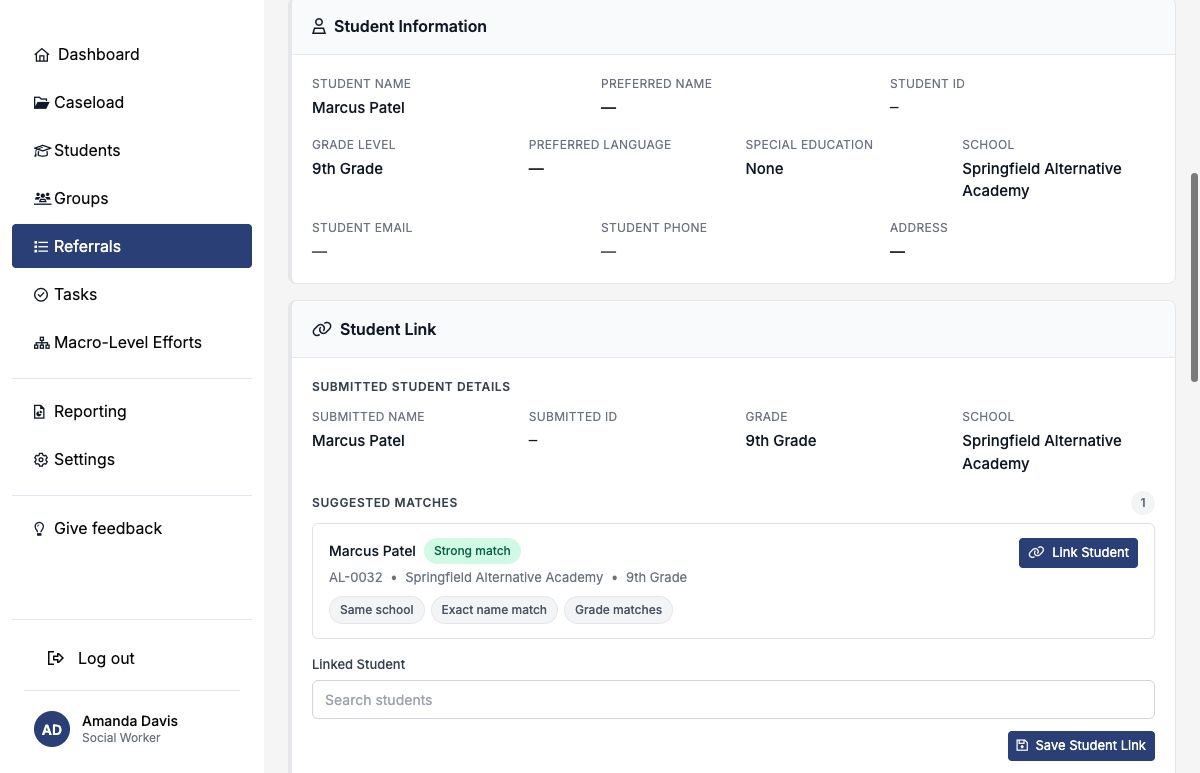
Compare the school, full name, grade, and any available identifiers. Never link a student on name similarity alone. If no suggestion is reliable, use manual search or leave the referral unlinked until identity is confirmed.
Linking enables the referral to appear in the student’s referral history and allows staff to connect related cases and outbound referrals.
When a referral has no school
If the submitter chose I’m not sure / not listed, linking the student gives the referral that student’s school. Staff at that school can then see it, and it appears in school-filtered lists and reports. The link note records “School set from the linked student’s school.”
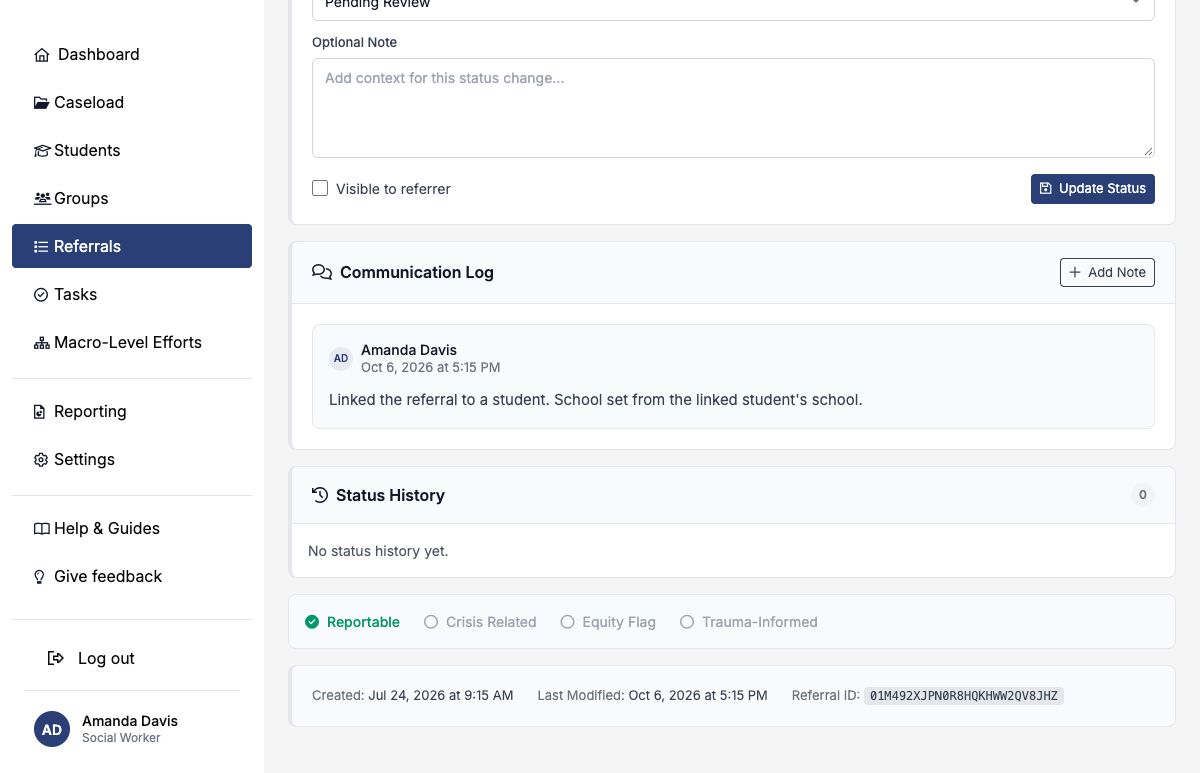
- Linking a different student moves the referral to the new student’s school.
- Removing the link clears the school again.
- A school chosen by the submitter never changes when you link a student.
Update status and preserve communication
Choose the status that reflects the current state of work and add a note explaining the decision or next action. In this example, the attendance referral moves from Pending Review to In Review.
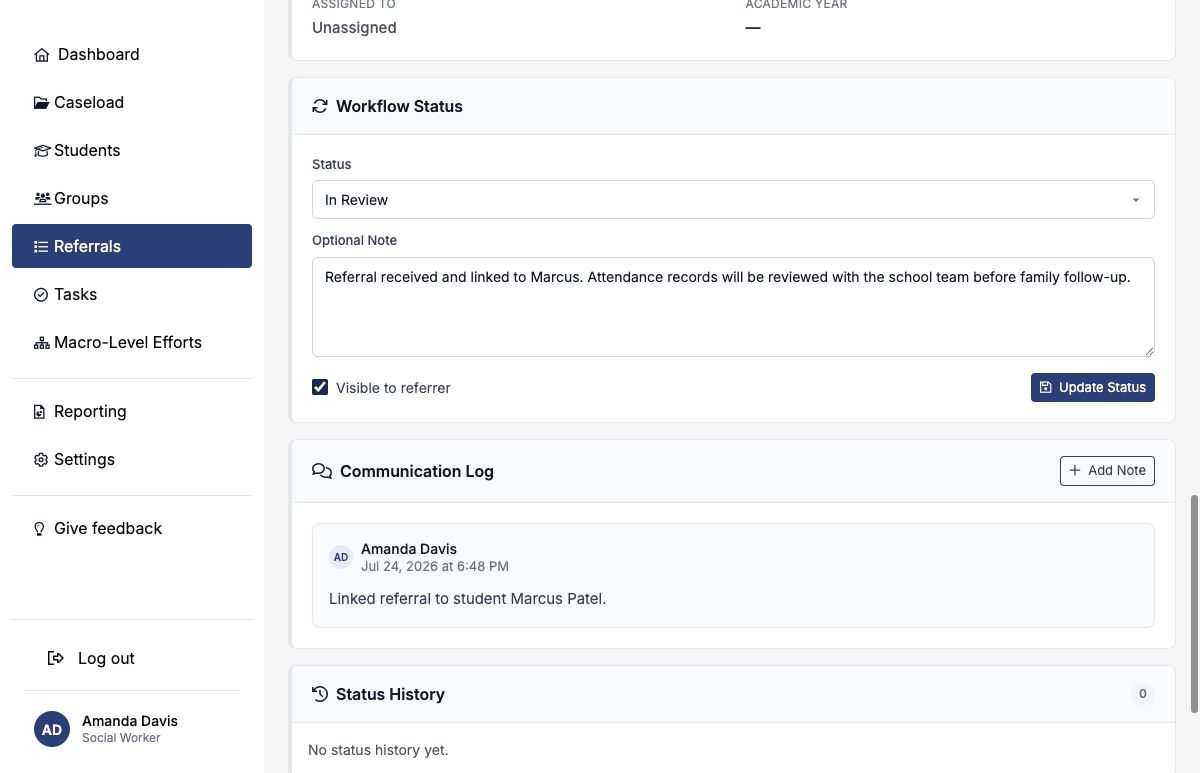
Select it only when the note is appropriate for referrer-facing communication. It marks visibility; staff should follow district practice for whether and how an update is actually delivered.
Use the student’s referral history
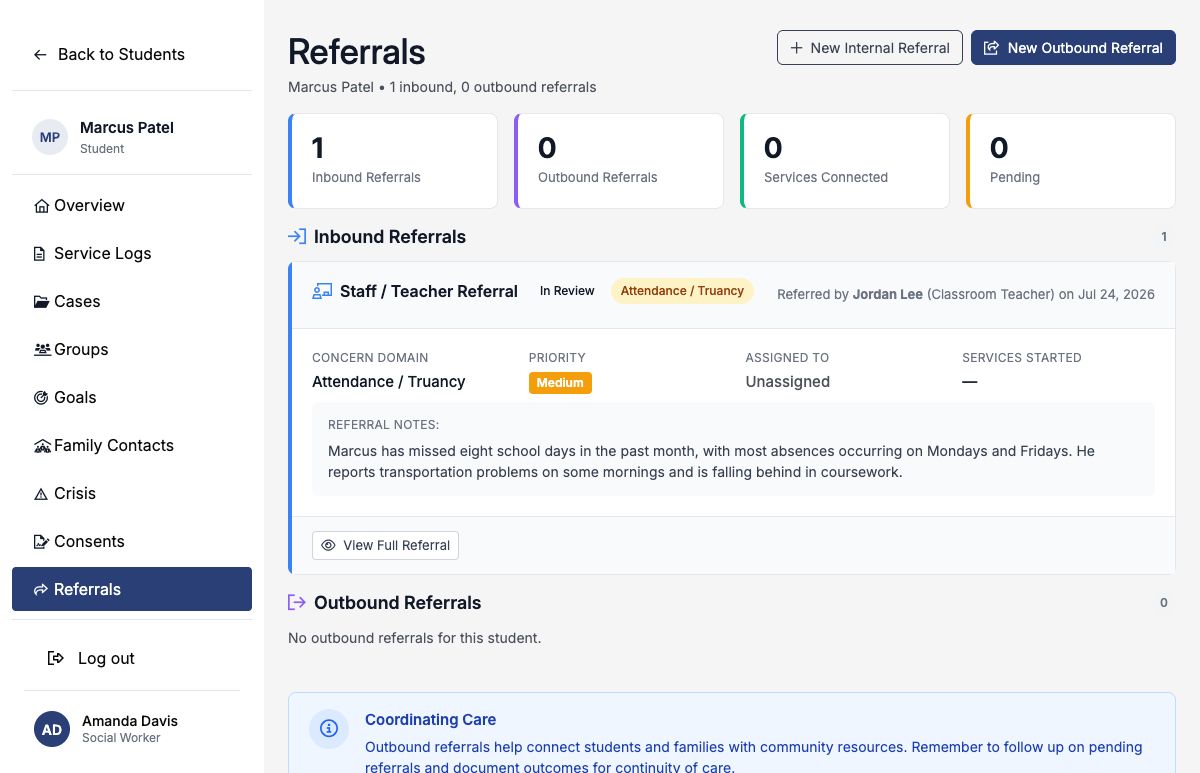
After linking, open the student and choose Referrals. Inbound requests and outbound connections appear together, giving the team a clearer picture of how support entered the system and where the student was connected.
Create an outbound referral
Create an outbound referral when the school is coordinating support with an outside provider. Choose the category that best describes the destination: mental health, community agency, child protective services, health services, court or juvenile justice, or other.
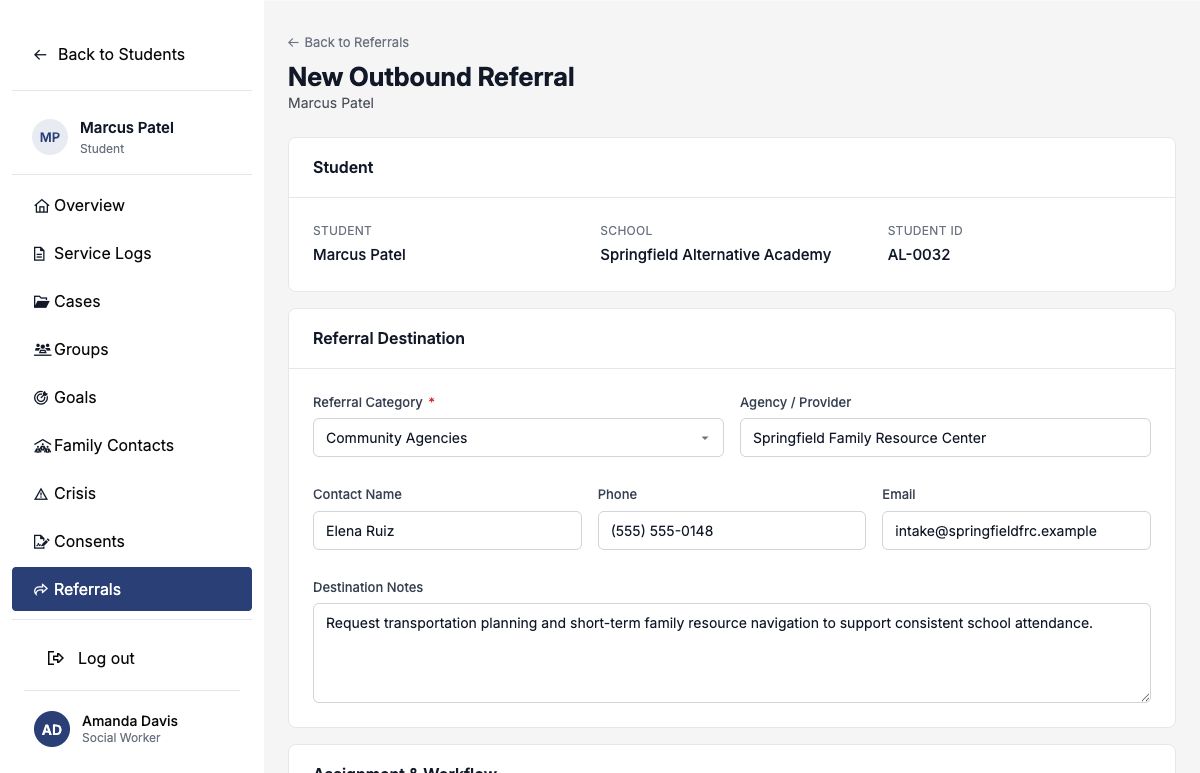
1. Identify the destination
Enter the agency, contact person, phone, email, and any directions the receiving team will need. In the worked example, Marcus is referred to the Springfield Family Resource Center for transportation assistance.
2. Connect related work and plan follow-up
Link the originating inbound referral and, when applicable, the student’s case. Set the priority, provider response, referred date, follow-up date, and initial note.
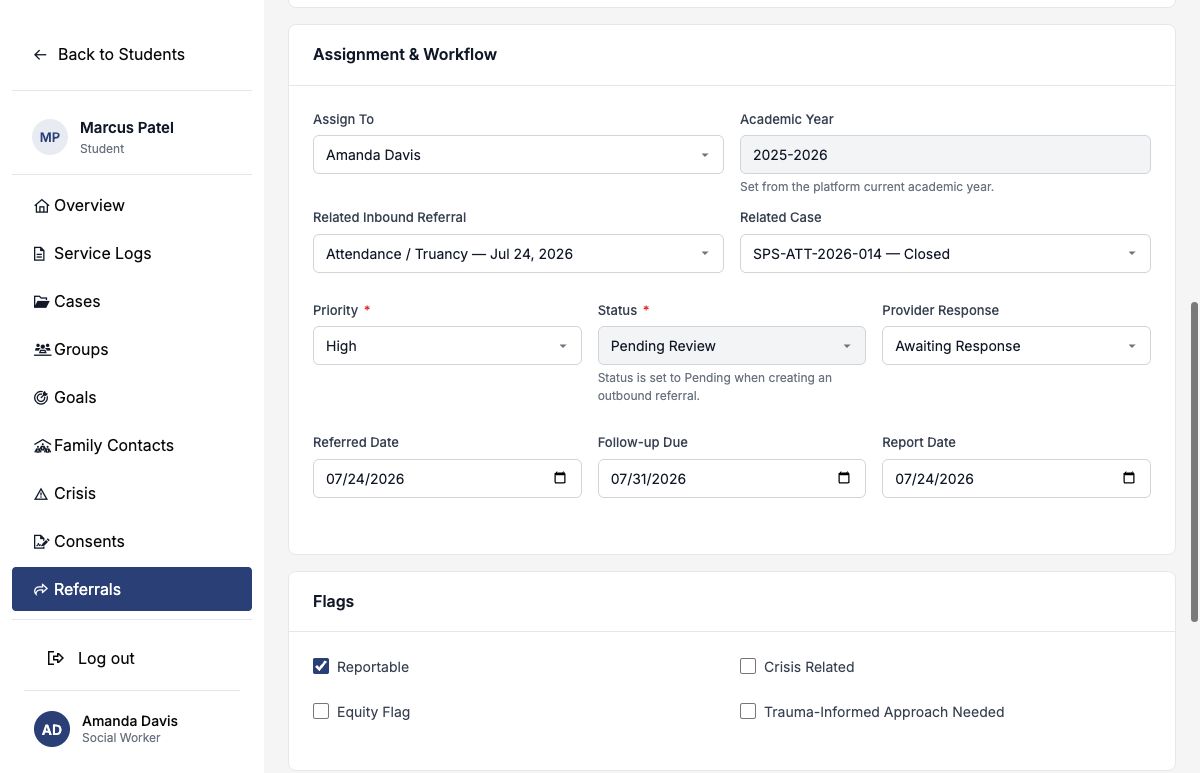
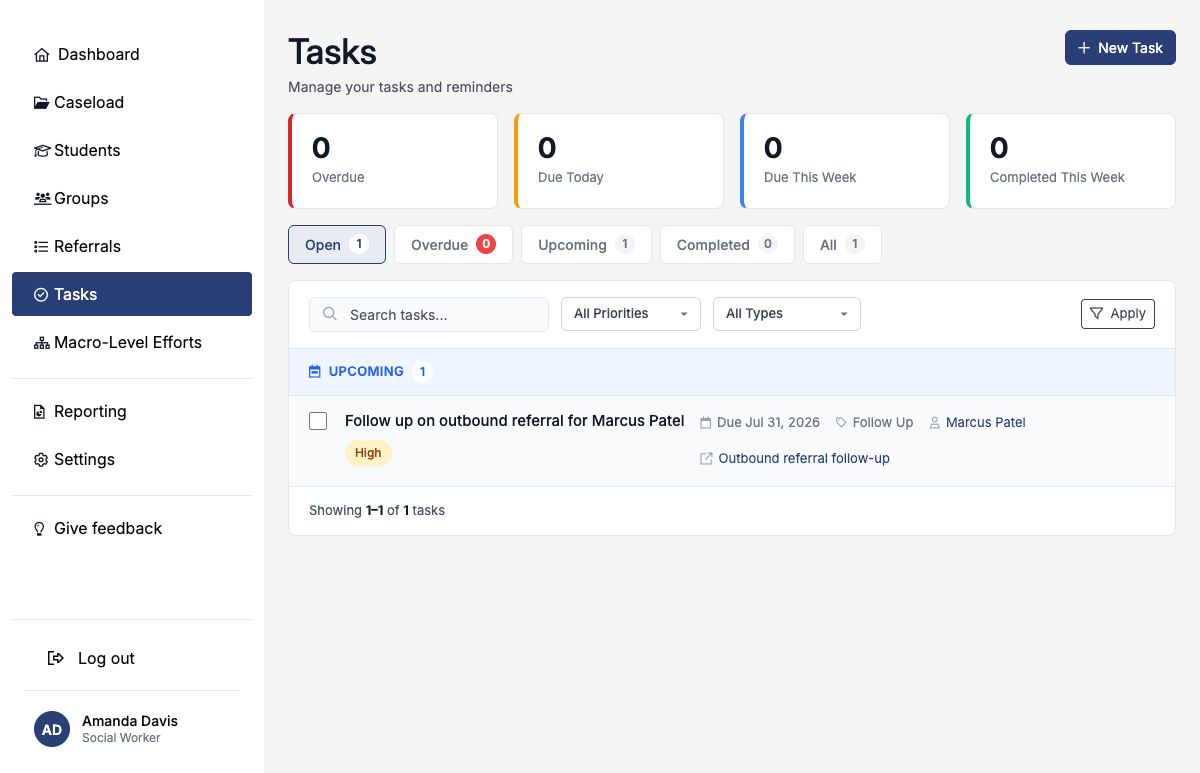
When a follow-up date is set, SocialNote creates a task for the referral owner. Choose a date the owner can realistically monitor.
Follow up, record the response, and complete
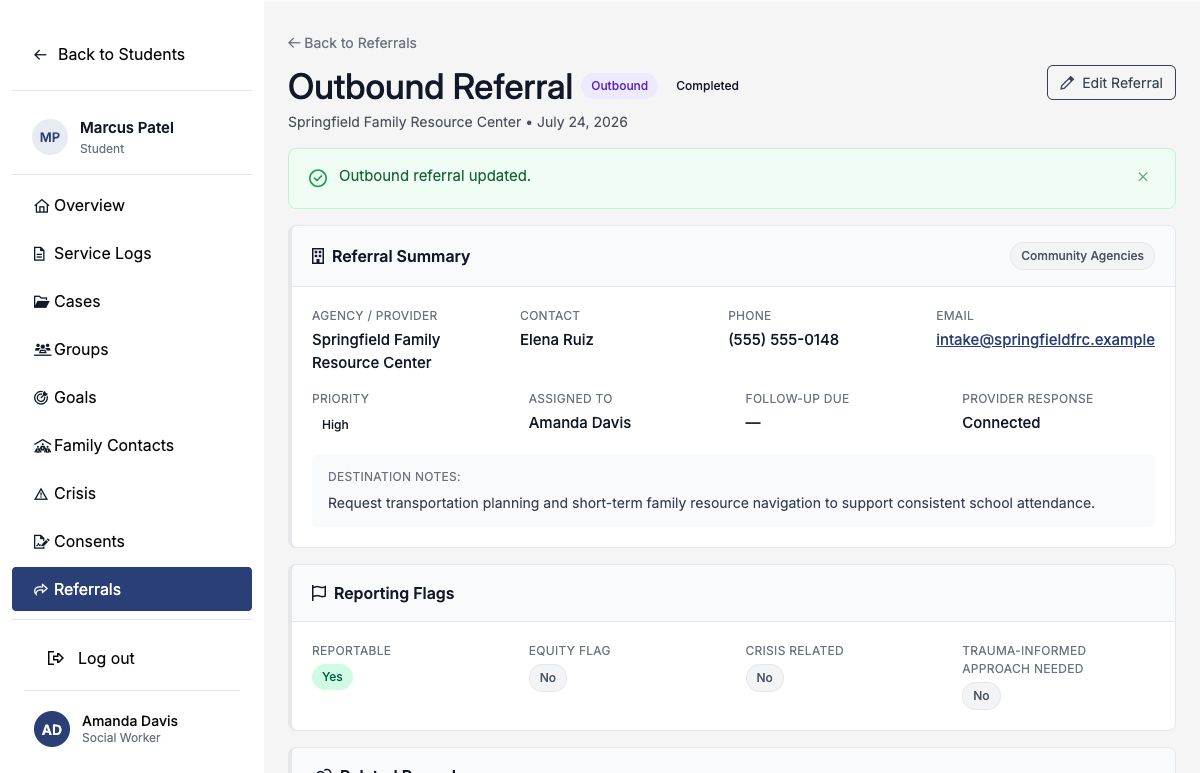
The saved outbound referral shows its destination, status, related records, follow-up date, communication log, and history.
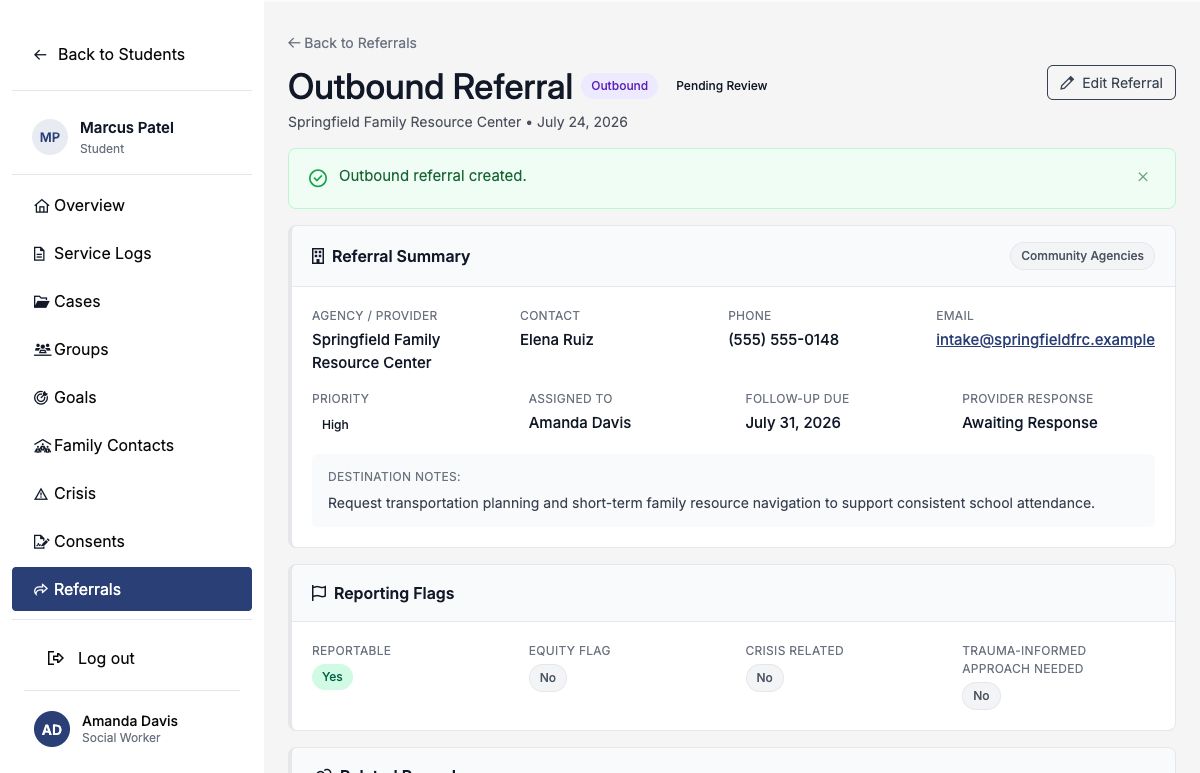
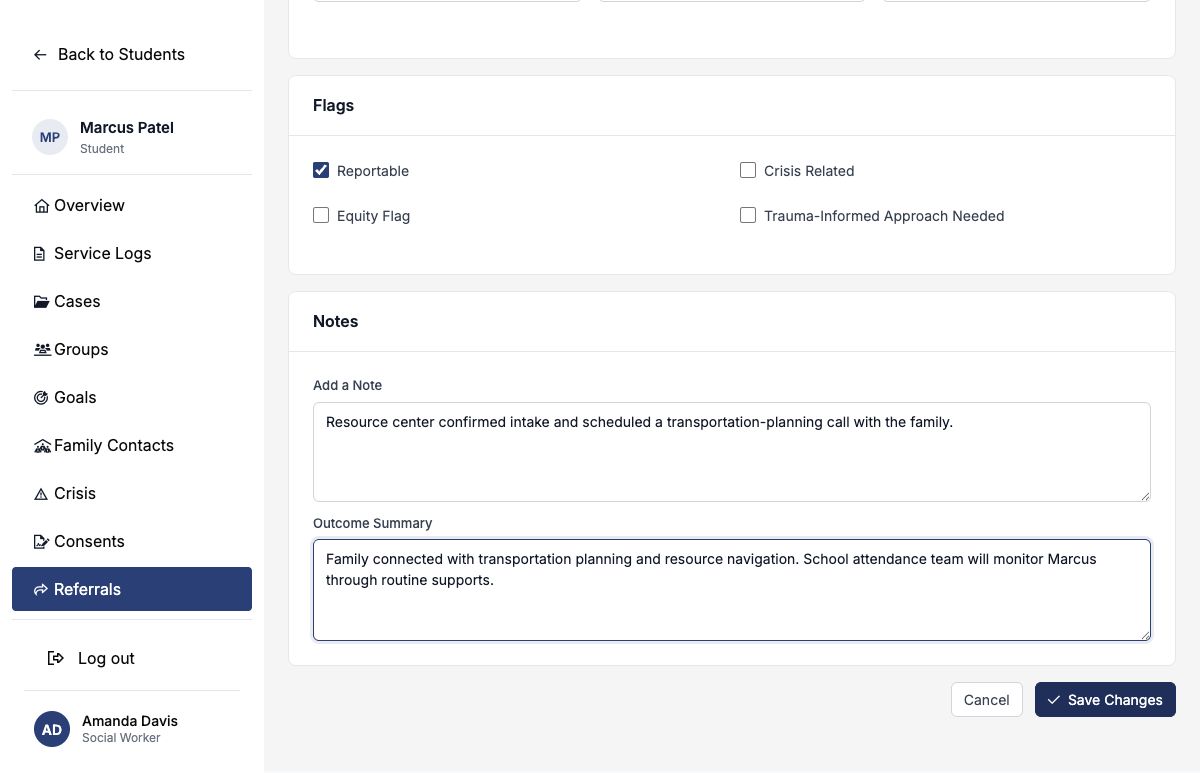
After contacting the provider, update the provider response and status, record an outcome summary, and add a communication note. If the student connected successfully, choose Connected; SocialNote records the connection date when appropriate.
Clearing the referral’s follow-up date cancels its system-generated open task. Do this only when no further follow-up is expected; otherwise set the next meaningful date.
Inbound status reference
| Status | Use it when |
|---|---|
| Pending Review | The referral has arrived but substantive review has not begun. |
| In Review | Staff are verifying details, urgency, ownership, or student identity. |
| Accepted | The request has been accepted for coordinated support. |
| In Progress | Services, outreach, or intervention work is underway. |
| Declined | The request will not proceed; document the reason and appropriate alternative. |
| Completed | The referral’s intended coordination work is finished. |
| Closed | No further action is expected for another documented reason. |
| Transferred | Responsibility has moved to another appropriate team or process. |
Use status consistently across the district. A note should explain any decision that another staff member could not understand from the status alone.
Good referral practice
- Review the queue on a defined schedule and maintain backup coverage.
- Use observable, relevant facts and avoid unnecessary sensitive detail.
- Verify the student before linking or creating connected work.
- Assign a clear owner and record the next action.
- Link related inbound referrals, outbound referrals, and cases instead of duplicating their narratives.
- Use follow-up dates to drive action, then update them when circumstances change.
- Close the loop with an outcome summary, even when the provider could not connect.
See Configuring Referrals to control audiences, public form content, routing, and notifications.