Configuring Referrals
A district administrator’s guide to public intake, form content, referral routing, and notifications.
What referral configuration controls
Referral settings define who may use your district’s public intake form, what they see, which information they must provide, and how a submitted referral reaches the staff responsible for triage.
| Setting area | What it affects |
|---|---|
| District settings | The master switch that makes the referral feature available. |
| Public intake | Which audiences may submit, which student details they provide, and which questions appear. |
| Concern lists and consent | The language submitters use to describe concerns and acknowledge privacy expectations. |
| Routing and notifications | The initial owner, status, priority, and notification recipients for public submissions. |
Default assignee, status, and priority apply to referrals submitted through the public form. Staff-created inbound referrals and outbound referrals follow their own creation workflows.
1. Enable referrals for the district
- Open Settings, then choose District.
- Turn on Referrals enabled.
- Save the district settings before sharing a public link.
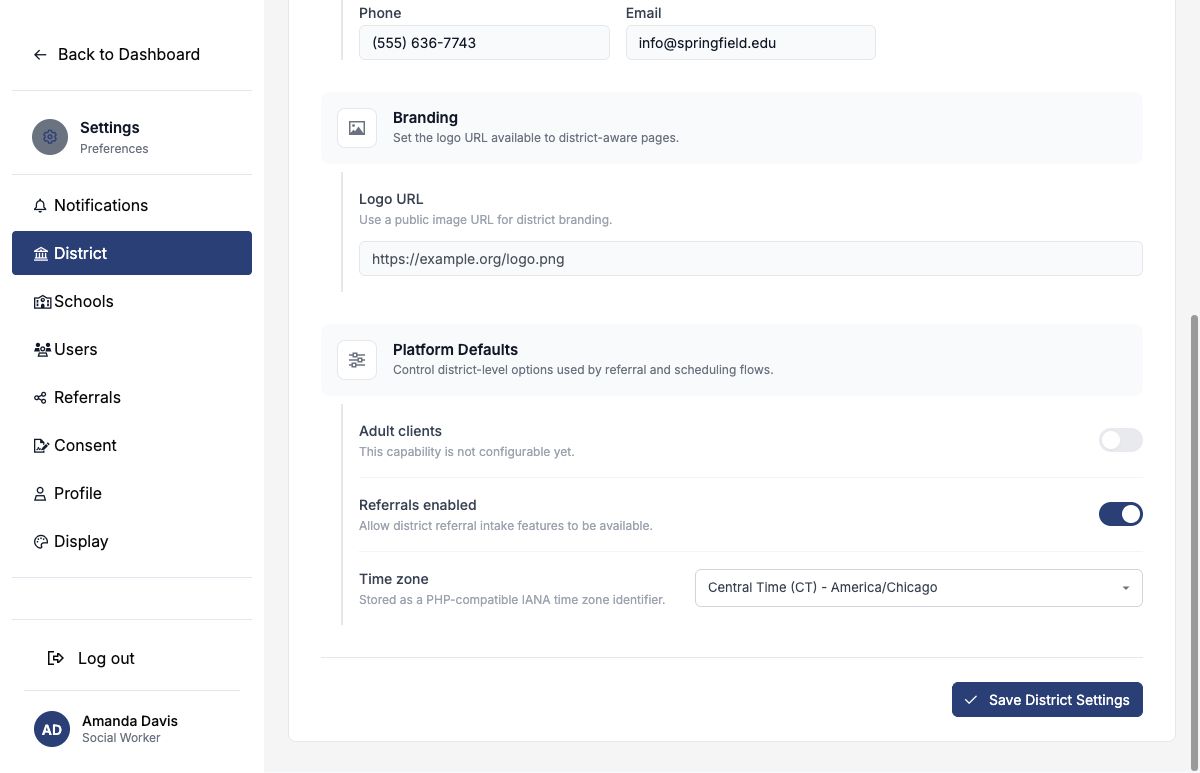
Finish the audience, contact, routing, and notification settings before publishing the public link.
2. Review the public link and branding
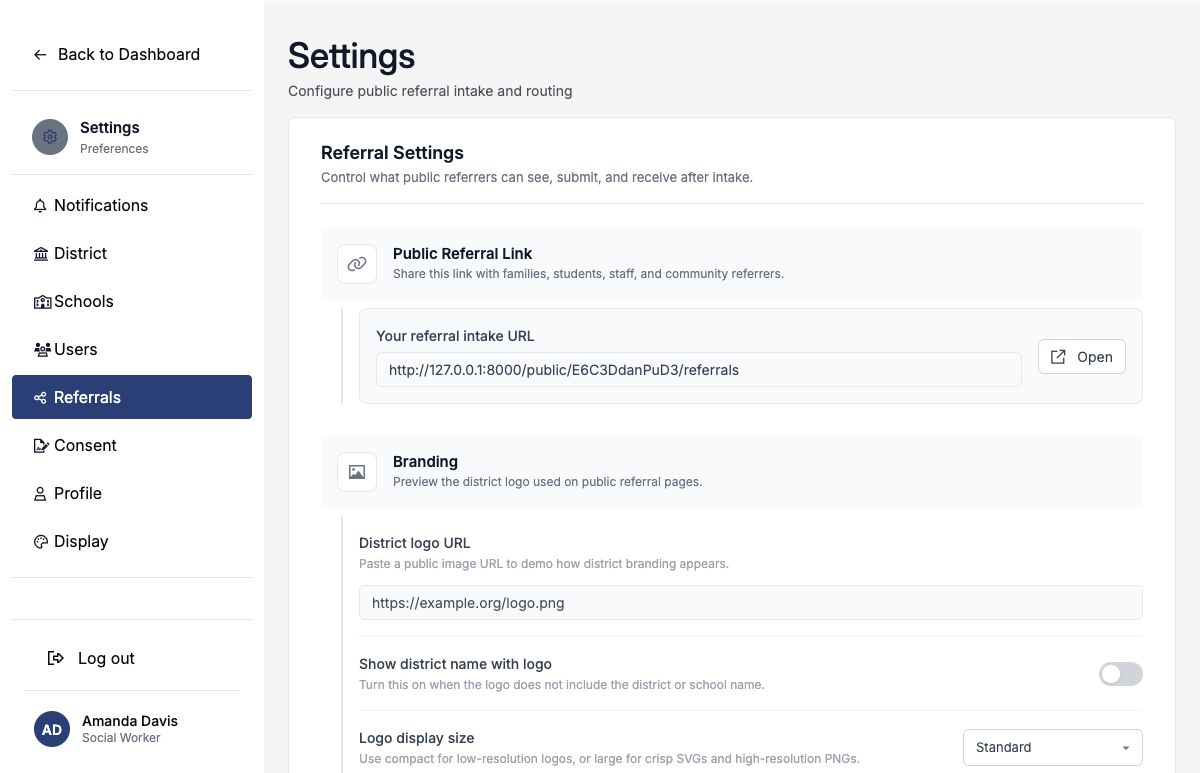
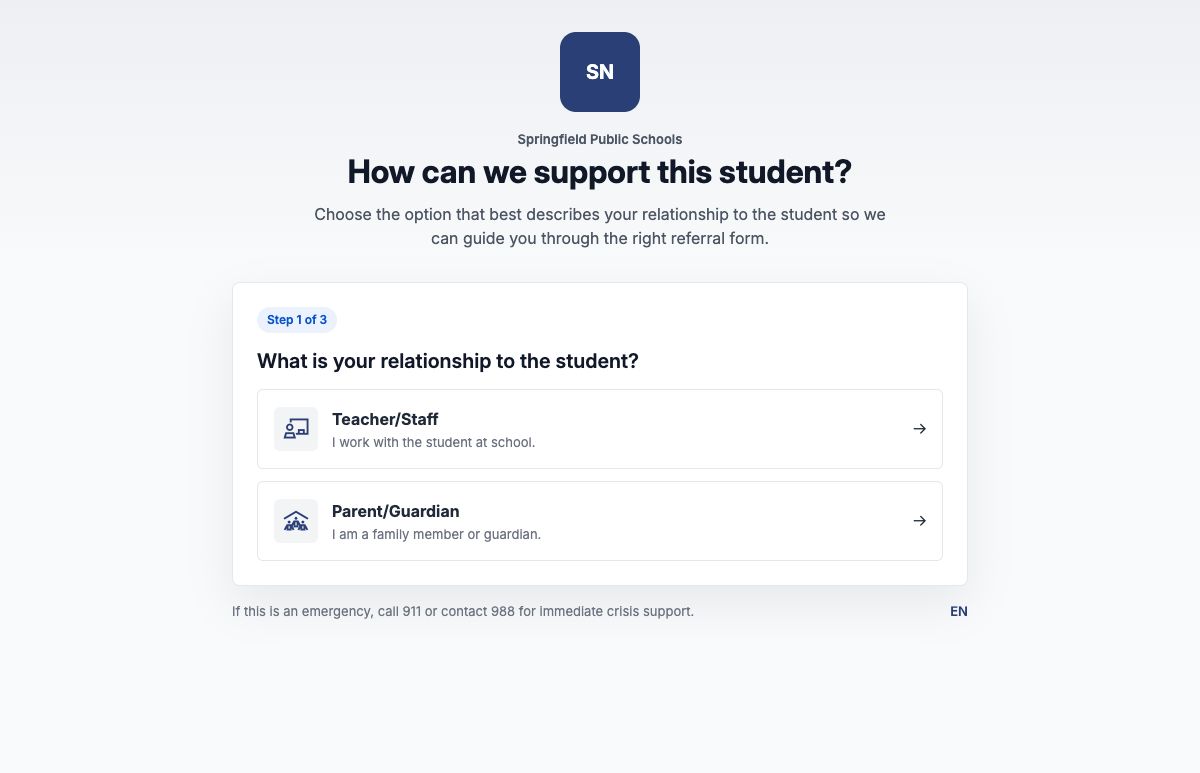
Open Settings → Referrals. The Public Referral Link is unique to the district and is the URL you may place on a district website, staff portal, QR code, or family resource page.
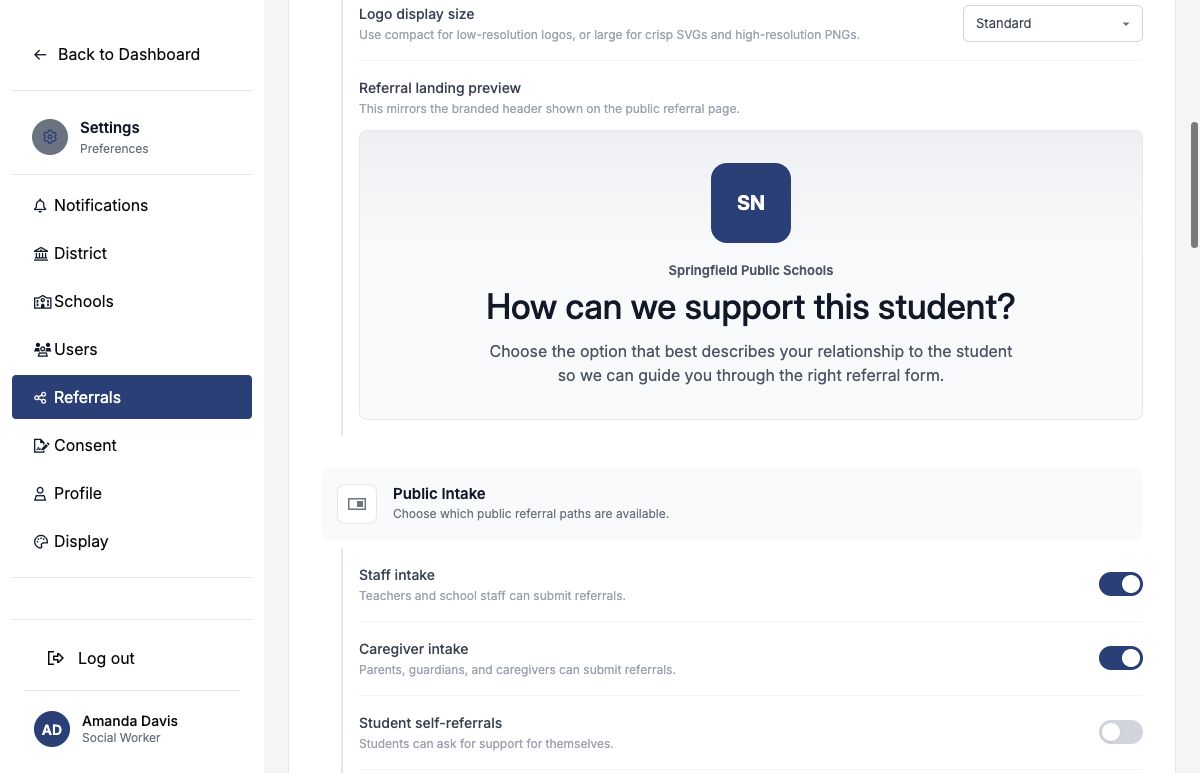
Use the branding controls to add a district logo, show or hide the district name, and choose the logo size. Preview the result before saving.
3. Choose who may submit
Enable only the intake paths the district is prepared to support. Available audiences include staff, caregivers, student self-referrals, student peer referrals, and community members.
| Audience | Typical use | Decision to make |
|---|---|---|
| Staff | A teacher or employee requests help for a student. | What identifying and contact information is required? |
| Caregiver | A parent or guardian raises a concern. | How will the district acknowledge and follow up? |
| Student self | A student asks for support for themself. | Can the form be anonymous, and who monitors it? |
| Student peer | A student raises a concern about another student. | What privacy and crisis language is appropriate? |
| Community | An outside partner submits a concern. | Which contact details are necessary for coordination? |
If anonymous student referrals are allowed, make sure the form still collects enough student and concern detail to act. The anonymous option matters only when a student intake path is enabled.
4. Choose which student details the form collects
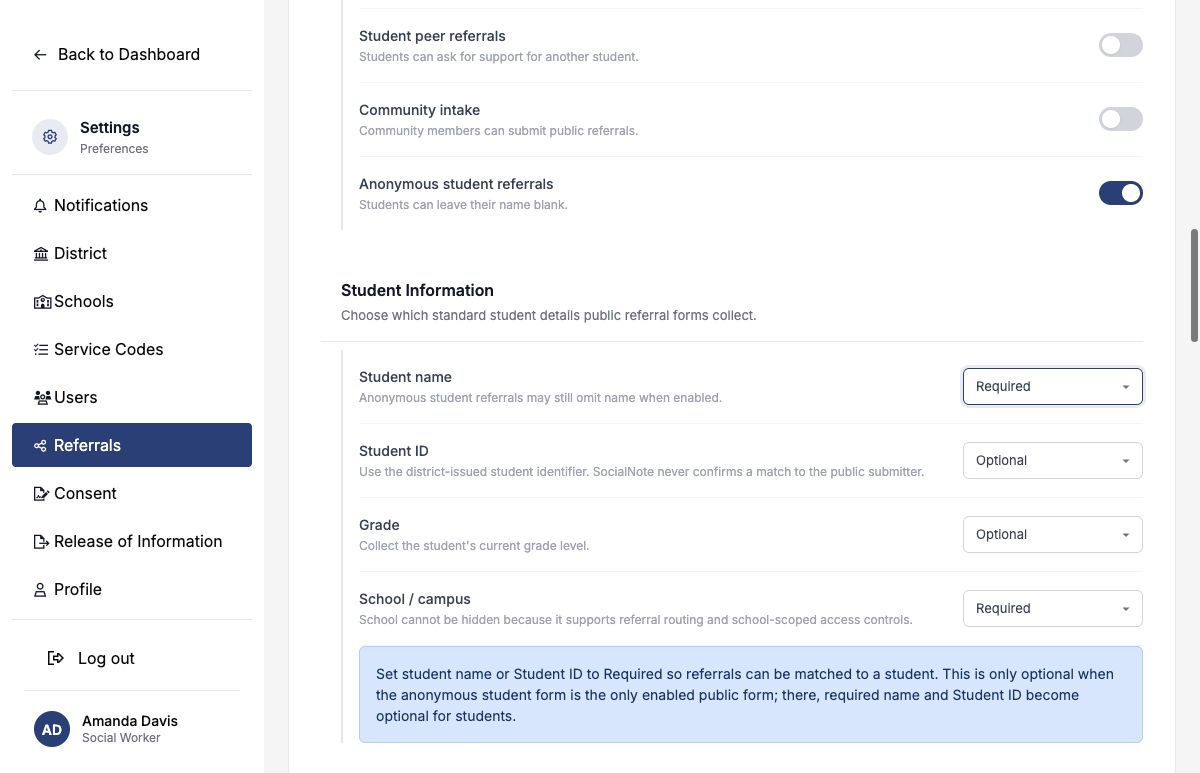
The Student Information section controls the standard student details on every public form. Set each one to Required, Optional, or Hidden.
| Field | Choices | Notes |
|---|---|---|
| Student name | Required, Optional, Hidden | When anonymous student referrals are on, students may still leave their name blank. |
| Student ID | Required, Optional, Hidden | The district-issued student identifier. It helps staff match the referral to the right student. |
| Grade | Required, Optional, Hidden | The student’s current grade level. |
| School / campus | Required, Optional | Optional lets submitters choose I’m not sure / not listed. School cannot be hidden because it drives routing and school-based access. |
Districts that haven’t changed these settings use these defaults: student name Required, Student ID Optional, and grade Optional. School / campus keeps the district’s earlier school-selection setting.
Set student name or Student ID to Required, or the settings will not save. The only exception is when the anonymous student form is the only public form enabled. Student name and Student ID cannot both be hidden.
Submitters see the same confirmation whether or not a Student ID matches a student, so the form cannot be used to check whether a student is enrolled. Staff confirm the match when they link the student.
5. Write clear public-facing copy
The landing introduction, crisis warning, confirmation message, privacy text, and footer should use plain district-approved language. Tell people what the form is for, what happens next, and what it cannot do.
This form is not monitored for emergencies. If there is an immediate threat to safety, use your district’s emergency procedure or contact emergency services.
A crisis warning does not replace district response protocols. Staff should know where time-sensitive submissions are routed and how often the queue is monitored.
6. Configure the form and contact rules
Choose which concern domains are visible. At least one concern domain must remain available. School selection is now set in the Student Information section.
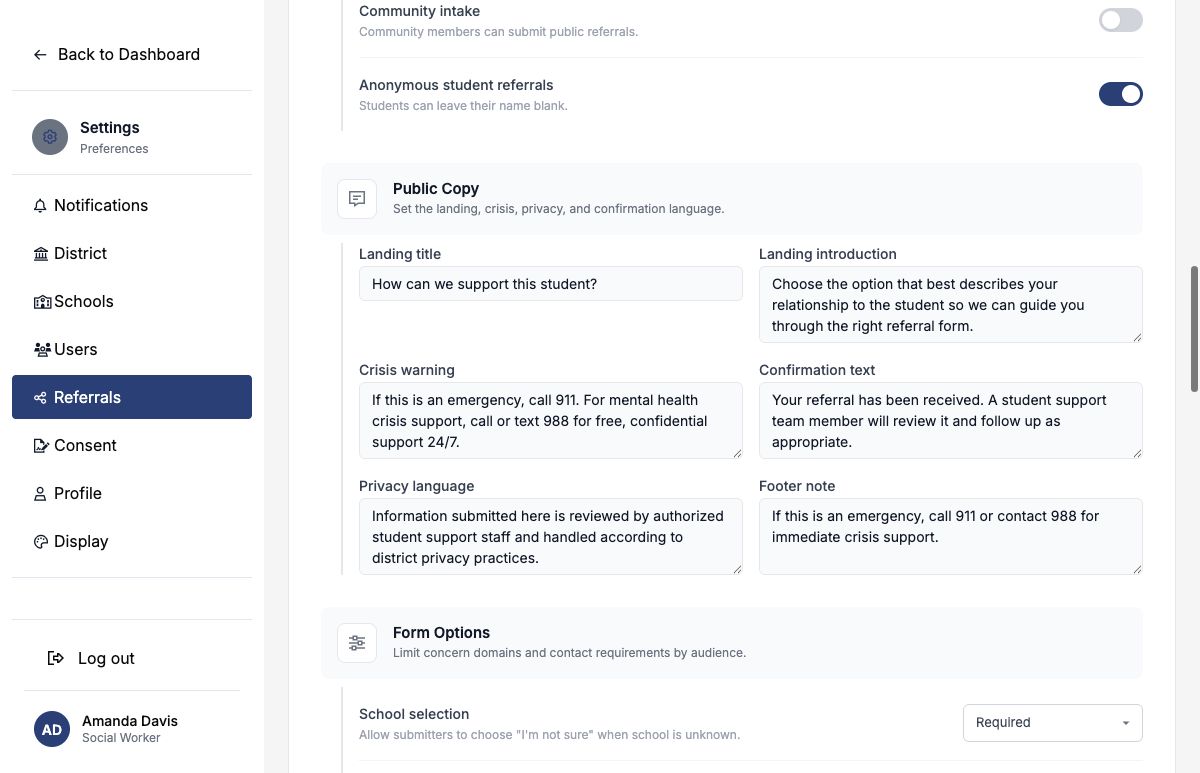
Contact fields can be Hidden, Optional, or Required for each audience. You may also require at least one contact method without requiring every field.
| Rule | Use it when |
|---|---|
| Name required | The district must know who submitted the request. |
| Email or phone required | Staff need a reliable way to clarify details or confirm receipt. |
| At least one contact method | Either email or phone is acceptable. |
| Fields hidden | The audience is intentionally allowed to submit without that information. |
7. Define concern, crisis, and consent language
Enter indicator lists one item per line. Separate lists let the district use age- and audience-appropriate wording for staff, caregiver, and student forms.
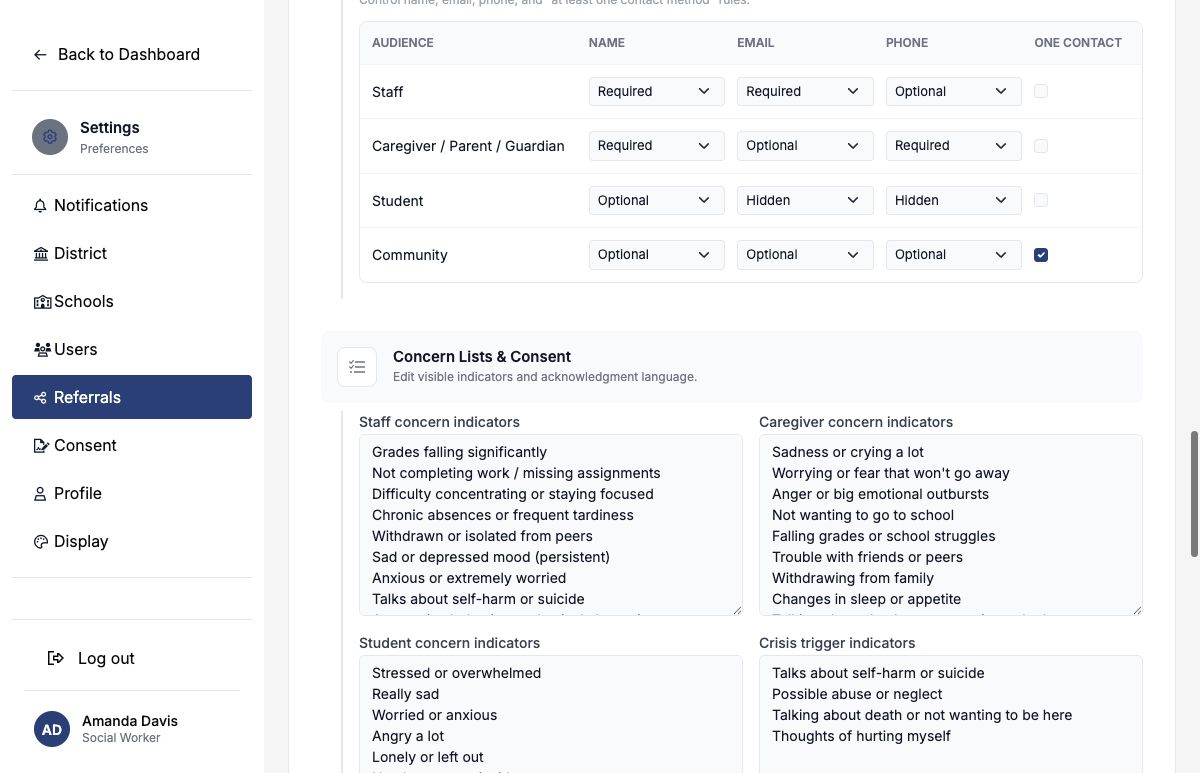
Configured crisis-trigger indicators flag a referral for attention; they do not call emergency services or replace immediate safety procedures.
Use the acknowledgment and privacy fields to explain permitted use, confidentiality expectations, and next steps. If consent acknowledgment is required, the submitter must accept the relevant text before submitting.
8. Set routing and notifications
Public submissions can receive a default assignee, initial status, and priority. Notifications may go to the assigned user, district administrators, the referrer, and additional email recipients.
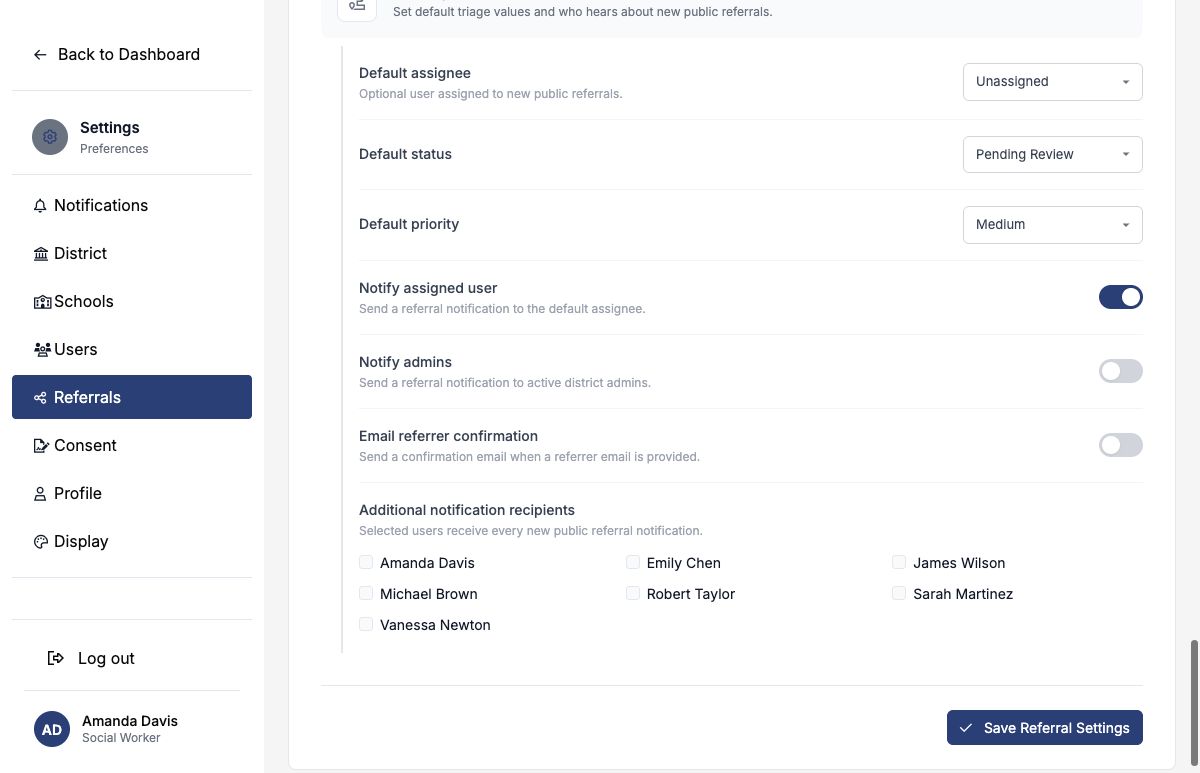
Notify assigned user sends nothing when the default assignee is Unassigned. Before launch, select a default assignee, notify administrators, or add explicit recipients—and verify the chosen inbox is actively monitored.
New-referral emails to staff don’t include the student’s name, Student ID, grade, or concern details. They say a referral was submitted and link to SocialNote, where recipients sign in to review and assign it.
| Setting | Recommended interpretation |
|---|---|
| Default assignee | The person responsible for first review, not necessarily the long-term case owner. |
| Default status | Usually Pending Review so new items are easy to identify. |
| Default priority | A neutral starting priority such as Medium; staff should adjust it during triage. |
| Notify assigned user | Useful only when an assignee is guaranteed. |
| Notify administrators | A useful safety net for districts with a shared admin intake process. |
| Email referrer confirmation | Confirms receipt when the submitter provided an email; it is not a promise of a specific outcome. |
| Additional recipients | Use a monitored team mailbox or designated intake staff. |
A recommended district setup
For a district beginning with staff and caregiver referrals:
- Enable Staff and Caregiver intake.
- Require the submitter’s name and at least one contact method.
- Require student name and offer Student ID as optional, or require Student ID if submitters reliably know it.
- Set School / campus to Required, or to Optional when district-wide intake staff can resolve referrals submitted as I’m not sure / not listed.
- Start referrals as Pending Review with Medium priority.
- Assign a monitored intake owner and notify that person plus a backup team inbox.
- Send a neutral confirmation that states the request was received and will be reviewed.
Launch checklist
- The district referral master switch is on.
- Only approved audiences are enabled.
- Student name or Student ID is Required, and the student details match what submitters can realistically provide.
- Contact requirements match each audience and anonymous-intake policy.
- Concern lists use understandable, non-diagnostic language.
- Crisis wording matches the district’s emergency procedure.
- Privacy and consent text has been approved.
- Every public submission reaches at least one monitored person or inbox.
- A test referral has been submitted, received, assigned, and triaged.
- The public confirmation and any email confirmation have been reviewed.
- Staff know the expected review cadence and escalation process.
See Working With Referrals for intake, triage, student linking, outbound coordination, and follow-up.