Release of Information
How to document permission to release, obtain, or exchange information with an outside party, collect the right signatures, and preserve the authorization history.
Screenshots use Jordan Guide Demo, a synthetic student, and fictional provider details. Signing screens are read-only previews; no invitations were sent or signatures collected for these examples.
What an ROI accomplishes
A Release of Information (ROI) documents an authorization for one student, one outside party, a defined set of information, a purpose, and a period of time. Use it when coordinating with an outside provider or organization requires documented permission to share or obtain information.
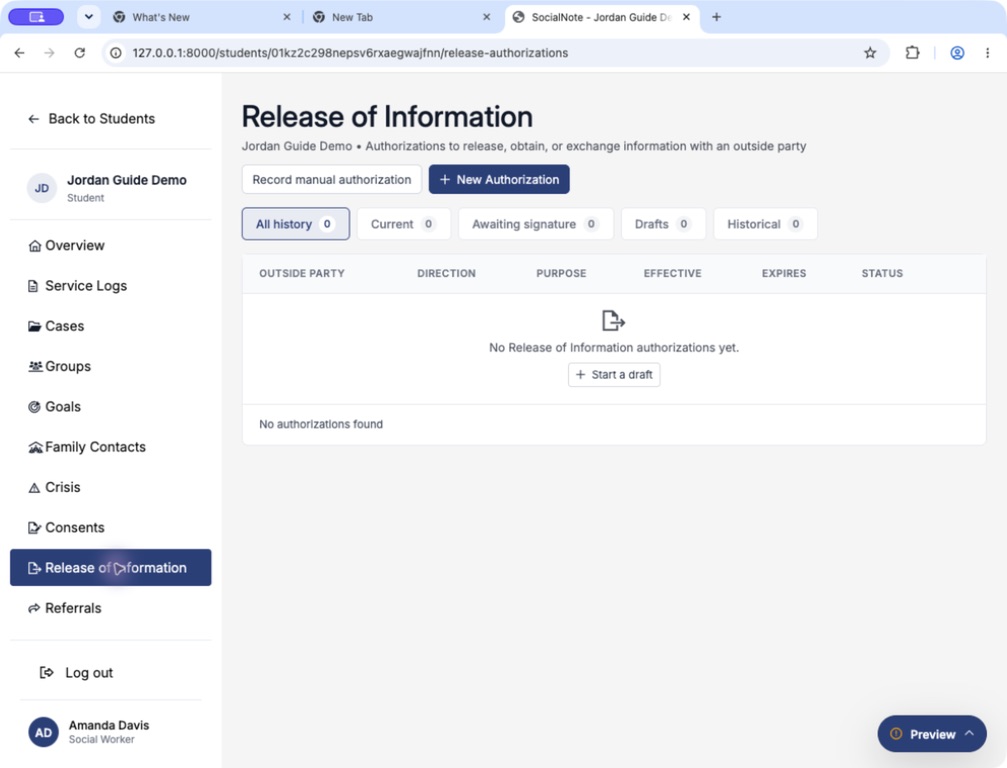
Open a student’s workspace and choose Release of Information in the sidebar. The list separates All history, Current, Awaiting signature, Drafts, and Historical authorizations.
| Direction | What it means |
|---|---|
| Release to School → Outside party | The school or district may release the selected information to the named outside party. |
| Obtain from Outside party → School | The school or district may obtain the selected information from the named outside party. |
| Exchange with School ↔ Outside party | Both parties may exchange the same selected information for the same purpose and period. |
An ROI does not automatically send student records to the outside party, grant that party a SocialNote account, or replace consent for services. A referral coordinates support; an ROI documents permission for information sharing. Follow your organization’s procedures when deciding whether and how to disclose records.
District setup: before invitations are sent
District administrators open Settings → Release of Information to prepare the workflow.
- Review and customize the Authorization, Revocation instructions, and Redisclosure notice text. Platform starter language is provided; the district is responsible for determining that its language and process are appropriate.
- Choose the enabled Information Categories and Purposes. These control staff choices, not automatic selection on a draft. Other (describe) remains available and requires an explanation.
- Set the expiration default: End of current school year, A set number of days after the effective date, or No default (staff enter a date). This only prefills the form; every authorization still requires an actual expiration date.
- Choose the additional student-signature policy: Not collected, Optional (staff decide per authorization), or Always required.
- Add Supplemental language when needed, enable Enable electronic signing when ready, and choose Save Settings.
Turning electronic signing off blocks new invitations, queued deliveries, and further signatures on pending requests. Retained signed documents and manual recording remain available. After changing district text, reload unsent drafts before sending; retained signing documents do not change.
Some information categories are labeled Specially protected. Selecting or enabling a category does not establish that disclosure is legally permitted. Staff must determine signer authority, appropriate scope, and any additional requirements under their organization’s procedures. SocialNote does not make that determination automatically.
Create a draft
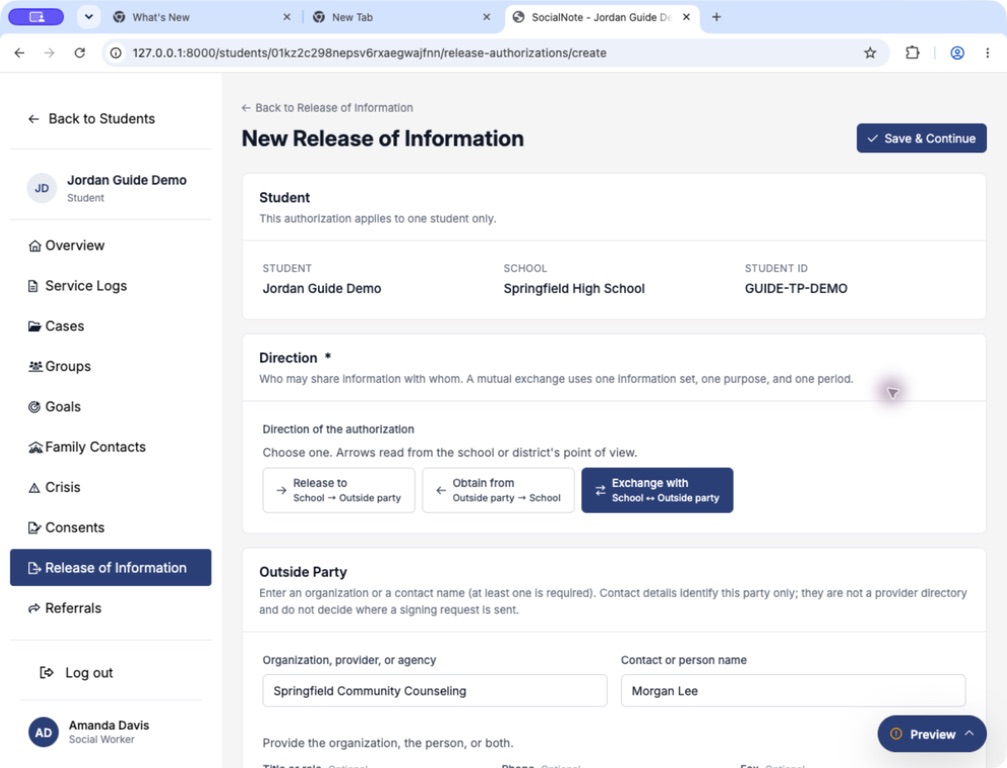
- Open the correct student, choose Release of Information, then New Authorization. Check the displayed student, school, and student ID.
- Choose Release to, Obtain from, or Exchange with, reading the arrows from the school’s perspective.
- Complete Outside Party. Enter an organization/provider/agency, a contact/person name, or both. Title, phone, fax, email, and address are available for identification.
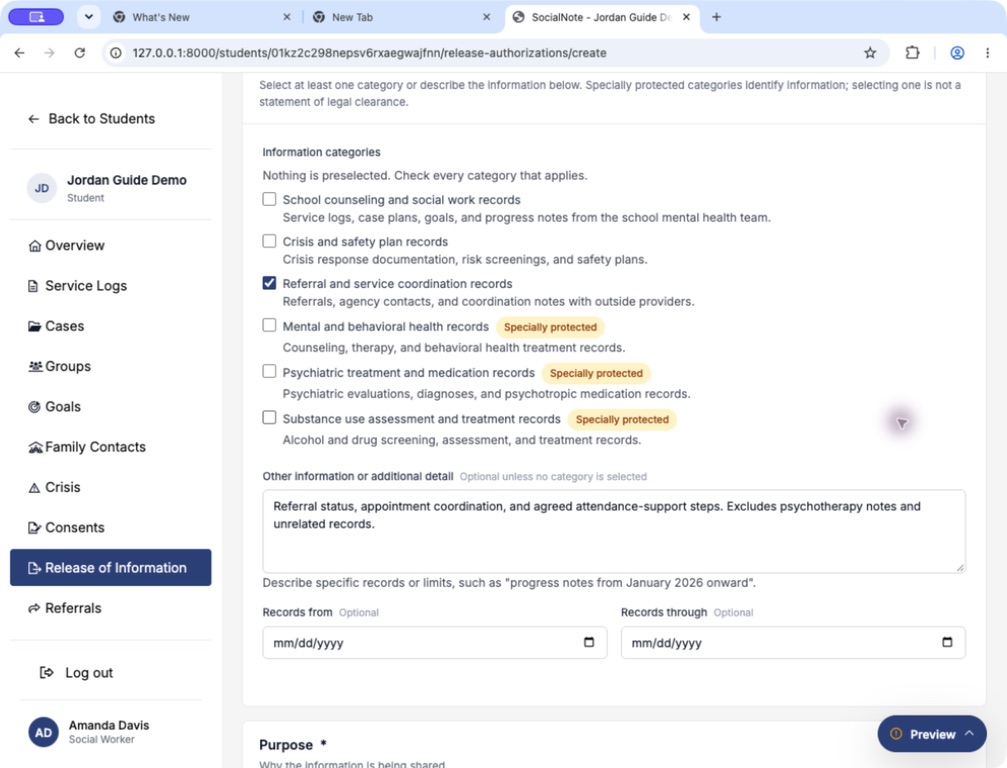
- Under Information Authorized, select the enabled categories that apply. Nothing is preselected. Enter Other information or additional detail to describe specific records or limits; a description is required if no category is selected.
- Optionally limit the records with Records from and Records through. These describe the records covered, not the authorization’s effective period.
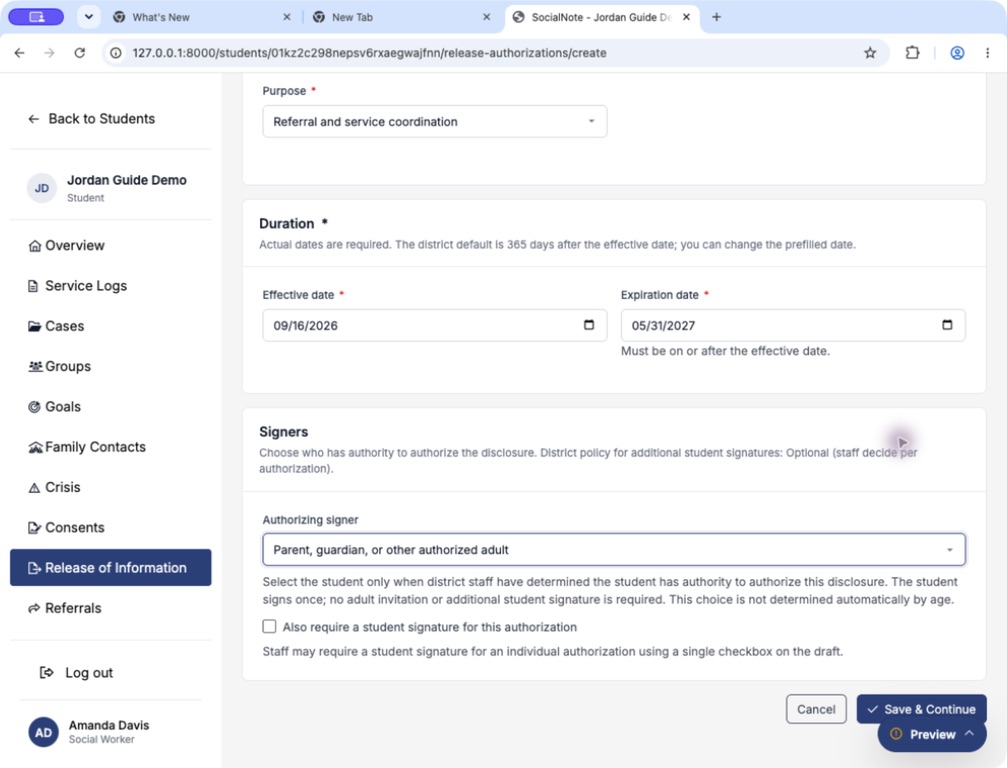
- Select a Purpose. If you choose Other (describe), provide the requested explanation.
- Enter Effective date and Expiration date. The expiration date must be on or after the effective date.
- Choose the authorizing signer and any applicable additional student signature, then choose Save & Continue.
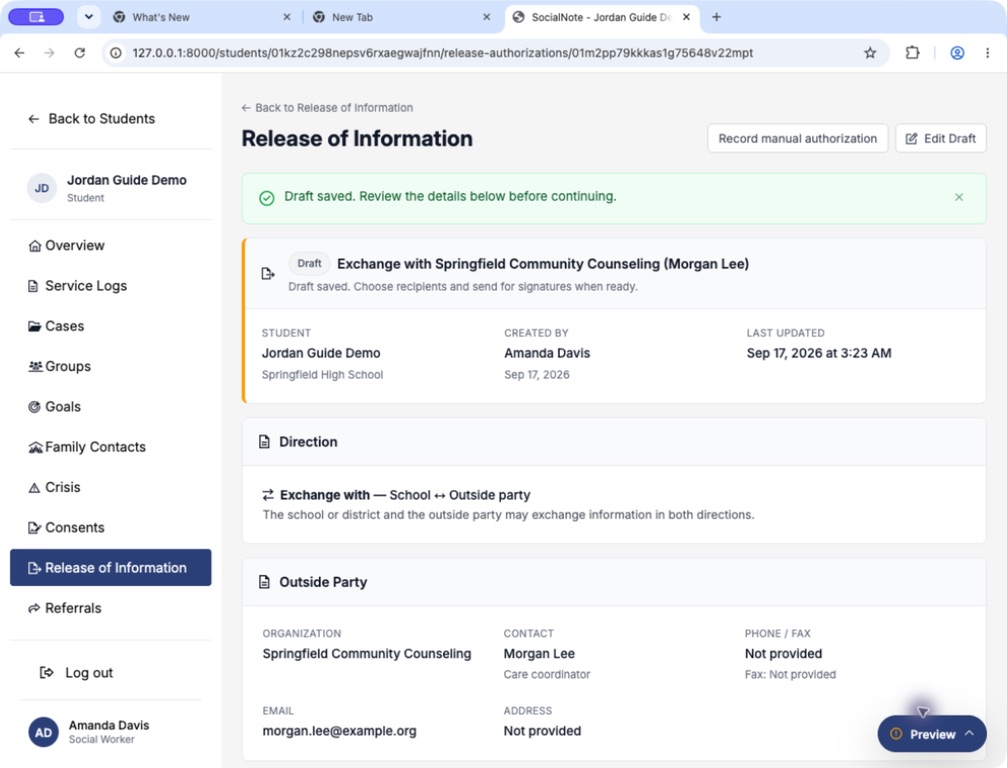
Saving creates a Draft; it sends no email. Use Edit Draft to correct its facts before requesting signatures.
Choose the signers deliberately
| Choice | How signing works |
|---|---|
| Parent, guardian, or other authorized adult | The adult provides the authorizing signature. Staff select an existing Family Contact or enter another recipient on the send page. |
| Adult plus additional student signature | District policy determines whether staff can choose Also require a student signature for this authorization or whether it is always required. Each person receives a separate link and may sign in either order. Both required signatures must be recorded before completion. |
| Student as authorizing signer | Use only after staff determine that the student has authority to authorize the disclosure. The student receives one invitation and signs once. No adult invitation or duplicate additional student signature is required. |
SocialNote does not infer the student’s authority from age, and a Family Contact’s relationship label does not by itself establish authority. An additional student signature does not replace the authorizing signature.
Preview and send signature requests
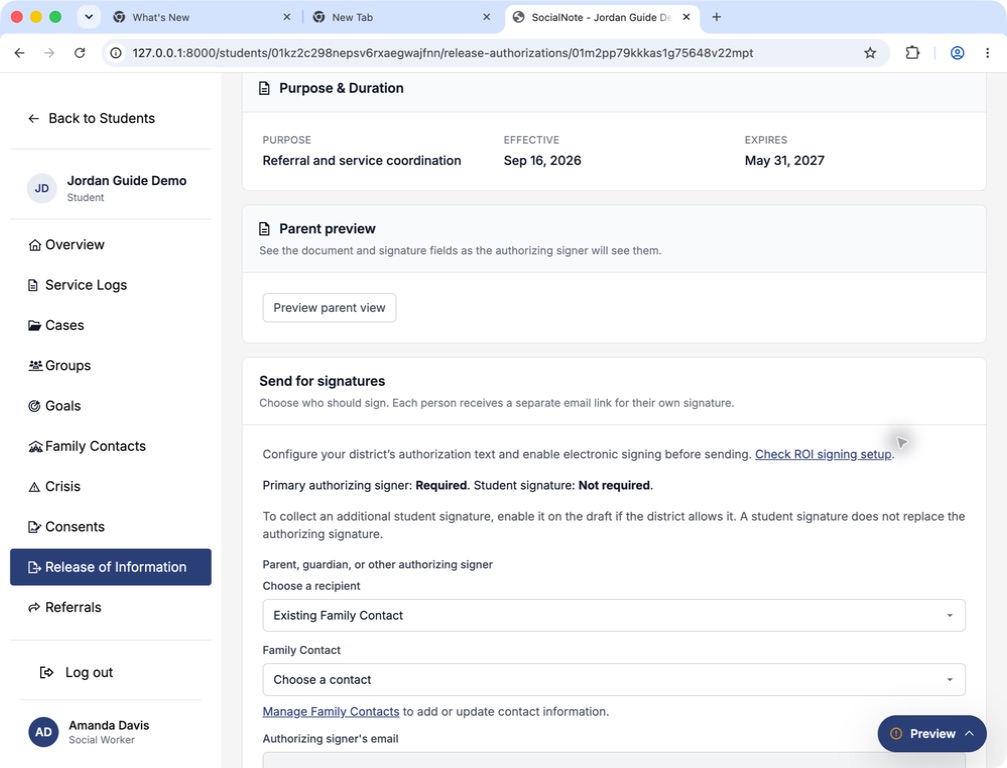
- Review the saved direction, outside party, information, purpose, and dates.
- Choose Preview parent view or Preview student view, depending on the authorizing signer. The read-only preview shows the authorization and signature fields; signing is disabled and opening it sends no invitation.
- For an adult authorizer, choose Existing Family Contact or Enter another recipient. Confirm the authorizing signer’s name, relationship/authority, and email. Use Manage Family Contacts if contact information needs updating.
- For a student authorizer, confirm the Student email. If an additional student signature is required for an adult authorization, confirm that student recipient’s address separately.
- Check I confirm the recipients and email addresses above are correct, then choose Send signature requests.
Each requested signer receives their own email invitation. The outside party listed on the authorization is not automatically a signer or invitation recipient. The request retains the document presented for signing, so later district-text changes do not silently rewrite it.
Signing uses access to the emailed link and a typed name; it does not independently verify identity. Choose an address controlled by the intended signer. A shared mailbox does not establish which person opened the invitation. Treat signing links as private and do not forward them to another signer.
The signer experience
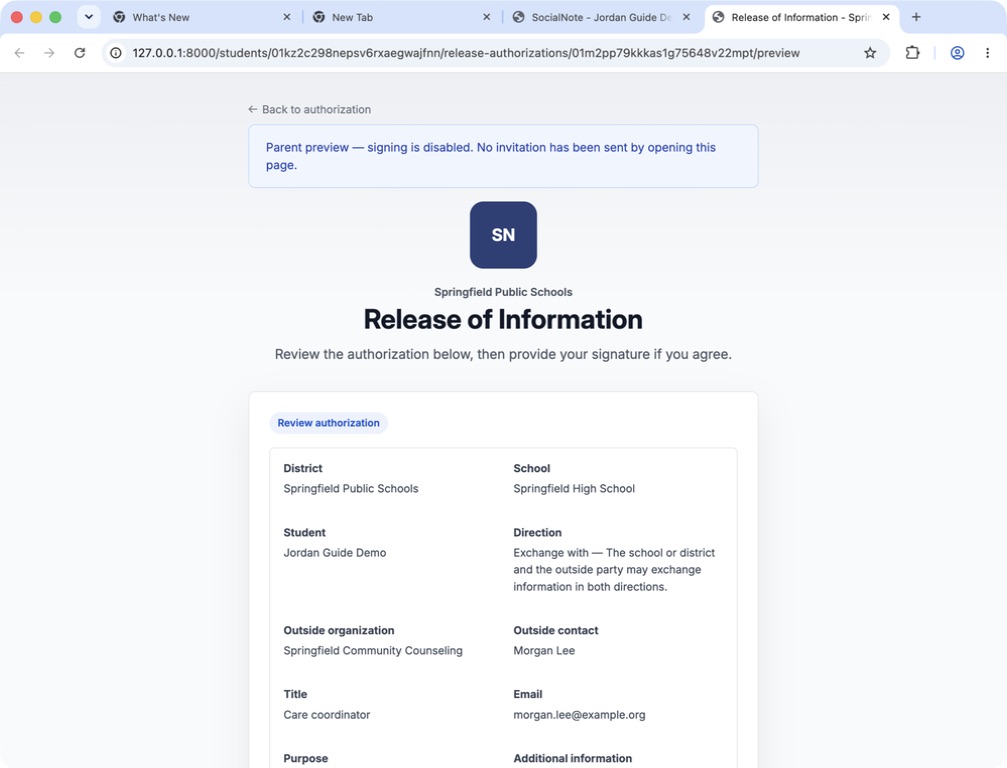
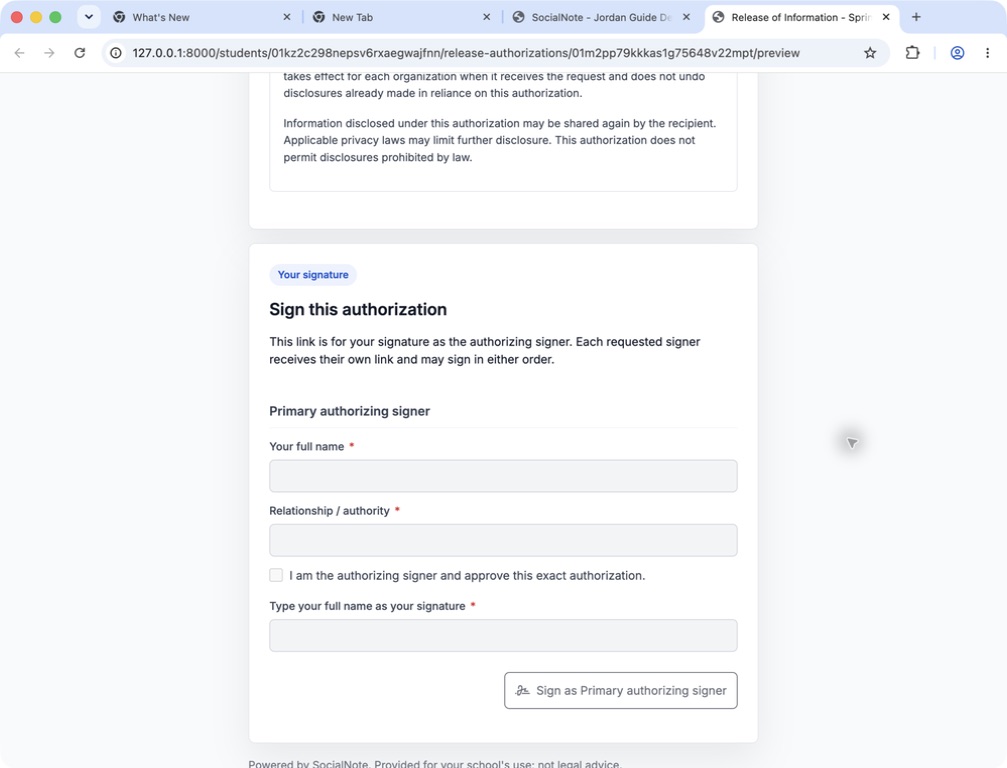
- The signer opens their invitation and reviews the authorization, including the direction, information scope, purpose, dates, and district language.
- They enter Your full name. Adult authorizers also enter Relationship / authority; student signers do not provide that field.
- They check the affirmation and enter Type your full name as your signature.
- They choose the displayed Sign as button for their role.
When another required signature remains, the request stays Awaiting signature. Once all required signatures are recorded, SocialNote completes the authorization. Signature and completion notices provide follow-up information; recipients are directed to the school for a completed copy rather than receiving protected records as an email attachment.
If validation fails, signature fields are cleared for protection and must be re-entered. An expired, canceled, or replaced link is unavailable; the signer should contact the school rather than use someone else’s link.
Follow up without accidentally restarting signing
The detail page shows each recipient’s signing status, delivery status, signing-link expiration, and reminder information. Delivery status reflects acceptance by the email service—not proof of inbox receipt or reading. Signing links currently have a 14-day lifetime, separate from the authorization’s effective and expiration dates.
| Action | When to use it | What happens |
|---|---|---|
| Send reminder | A delivered, unexpired invitation is still unsigned. | One reminder may be sent per recipient, manually or automatically seven days before link expiry. It refers to the original invitation and does not restart signatures. |
| Resend to the same recipients | A replacement invitation is necessary and the recipients are still correct. | After explicit confirmation, new invitations invalidate the old links. Everyone must sign again; earlier evidence remains in history. |
| Replace request and send new links | The recipients or signing delivery need to be corrected. | A new request replaces the earlier one, with new links and a fresh signing process for every required signer. |
| Cancel request and return to draft | Stop the pending request or edit the authorization before sending again. | The old links stop working. The draft becomes editable, while earlier request and signature history is retained. |
Automatic reminders and unsigned-link expiry notices depend on your environment’s email and scheduled follow-up services. Staff receive an expiry notice when a delivered link expires unsigned. If delivery failed or a reminder’s delivery is uncertain, check the displayed status and contact the recipient before replacing the request.
Record a paper or external authorization
Choose Record manual authorization from the student’s ROI list, or from an eligible authorization detail page. This path records facts from an already signed original; it does not collect a new electronic signature.
- Complete the authorization’s direction, party, scope, purpose, dates, and signer choices, then choose Continue to manual record.
- Upload the signed original in the student’s Documents area and wait until its scan is clean.
- Review the recorded authorization details and select the matching Signed original document.
- Enter each applicable signer’s printed name, relationship/authority when shown, and Actual signed date and time (UTC).
- Confirm that you verified each required signature and the recorded facts on the original, then choose Record manual authorization.
Completing a manual record cancels any outstanding electronic request and makes its signing links inactive. Earlier request history and signatures remain retained. The manual record identifies staff-recorded evidence and keeps the original available for download; do not describe it as an electronically signed SocialNote invitation.
Understand status, history, and printing
| Visible status | Meaning and next step |
|---|---|
| Draft | Details are saved but authorization is not complete. Edit, preview, and send when ready. |
| Awaiting signature | A signing request has been made but completion still requires the necessary signatures. Review recipients and follow up. |
| Active | The authorization is completed and within its effective period, with no recorded revocation. Review its scope and your organization’s procedures before any disclosure. |
| Future effective | Signing is complete, but the effective date has not arrived. Completion is not permission to begin sharing early. |
| Expired | The completed authorization’s expiration date has passed. Retained evidence remains available; do not treat it as current permission. |
| Revoked | Revocation has been recorded. The signed document and history remain retained. |
On a completed authorization, choose View signed document / Print to inspect retained authorization details and signatures. For a manual record, Download original evidence opens the supporting original. Request history provides earlier signing presentations and recorded signature counts, including replaced or canceled requests.
The completed document is not editable as a draft. If new facts or a different scope are needed, follow your organization’s process for a new authorization rather than trying to rewrite retained evidence. Handle printed and downloaded copies as student records under your organization’s procedures.
Record revocation without deleting history
When a completed authorization must be revoked, authorized staff use Record revocation. Enter the reason, requesting person, and requesting role when known; check the confirmation and submit. The authorization shows Revoked, while its signed evidence remains preserved.
Recording revocation in SocialNote does not automatically notify the outside party or retrieve previously shared records. Complete any communications and other steps required by your organization. ROI records cannot be deleted through this workflow.
Worked example: coordinating attendance-related support
Scenario: Jordan Guide Demo is receiving school-based support and services from a community counseling provider. Staff have determined that Jordan’s guardian, Casey Ellis, is the appropriate authorizing signer. The school wants to coordinate the referral and attendance-support plan with the provider.
All names and addresses below are synthetic. They illustrate form entry, not a recommended legal scope or an actual invitation destination.
| Field | Example entry |
|---|---|
| Direction | Exchange with — School ↔ Outside party |
| Organization, provider, or agency | Springfield Community Counseling |
| Contact or person name | Morgan Lee |
| Title or role | Care coordinator |
| Outside party email | morgan.lee@example.org — identifies the provider; this is not the guardian’s signing address |
| Information categories | Referral and service coordination records |
| Other information or additional detail | Referral status, appointment coordination, and agreed attendance-support steps. Excludes psychotherapy notes and unrelated records. |
| Records from / Records through | Leave blank for this example; the information description limits the scope. Enter a range when only records from a specific period should be covered. |
| Purpose | Referral and service coordination |
| Effective date / Expiration date | September 16, 2026 / May 31, 2027 |
| Authorizing signer | Parent, guardian, or other authorized adult |
| Additional student signature | Not required for this example, assuming the district’s policy permits that choice |
| Invitation recipient | Casey Ellis, Guardian — casey.ellis@example.org |
- Save the draft and preview the parent view. Confirm that the party, limits, purpose, and dates match the intended authorization.
- Select Casey’s Family Contact, verify the guardian’s email, confirm the recipients, and send the signature request.
- Casey opens the invitation, reviews the document, completes the name and authority fields, affirms, and types their signature.
- Staff confirm completion and current status, review the signed document, and separately coordinate any permitted sharing through the organization’s approved channels.
- If Casey withdraws the authorization, staff record revocation and complete the required outside-party follow-up without deleting the evidence.
Who can do what
| Person | Available work |
|---|---|
| Staff with access to the student | View ROI history and retained evidence within their existing student-access permissions. |
| District/organization administrators, social workers, counselors, and psychologists with student access | Create and edit drafts, manage signature requests, record manual authorizations, and record revocation when the authorization’s state permits it. |
| District/organization administrators with settings access | Configure district ROI text, enabled choices, defaults, additional student-signature policy, and electronic signing. |
| Invited signers | Review and sign only the role requested through their invitation. The invitation does not give access to the student workspace. |
| Outside party | Being named identifies the organization/person covered by the authorization; it does not automatically create workspace access or send them student records. |