Configuring Consent
A district administrator’s guide to signer language, consent defaults, signing-link lifetime, student self-consent, and locale options.
What consent configuration controls
Consent settings define the district-approved language and defaults used when SocialNote creates a public electronic consent request. They affect what guardians and eligible students read before choosing whether to consent or decline.
| Setting area | What it affects |
|---|---|
| Header | The title and subtitle displayed at the top of every signer page. |
| Guardian text | The explanation, rights, and confidentiality language shown to a parent or authorized adult. |
| Student text | The corresponding language shown when an eligible student signs for themself. |
| Shared sections | Coverage, general consent, and footer language used by both signer paths. |
| Defaults and behavior | The stored consent basis, signing-link lifetime, and availability of student self-consent. |
| Locale | The default language code and language options displayed to signers. |
A referral-form checkbox confirms that the submitter read the intake notice. A SocialNote consent record documents a guardian’s or eligible student’s decision about specifically listed services.
Before you configure
Only district administrators and organization administrators can open Settings → Consent. Before editing the page, assemble the district-approved language and identify who is responsible for reviewing it.
- Confirm which services require consent and which consent basis the district uses.
- Have district counsel or the appropriate policy owner review rights, confidentiality, withdrawal, and self-consent language.
- Choose a signing-link lifetime and a process for resending expired requests.
- Decide whether the district permits student self-consent and who may verify eligibility.
- Confirm which languages are actually supported throughout the signer experience.
Consent requirements vary by service, age, jurisdiction, and district policy. Treat the provided text as a configurable starting point, not as a substitute for legal and policy review.
1. Configure the header
The Consent title identifies the purpose of the request. The Consent subtitle commonly identifies the school year or program period.
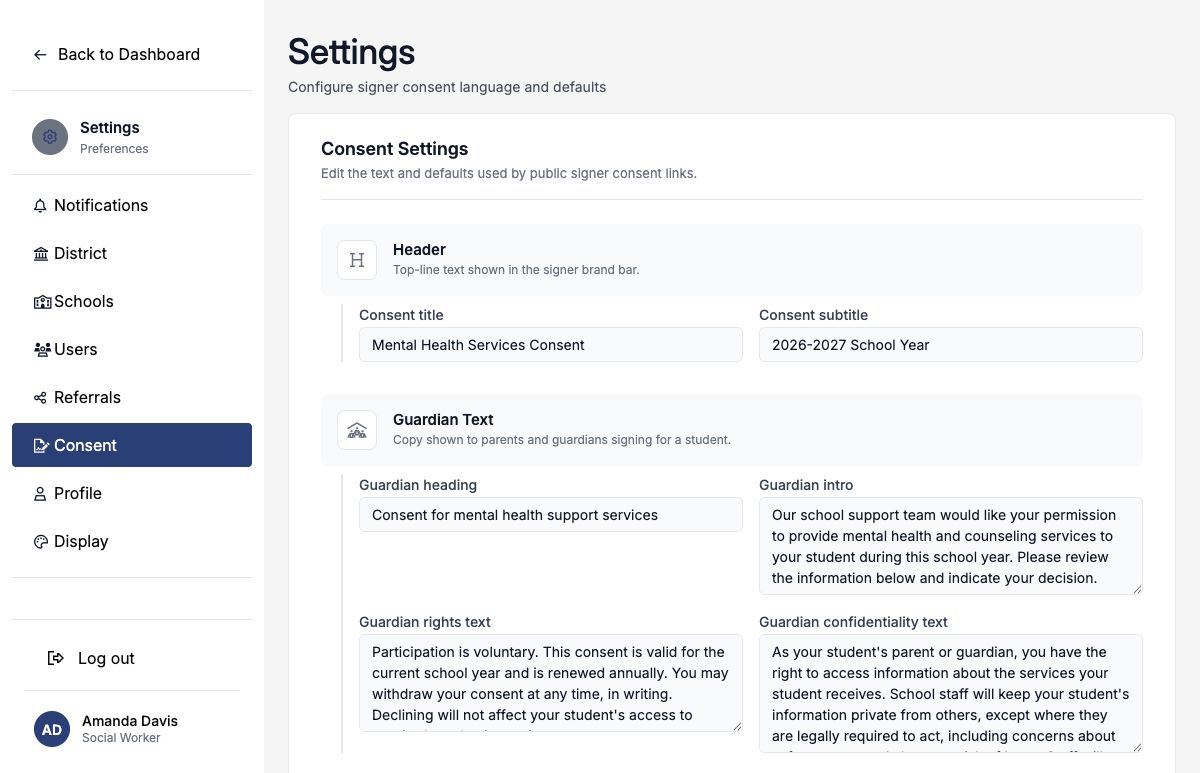
If the subtitle contains a school year, update it during annual rollover. SocialNote does not automatically replace the year in this field.
2. Write guardian-facing language
The guardian section contains four distinct pieces of copy:
| Field | Purpose |
|---|---|
| Guardian heading | States the decision being requested. |
| Guardian intro | Explains why the school is requesting permission and what the signer should do. |
| Guardian rights text | Explains voluntariness, duration, withdrawal, and the effect of declining. |
| Guardian confidentiality text | Explains privacy expectations, parent or guardian access, and required safety exceptions. |
Use plain language, name the type of support clearly, and avoid promising absolute confidentiality. The services actually authorized are selected when staff create each consent request.
3. Write student-facing language
The student section is used only for the student self-consent signer path. It includes a heading, introduction, eligibility banner, rights text, and confidentiality text.
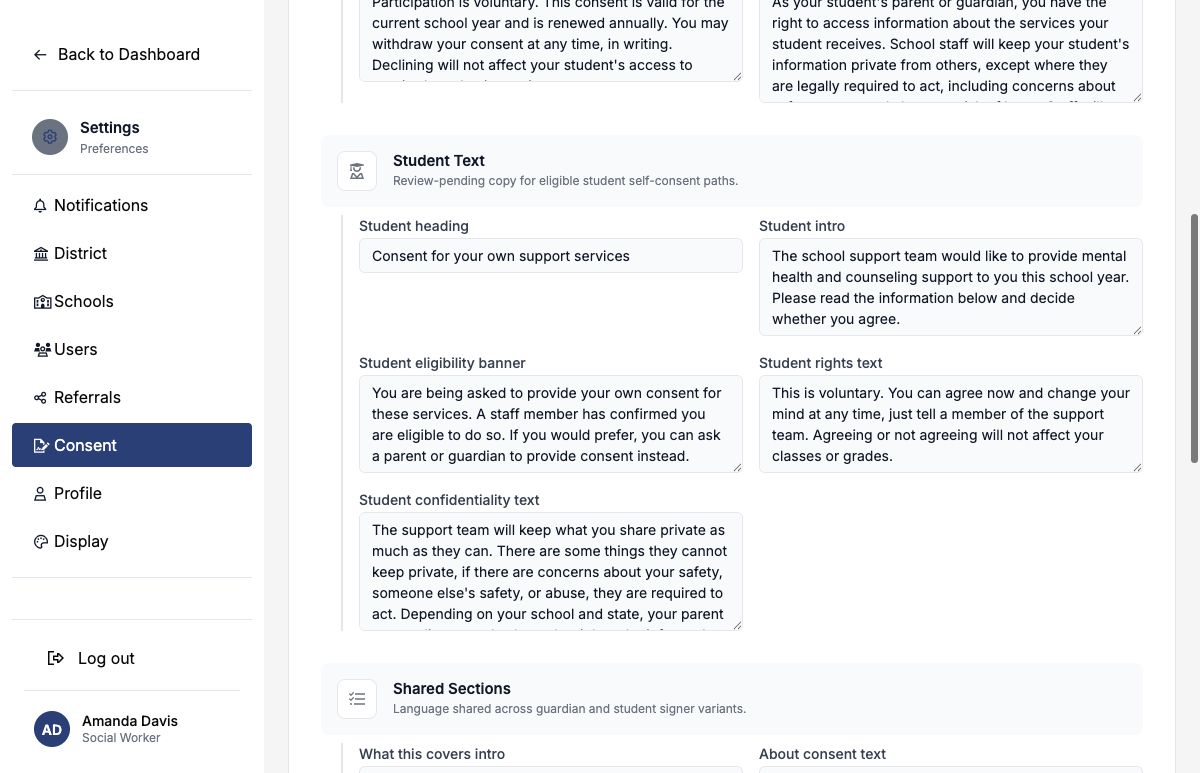
- why the student is being asked to sign for themself;
- that staff verified eligibility before sending the request;
- that participation is voluntary; and
- whom the student can ask for an explanation.
Student confidentiality text should plainly describe limits related to safety, abuse, risk of harm, and any parent or guardian access rights that apply.
4. Configure shared sections
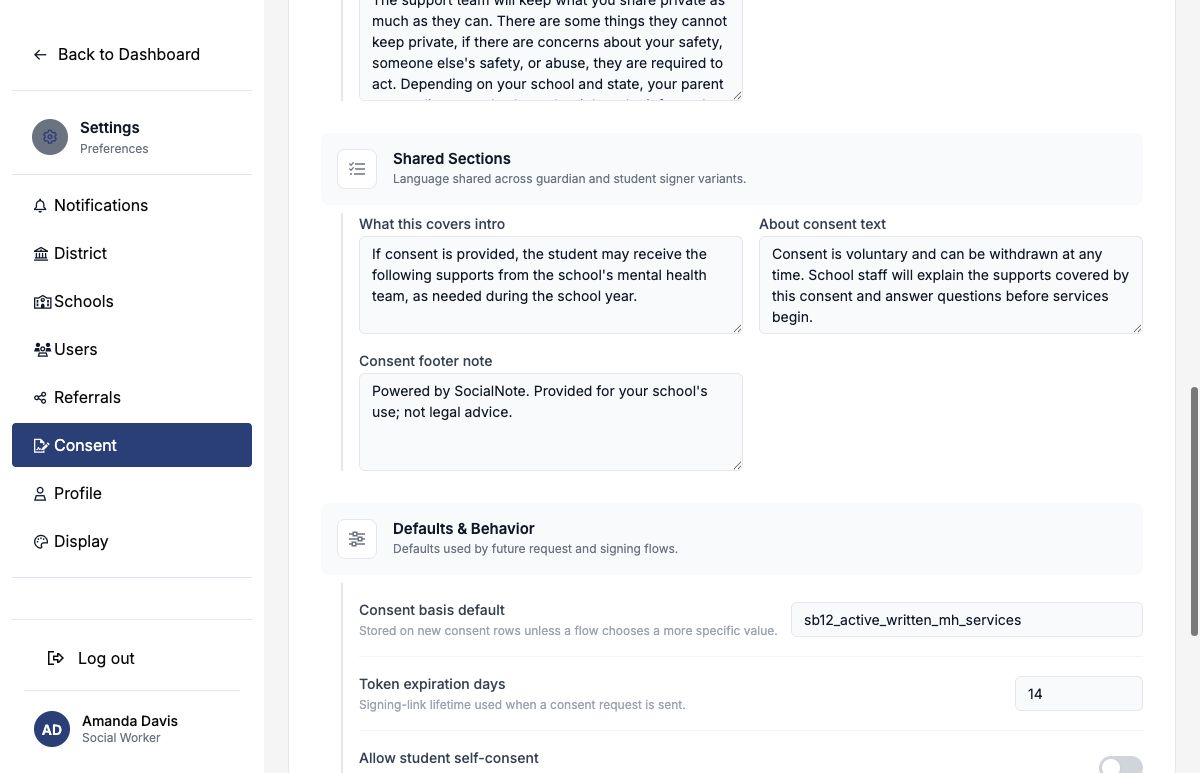
Shared copy appears on both guardian and student forms.
| Field | Recommended content |
|---|---|
| What this covers intro | Introduces the list of services selected for the individual request. |
| About consent text | Summarizes voluntariness, questions, withdrawal, and when services may begin. |
| Consent footer note | Provides a brief district or platform notice; do not place the primary legal explanation only in the footer. |
5. Set defaults and behavior
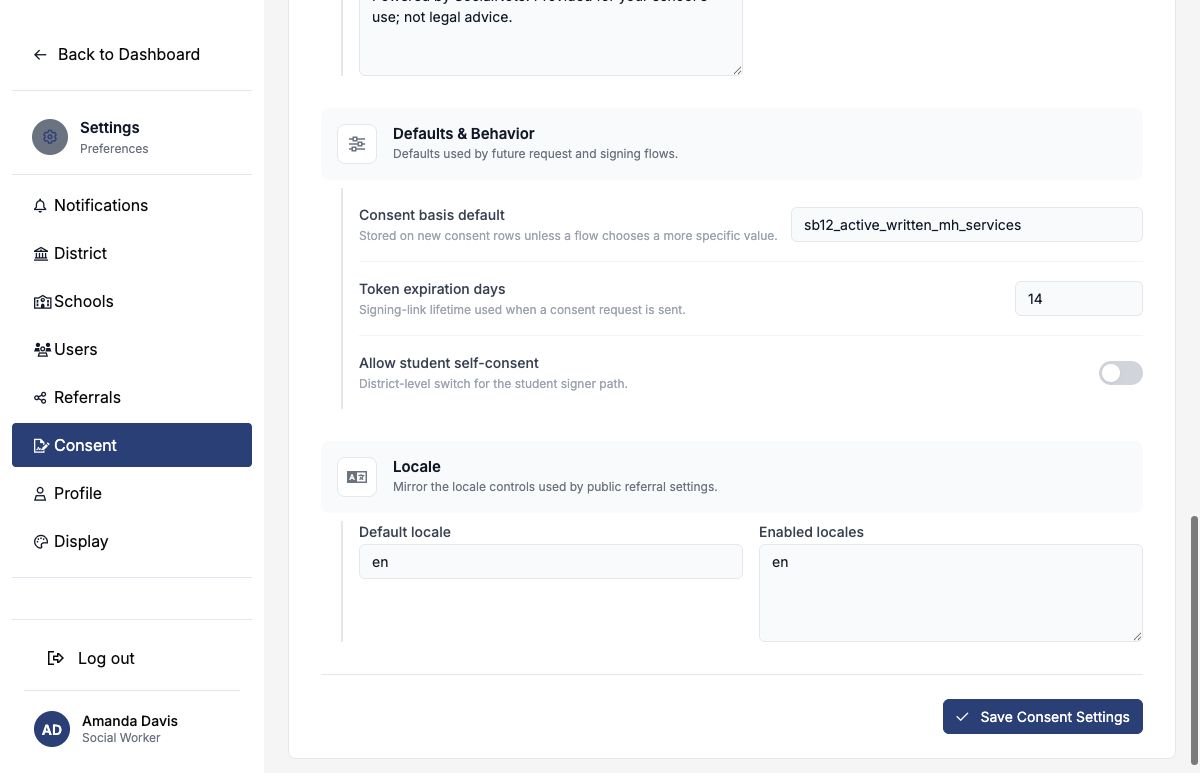
Consent basis default
This value is stored on each new consent record unless a workflow supplies a more specific basis. Use a stable, district-approved code such as sb12_active_written_mh_services.
The new value applies to future consent records. It does not rewrite the basis stored on existing requests or completed consents.
Token expiration days
This controls how long a public signing link remains usable after staff send the request. SocialNote accepts a value from 1 through 365 days.
| Time period | What it controls |
|---|---|
| Signing-link lifetime | The number of days the recipient may use the emailed link. |
| Consent effective period | The academic-year dates stored on the consent record after it is created. |
These are separate. A 14-day link does not mean consent lasts 14 days; it means the recipient has 14 days to respond.
Allow student self-consent
This district-level switch makes the student signer path available. When enabled, an authorized administrator must still attest that the individual student is eligible before sending a self-consent request.
Turning student self-consent off makes outstanding unsigned student self-consent links inactive. Review pending requests and the district’s eligibility policy before disabling it.
6. Configure locale options
Default locale is the primary language code. Enter enabled locale codes one per line, such as en and es.
The settings page stores one set of guardian, student, and shared copy. Add a language option only after verifying that the complete signer experience and district-approved text are available in that language.
7. Review the signer experience
The public page combines district branding, configured copy, the student and school, the specific services selected for the request, rights and confidentiality language, the signer’s decision, attestation, and typed signature.
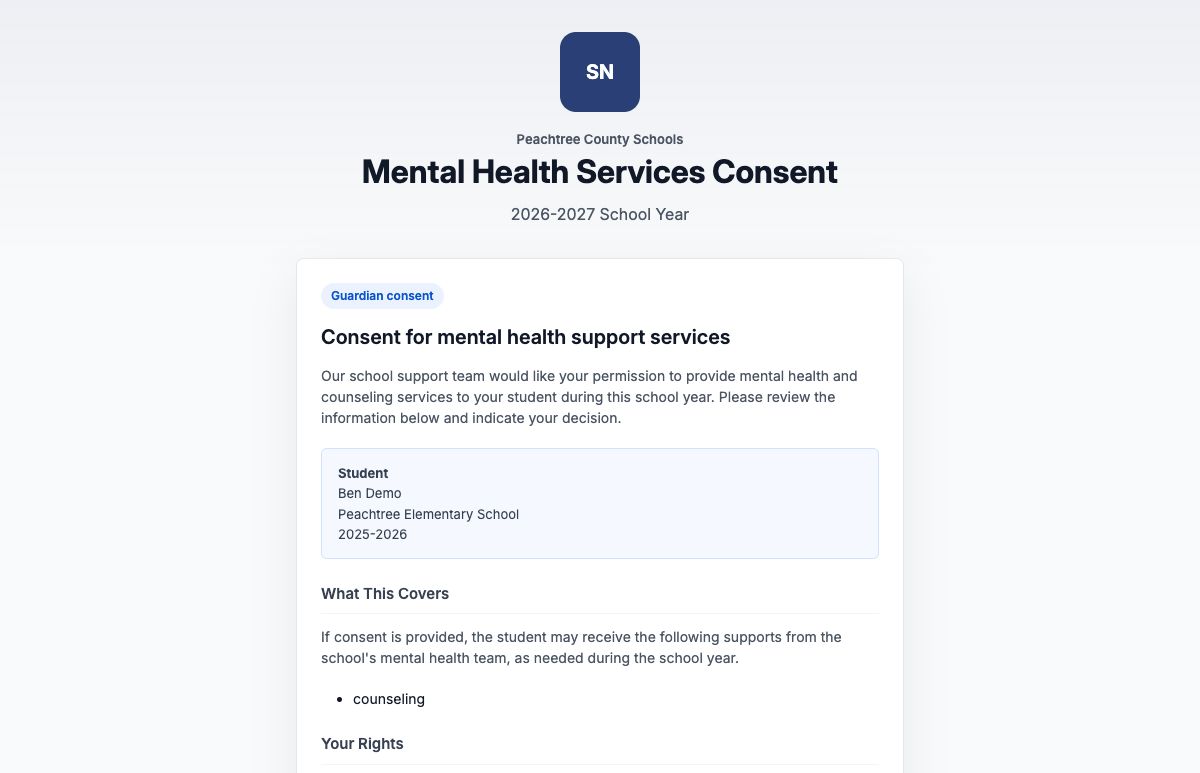
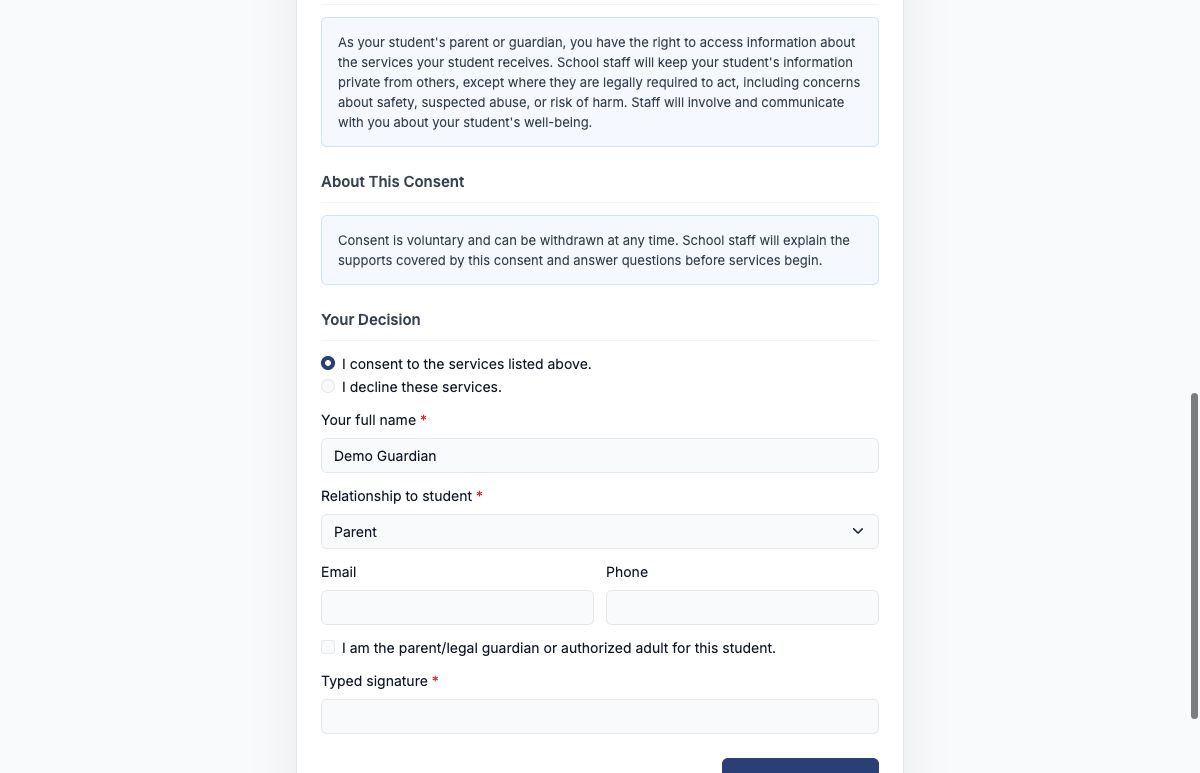
Use a test student to review consent and decline paths, the request email, expiration behavior, and the final record before district-wide use.
Recommended starting configuration
| Field | Example |
|---|---|
| Consent title | Mental Health Services Consent |
| Consent subtitle | 2026–2027 School Year |
| Guardian heading | Consent for school-based mental health support services |
| What this covers intro | If consent is provided, the student may receive the services listed below as needed during the current school year. |
| Consent basis | A stable code approved by district policy and reporting owners. |
| Link expiration | 14 days, paired with a documented resend process. |
| Student self-consent | Off until eligibility rules, administrator attestation, and student-facing language are approved. |
| Locales | Only languages fully reviewed and supported by the district. |
Launch checklist
- District counsel or the designated policy owner approved the language.
- The title, subtitle, and school year are current.
- Guardian rights and confidentiality language is complete and understandable.
- Student language has been reviewed separately from guardian language.
- The consent basis code matches district policy and reporting expectations.
- The signing-link lifetime matches the district’s follow-up process.
- Student self-consent is enabled only when eligibility rules and attestation responsibility are defined.
- Every enabled locale has a fully supported signer experience.
- A guardian test request has been opened from the delivered email.
- Consent, decline, expiration, and inactive-link behavior have been tested.
The next operational guide should cover sending, resending, manually recording, canceling, declining, expiring, and withdrawing consent.