← All SocialNote Guides · Working With Groups
Working With Migrated Groups
If your school or district moved from SocialNote 1.0 to SocialNote 2.0, your existing groups are marked Legacy record (imported from SocialNote V1) and show the status Inactive (imported). Learn what you can still do with them and how to keep documenting group sessions in SocialNote 2.0.
What migrated groups are
When your organization moved to SocialNote 2.0, existing group records and their historical documentation were transferred to the new platform. They’re kept so you can keep referring to services that were documented in SocialNote 1.0.
Migrated groups are read-only. You can view their records and documentation, but you can’t use them to document new group sessions.
| With a migrated group, you can | With a migrated group, you can’t |
|---|---|
| View historical group information. | Add new group sessions or session notes. |
| Review previously documented group sessions and notes. | Change existing historical group notes. |
| Refer to historical group membership and attendance, where available. | Edit the group’s configuration or membership. |
| Delete historical group records from the standard Groups interface. |
Use it for reference. Document ongoing group work in a group created in SocialNote 2.0. For other migrated records, see Moving From SocialNote 1.0.
Why migrated groups are read-only
SocialNote 2.0 has an updated Groups feature with more functionality and a different structure for managing sessions, participants, and documentation. Historical groups were migrated to preserve what was recorded in SocialNote 1.0.
Instead of changing those original records, SocialNote 2.0 keeps them for reference. New documentation goes into groups created with the updated Groups feature.
You don’t need to recreate previous session notes or other historical documentation.
Keep documenting in SocialNote 2.0
If you facilitated a group in SocialNote 1.0 and plan to keep documenting sessions for it, create a new group in SocialNote 2.0. The screenshots below show a new group being set up in SocialNote 2.0. For the full walkthrough, see Working With Groups.
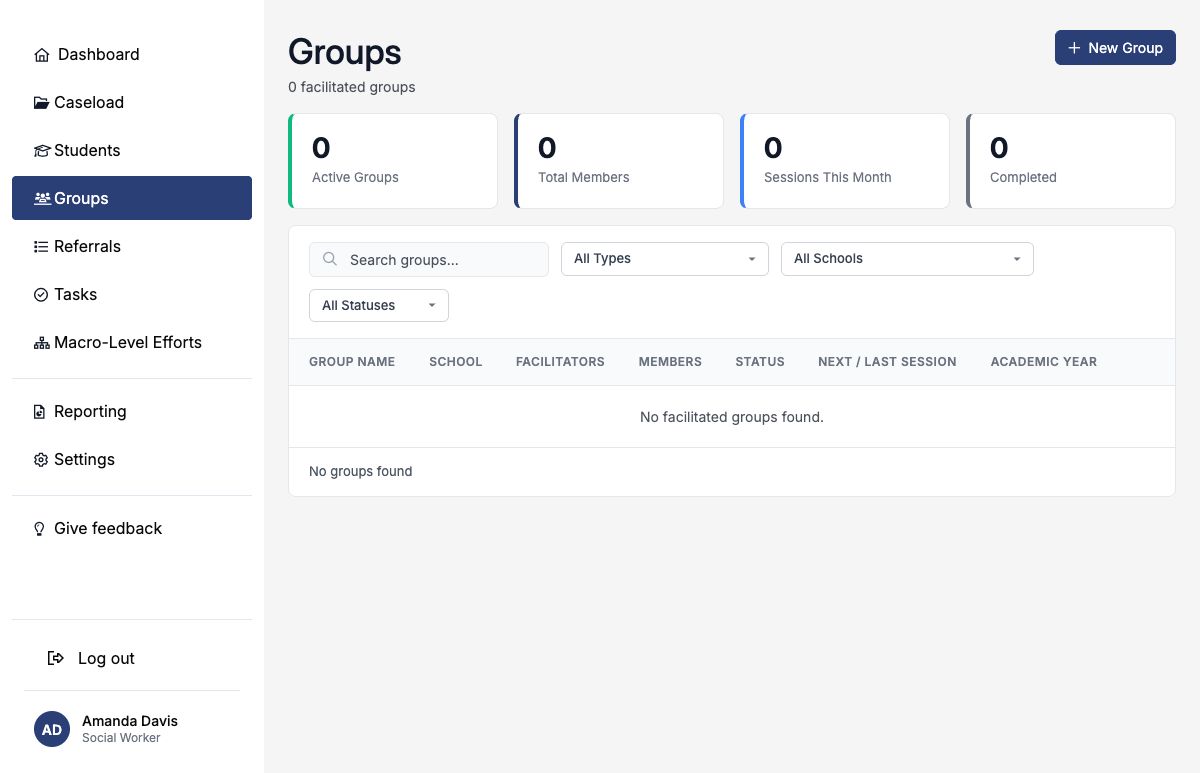
Step 1: Open Groups
- Sign in to SocialNote 2.0.
- Open Groups.
Step 2: Create a new group
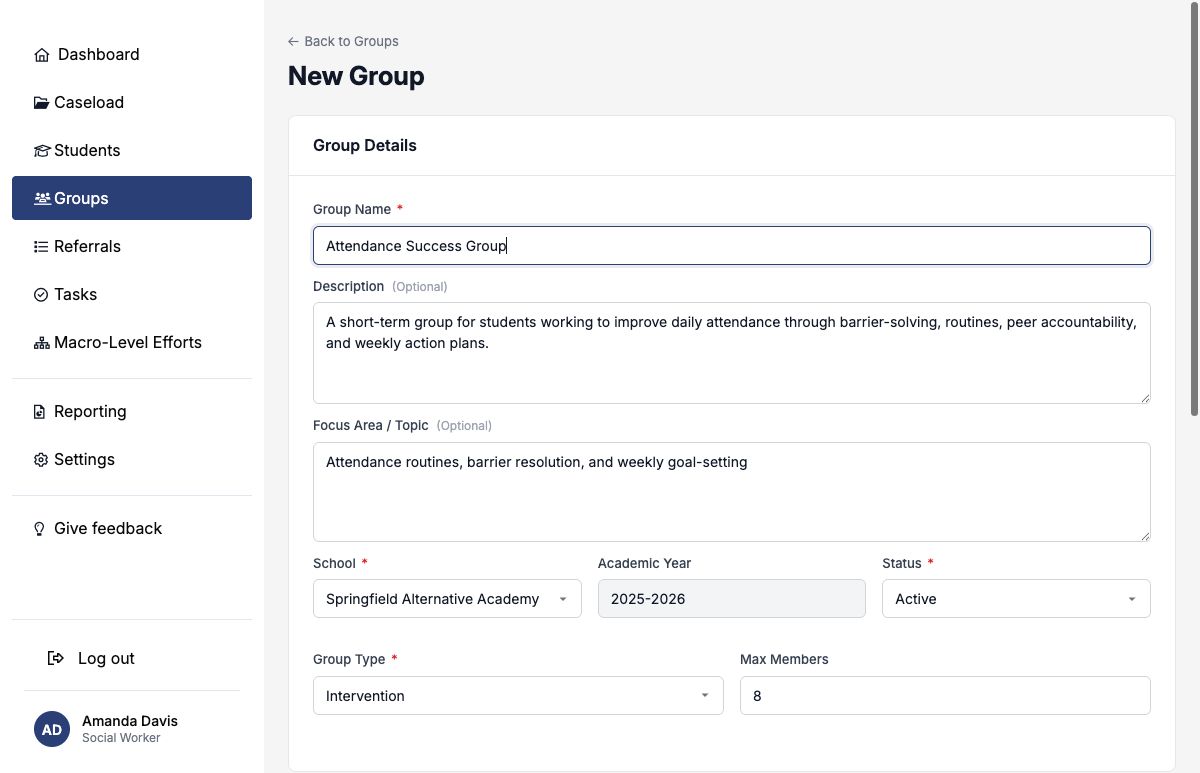
- Select New Group.
- Enter the group name. If you’re continuing an existing program, you can use the same name as your previous group.
- Describe the group’s purpose and the students it serves.
- Choose the school, status, and group type, and add any schedule details.
- Confirm the facilitators and save.
Step 3: Add the students
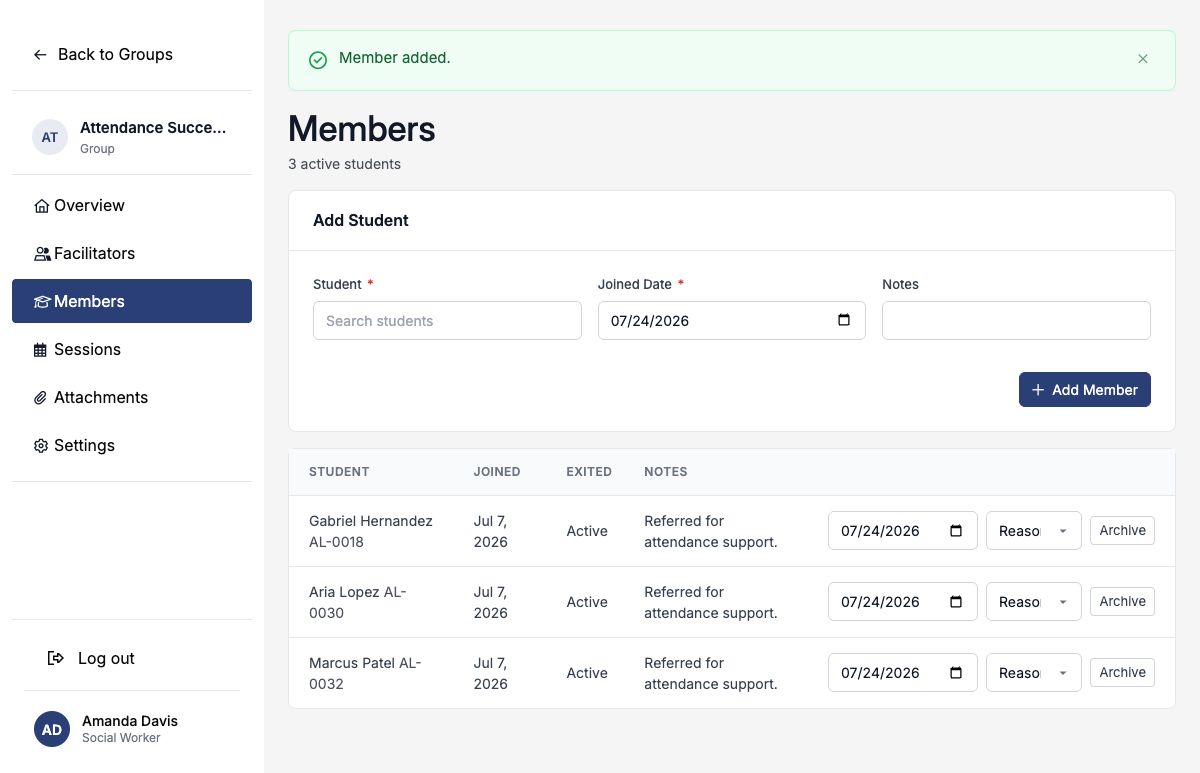
- Open Members in the new group.
- Search for each student who will take part and add them with a joined date.
- Review the group settings before you log the first session.
Step 4: Document new sessions
- Select New Session after each meeting.
- Record the session details, service codes, attendance, and notes.
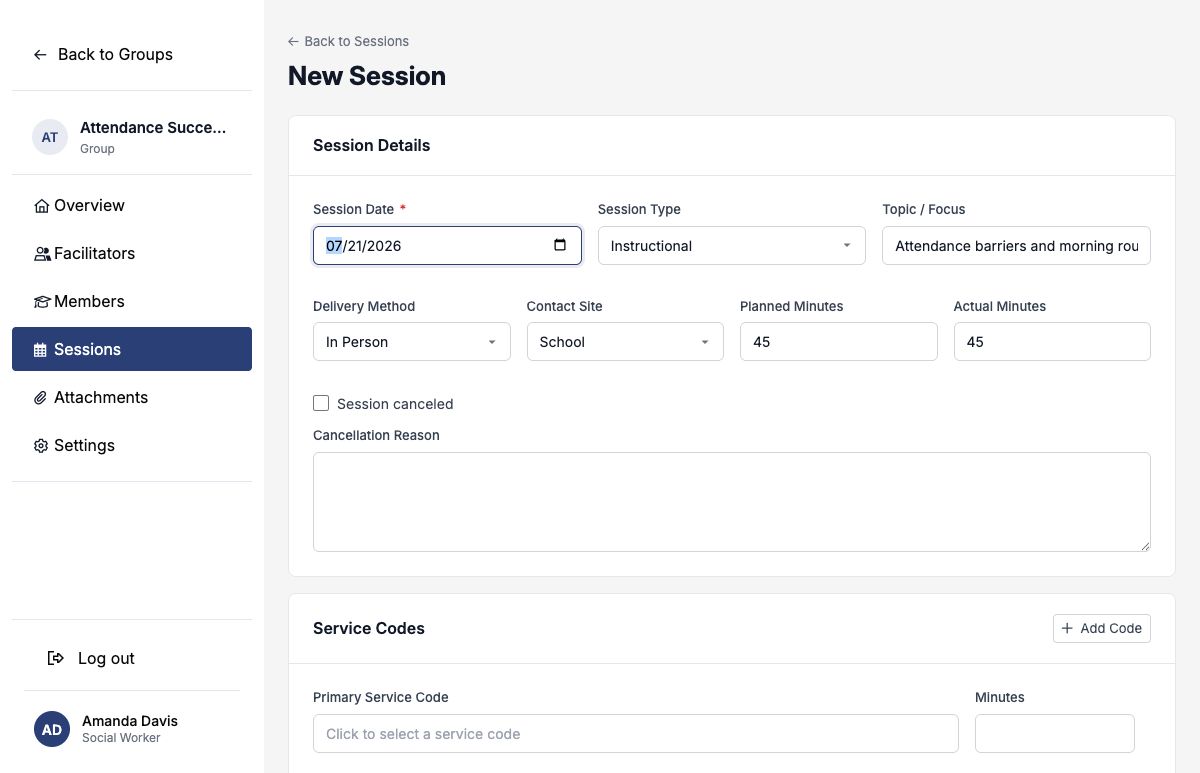
Sessions from SocialNote 1.0 stay available in the migrated group. Document only new sessions in the new group.
Tell historical groups apart
Migrated groups are classified as historical records, so they’re easy to tell apart from groups created in SocialNote 2.0:
| Where you look | What a migrated group shows |
|---|---|
| Group page and session pages | A Legacy record (imported from SocialNote V1) label. Session pages are also marked Read-only. |
| Status | Inactive (imported), whether the group was active or inactive in SocialNote 1.0. |
| Group type | Unclassified (imported), because SocialNote 1.0 didn’t record a group type. |
Find or hide migrated groups
- On the Groups list, open the status filter and choose Inactive (imported) to see only migrated groups.
- In Reporting, the Groups by Type status breakdown counts migrated groups in their own Inactive (imported) column, so they aren’t added to your Active, Completed, or On Hold totals.
Inactive (imported) means “kept for history.” It doesn’t mean the group was completed or canceled, and it doesn’t add an end date. The group’s original dates, sessions, notes, attendance, membership, and facilitators are unchanged.
Inactive (imported) is used only for groups migrated from SocialNote 1.0. Groups you create still use Planning, Active, On Hold, Completed, or Canceled.
Frequently asked questions
Can I add new session notes to a migrated group?
No. Migrated groups are read-only and can’t be used to document new sessions. To keep documenting group services, create a new group in SocialNote 2.0.
Do I need to recreate all my previous group sessions?
No. Your migrated sessions and notes stay available for reference. Document only new sessions in the updated Groups feature.
Can I use the same group name?
Yes. If you’re continuing an existing group or program, you can use the same name for the new group in SocialNote 2.0.
Can I change or delete historical group notes?
No. Group notes migrated from SocialNote 1.0 are preserved as read-only records. If you think a historical record has an error or needs a correction, contact your organization’s SocialNote administrator or SocialNote Support.
Why does my migrated group still show as Active?
Groups imported earlier kept the active status they had in SocialNote 1.0. SocialNote is reclassifying those groups as Inactive (imported) after reviewing each district’s records. Only the status changes; no documentation is edited or removed. Either way, a migrated group is read-only and can’t be used to document new sessions. If a migrated group still shows as Active and that’s causing confusion, contact support@socialnote.org.
Why don’t my migrated groups appear in my Active group counts?
Migrated groups are historical records, so the Groups list and the Groups by Type report count them separately as Inactive (imported). Use the status filter to include or exclude them.
Will creating a new group remove my previous group?
No. Creating a new group doesn’t remove or replace the migrated group. Your previous documentation stays available for reference.
Get help
If you have questions about migrated groups or need help creating a new group in SocialNote 2.0, contact your organization’s SocialNote administrator or email support@socialnote.org. Our team is happy to help you move your group documentation to the updated platform.