Managing Family Contacts
Add parents, guardians, relatives, and siblings to a student’s workspace, mark emergency contacts, and link a sibling to an existing SocialNote student.
Screenshots use Aaliyah Guide Demo, Rosa Guide Demo, Casey Guide Demo, and Maya Guide Demo—synthetic records created only for this guide.
What Family Contacts are for
A Family Contact is a person connected with one student—such as a parent, legal guardian, grandparent, foster parent, relative, or sibling. The record keeps the relationship, phone, email, preferred contact method, and emergency-contact designation together in the student’s workspace.
Family Contacts are student-scoped. Adding a parent to one student does not add that person to another student automatically. If the same adult supports siblings, add the adult to each student who should show that contact.
| A Family Contact does | A Family Contact does not |
|---|---|
| Keep contact details and the relationship beside the student record. | Grant the family member a SocialNote staff account or access to the student workspace. |
| Identify a preferred contact method and whether the person is an emergency contact. | Document that a call, meeting, notification, or service actually occurred. Use a Service Log or the appropriate workflow for completed work. |
| Link a sibling contact to another accessible student already in SocialNote. | Merge student records or automatically create the reverse sibling contact on the linked student. |
| Make an adult available for workflows that let staff choose an existing Family Contact. | Prove that the person has legal authority to sign. Staff must verify authority under district procedure. |
Update the contact from the student whose workspace you opened. A linked sibling remains a separate student record, and an adult contact must be maintained separately for each student.
Open a student’s contacts
- Open Students and select the correct student.
- Choose Family Contacts in the student sidebar. You can also choose Manage from the Family Contacts card on the student Overview.
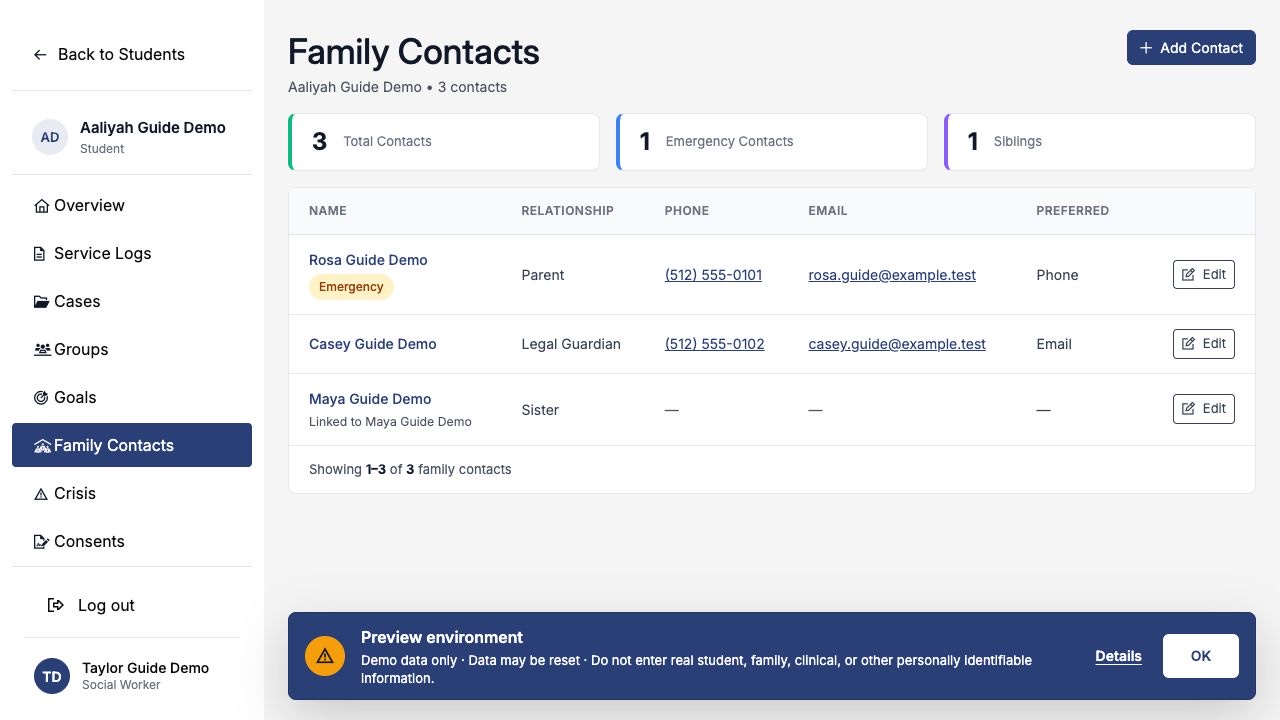
- Review Total Contacts, Emergency Contacts, and Siblings before adding another record.
- Choose Add Contact.
Add a parent or guardian
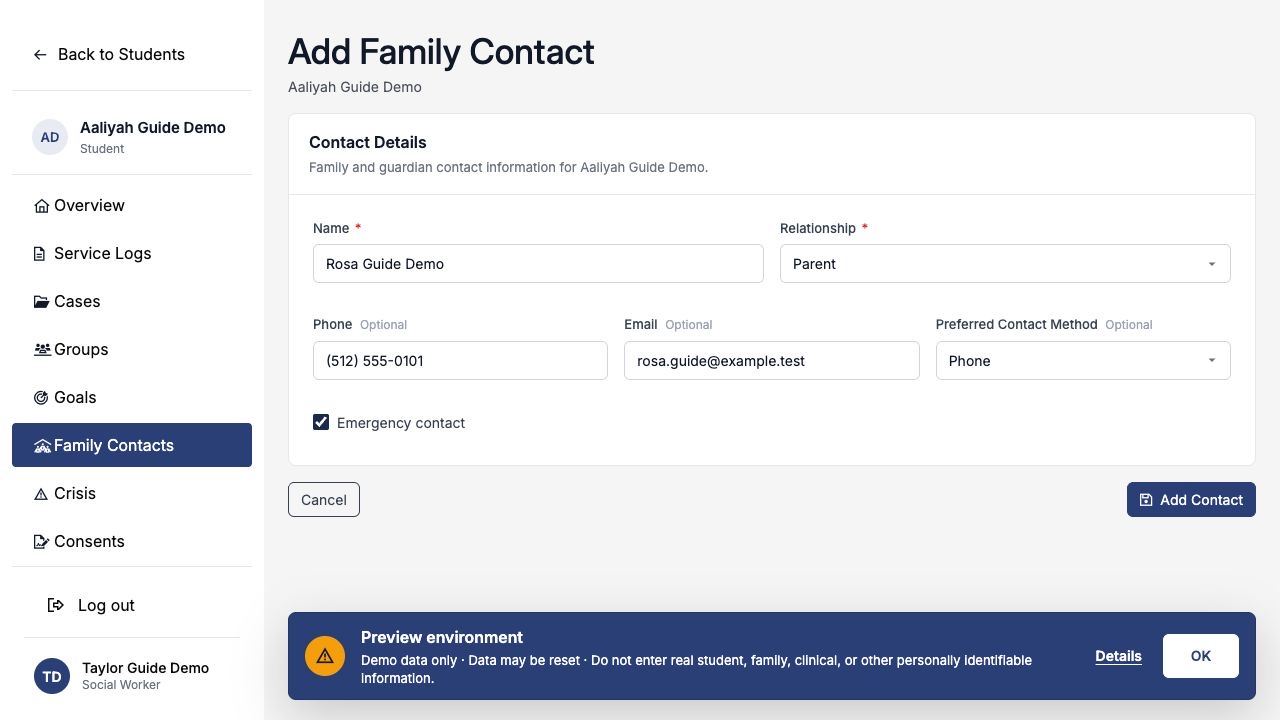
- Enter the person’s Name.
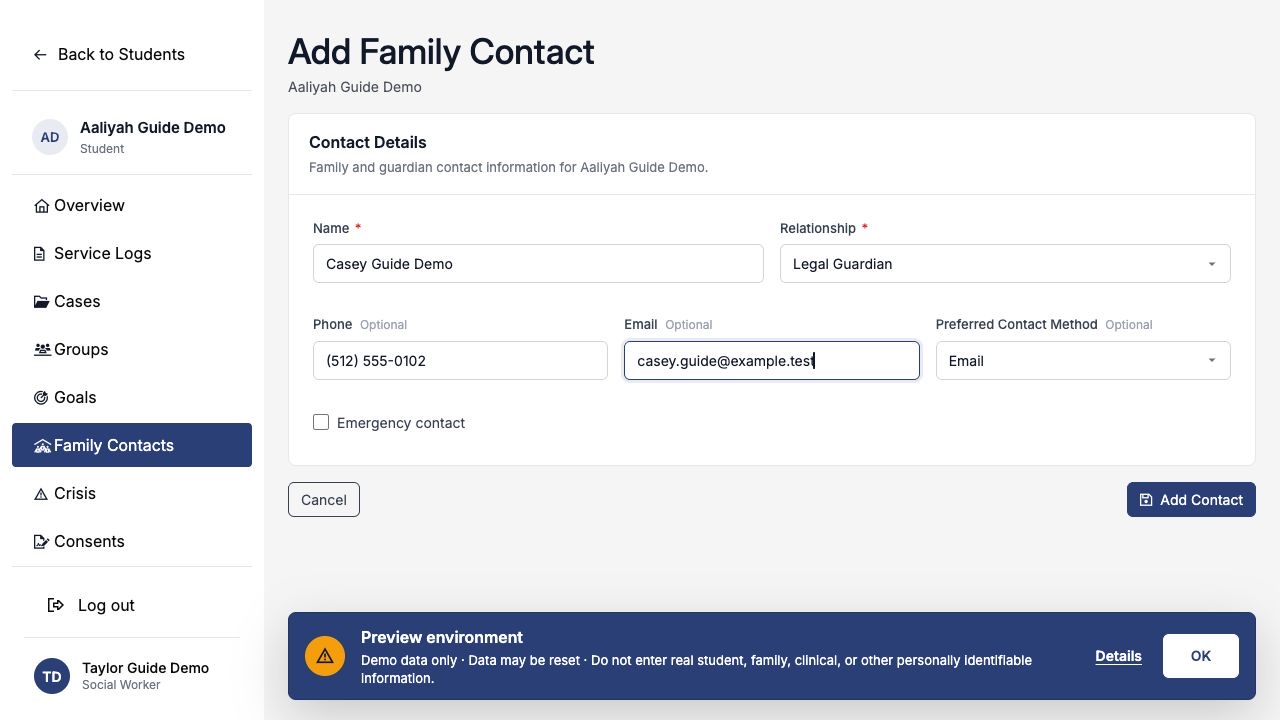
- Choose the specific Relationship. Adult choices include Parent, Legal Guardian, Stepparent, Grandparent, Foster Parent, Relative, Court-Appointed Guardian, and Other.
- Add a Phone, Email, or both when known.
- Choose Email, Phone, Text, or No preference as the preferred contact method.
- Select Emergency contact only when district records and procedures identify the person that way.
- Choose Add Contact.
Use the relationship that matches the source information you have. Do not choose Legal Guardian or Court-Appointed Guardian only because an adult is the student’s main contact.
Family Contact records support staff workflow, but they do not establish custody, educational rights, or authority to sign Consent or Release of Information forms. Follow district procedure before selecting an authorizing signer.
Add and link a sibling
Sibling relationships include Sibling, Brother, Sister, Stepsibling, Stepbrother, Stepsister, Half Sibling, Half Brother, and Half Sister. Choosing one of these relationships reveals the optional Linked Student field.
- Choose Add Contact and enter the sibling’s name.
- Choose the most specific sibling Relationship you know.
- Under Linked Student, select Search students.
- Search by student name or ID and choose the matching SocialNote student.
- Add phone, email, preferred method, or emergency status only if those details apply to this contact record.
- Choose Add Contact.
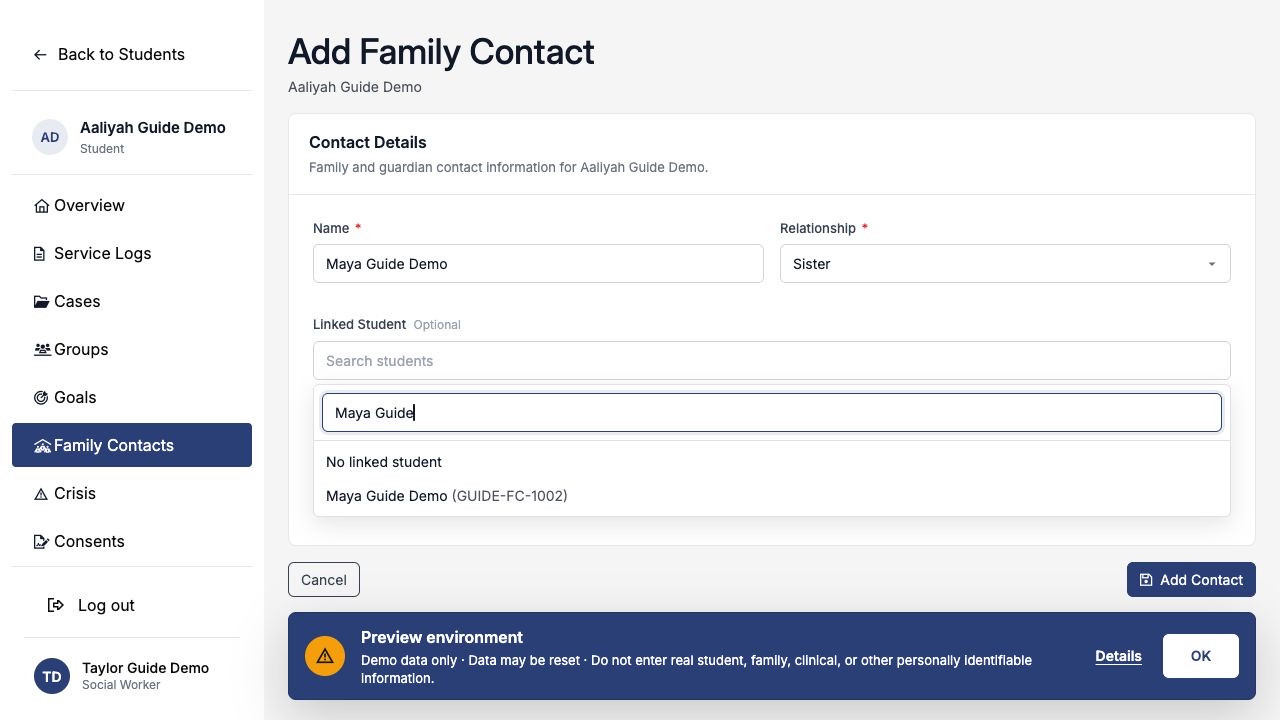
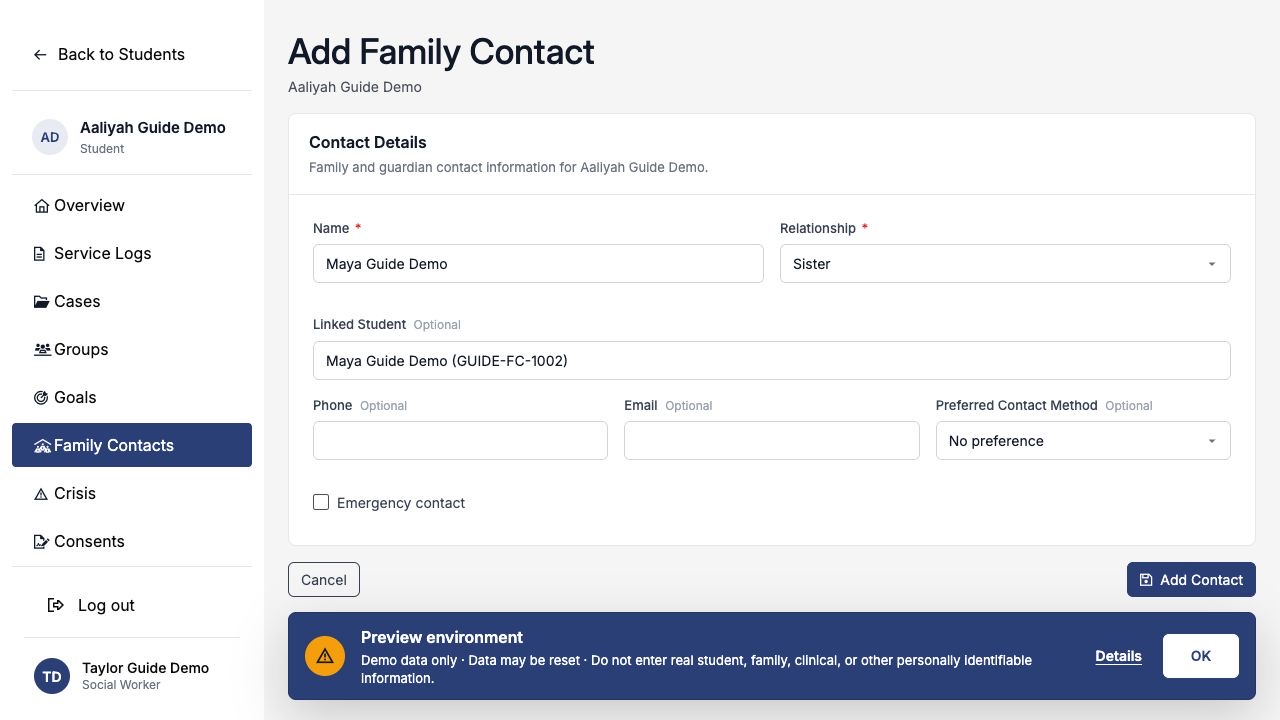
Use the displayed student ID as well as the name. The current student cannot be linked to themself, and search results include only other students in the same district that you are allowed to access.
Update or remove a contact
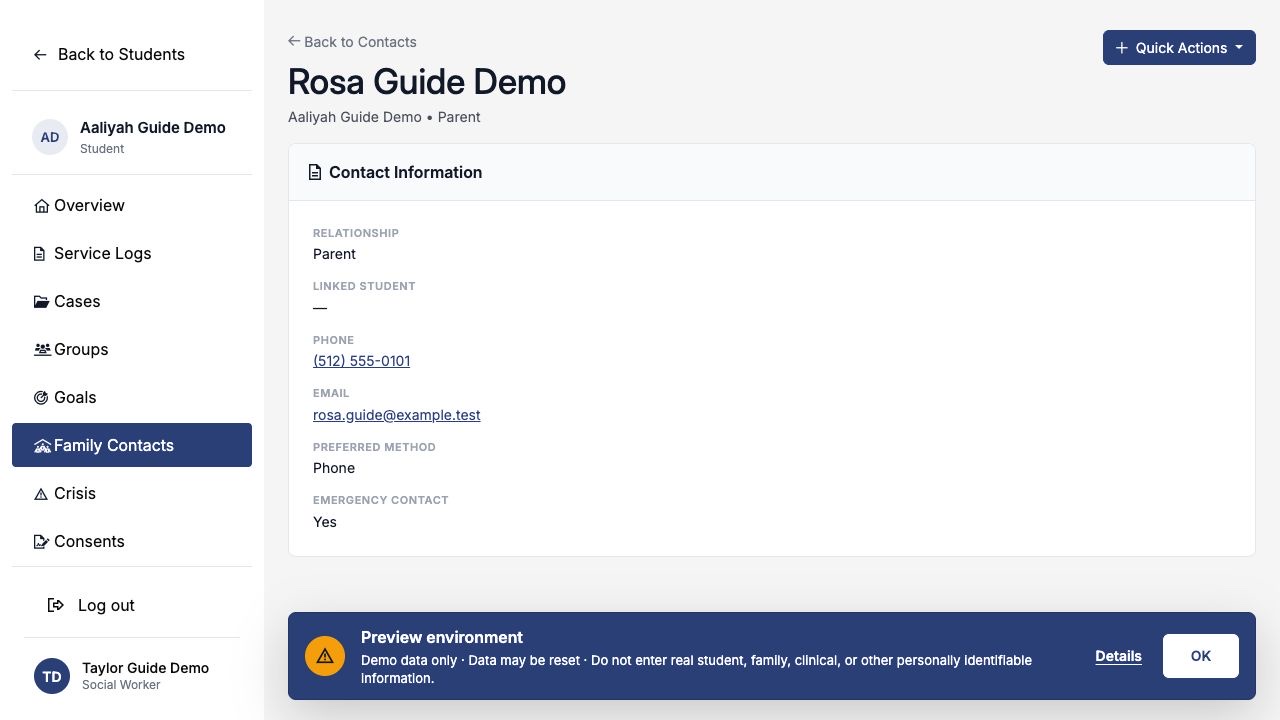
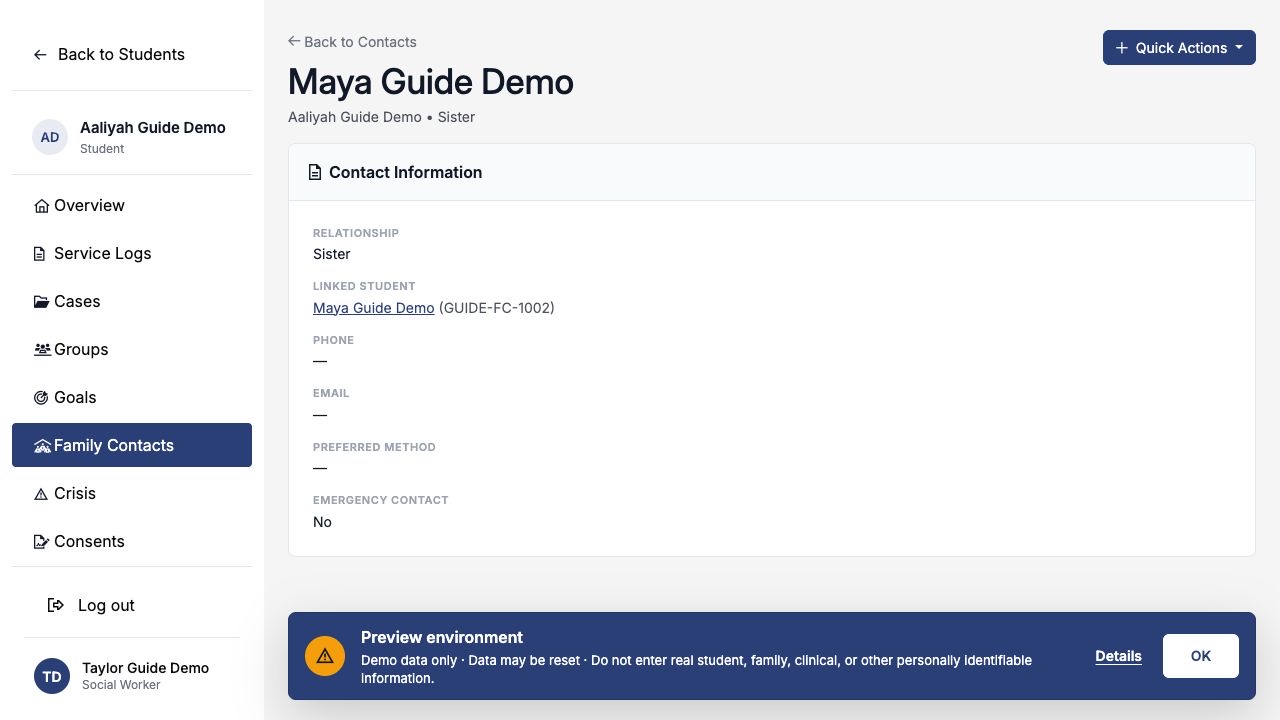
Choose the contact’s name to review the full record. Use Quick Actions to edit the contact, call a saved phone number, or email a saved address. You can also choose Edit directly from the Family Contacts list.
- Choose Edit Contact or Edit.
- Correct the name, relationship, contact details, preferred method, emergency status, or linked sibling.
- Choose Save Contact and verify the updated details.
If a contact should no longer appear, open the contact, choose Quick Actions → Delete Contact, and type the contact’s displayed name exactly. Deleting the Family Contact does not delete a linked student record.
Before deleting, confirm that you opened the correct student and contact. If details have changed, edit the record instead of deleting it. SocialNote requires the contact name as confirmation.
Completed example: one student’s household contacts
Aaliyah Guide Demo’s completed list shows three different uses of Family Contacts:
| Contact | How it is recorded | Why |
|---|---|---|
| Rosa Guide Demo | Parent · Phone preferred · Emergency contact | Identifies the primary phone route and makes the emergency designation visible. |
| Casey Guide Demo | Legal Guardian · Email preferred | Preserves the more specific verified relationship and preferred communication route. |
| Maya Guide Demo | Sister · Linked to student GUIDE-FC-1002 | Connects the family relationship with Maya’s existing SocialNote student workspace. |
- Each contact belongs to Aaliyah’s record only.
- The emergency designation appears on Rosa’s row and in the summary count.
- Maya counts as a sibling and links to a separate student record.
- No contact record by itself documents a completed communication or authorizes a signature.
Field reference and permissions
| Field | What to enter |
|---|---|
| Name | Required. Enter the contact’s current name as staff should recognize it. |
| Relationship | Required. Choose the most accurate available parent, guardian, relative, or sibling relationship. |
| Linked Student | Optional and shown only for sibling relationships. Choose another accessible student in the same district. |
| Phone | Optional. Enter the phone number staff should use under district procedure. |
| Optional. Enter a valid email address for the contact. | |
| Preferred Contact Method | Optional. Choose Email, Phone, Text, or No preference. |
| Emergency contact | Optional. Marks the record and includes it in the Emergency Contacts summary. |
Staff can view, add, edit, and delete Family Contacts only when they can access the student’s district and school. The same access boundary controls which students appear in the Linked Student search. Creating, viewing, updating, and deleting contacts is recorded in SocialNote’s audit history.