Working With Tasks
How to turn a next step into accountable work, assign it to the right team member, connect it to a student, use reminders, manage the queue, and close the loop.
What a task accomplishes
A task identifies a concrete action that one team member owes. It answers four practical questions: what needs to happen, who owns it, when it is due, and whether it is finished. A student link, priority, task type, and reminder add context without replacing the underlying student-support record.
| Tasks do | Tasks do not |
|---|---|
| Make a specific next action visible and assignable. | Document that a student service was delivered. |
| Connect follow-up work to a student when appropriate. | Replace a case plan, goal, referral, or service note. |
| Surface due, overdue, upcoming, and completed work. | Automatically prove that the underlying support occurred. |
| Send a one-time email reminder to the assignee. | Run a full project or recurring workflow automatically. |
“Call guardian to confirm the attendance plan” is more useful than “Attendance.” A strong title starts with a verb and makes completion easy for another person to recognize.
Understand manual and generated tasks
Tasks enter the workspace in two ways:
| Source | How it is created | How to manage it |
|---|---|---|
| Manual task | A user selects New Task and enters an action directly. | Edit the task itself as ownership, timing, or status changes. |
| Generated follow-up | A service log, outbound referral, or crisis workflow creates or synchronizes required follow-up work. | Use the source link when available and keep the originating record accurate. |
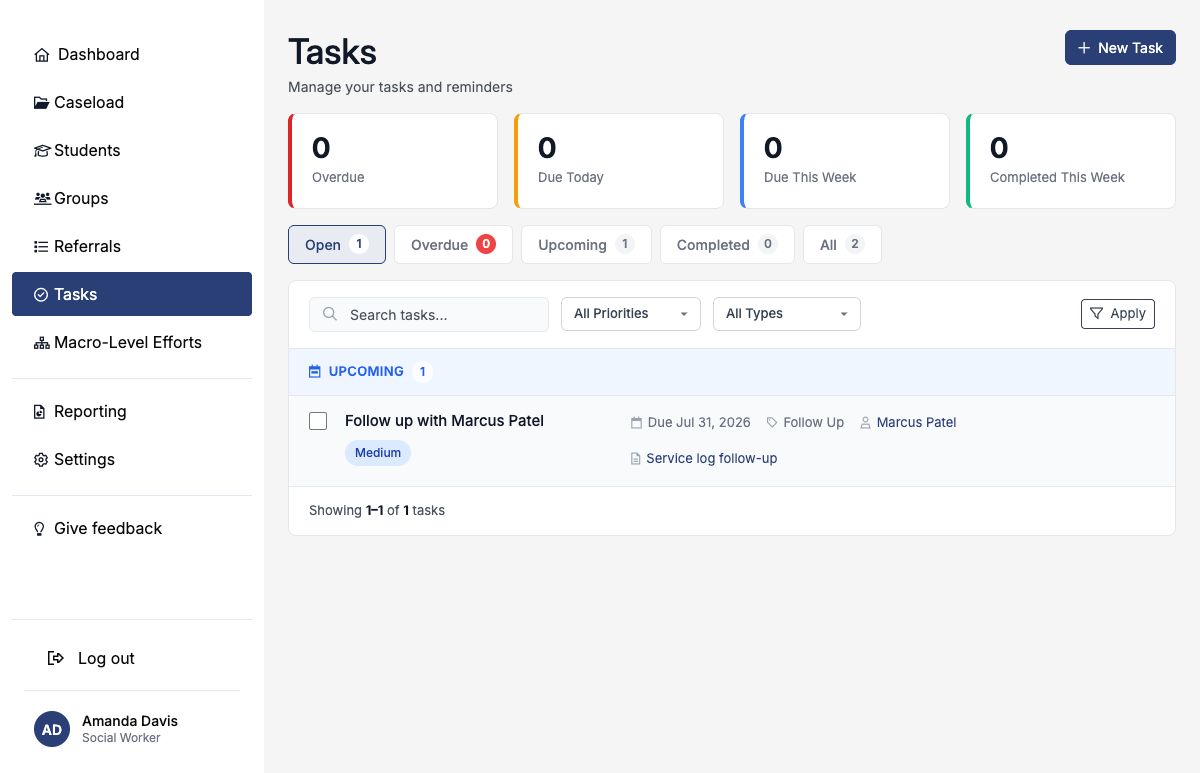
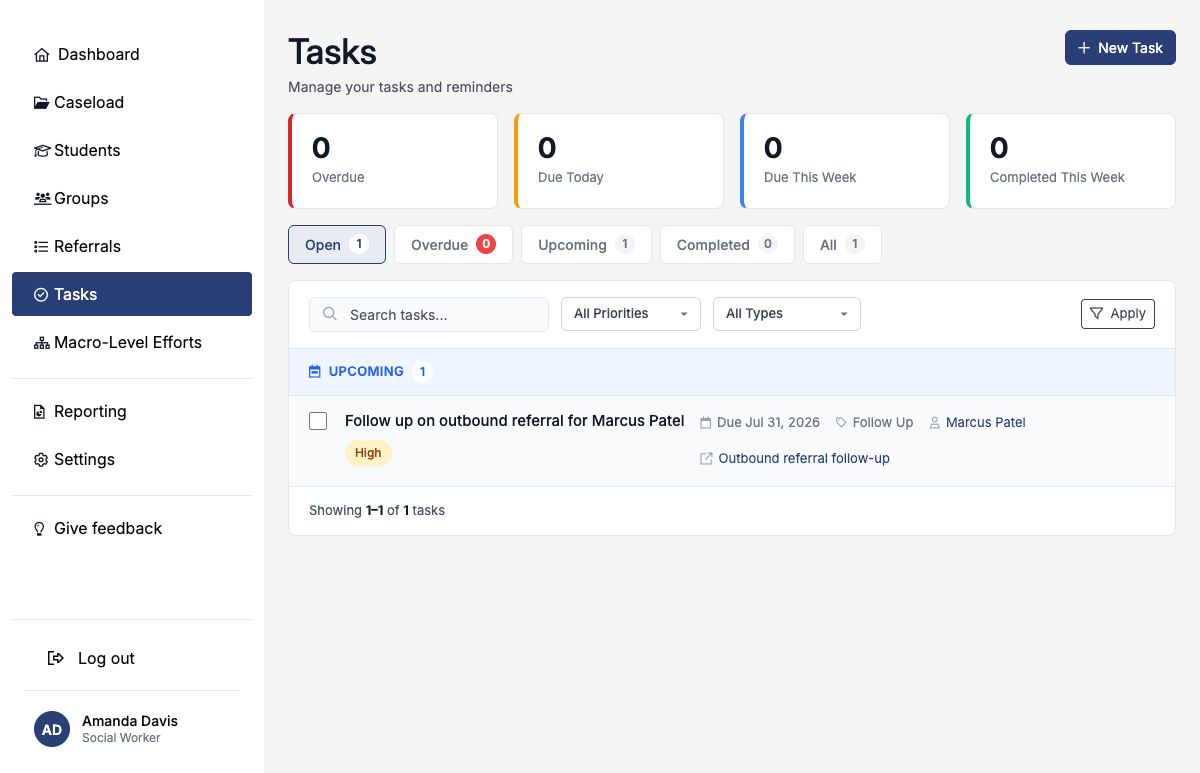
Changing or removing follow-up details on the originating service log, referral, or crisis record may update or cancel its task. Deleting a generated task directly can separate the queue from the workflow that created it.
Create a manual task
- Open Tasks and select New Task.
- Enter a concise action-oriented title.
- Add enough description for the assignee to understand the intended result and next documentation step.
- Choose a due date, priority, and task type.
- Confirm the assignee and optionally link the student.
- Configure the reminder, then select Save Task.
Every newly created task starts as Open. Status is intentionally disabled on the creation form; save the task first, then complete it or edit its status as the work progresses.
Assign the work and link the right student
Assigned To identifies the person who owes the action. New tasks default to you, but you may assign another active district team member. The creator continues to see a delegated task in their Tasks workspace, and the assignee sees and can manage it as well.
Student is optional. Link a student when the task concerns that student’s support so the queue provides direct context and the task can contribute to follow-up indicators. Leave it blank for administrative work that is not about a student.
If a student is linked, the selected assignee must have access to that student’s school. SocialNote prevents an assignment that would expose a student to a team member outside the appropriate scope.
Set a useful due date, priority, and type
Priority
| Priority | Use it when |
|---|---|
| Urgent | The action requires immediate attention because delay creates substantial risk or a firm deadline is imminent. |
| High | The action is time-sensitive or materially affects the student-support plan. |
| Medium | The action is important routine work with a normal timeline. |
| Low | The action is useful but can reasonably follow more time-sensitive work. |
Task type
| Type | Typical use |
|---|---|
| Follow Up / Crisis Follow Up | Check on a student, family, service, safety plan, or prior contact. |
| Documentation / Compliance | Complete a note, review required records, or satisfy a procedural deadline. |
| Assessment / Service Delivery | Complete an assessment step or deliver planned support. |
| Meeting / Contact | Hold a meeting or contact a student, guardian, colleague, or provider. |
| Referral Action / Coordination | Advance a referral or coordinate people, resources, and handoffs. |
| General | Use only when none of the specific types accurately describes the action. |
A due date is optional, but it drives the most useful queue behavior. An incomplete task with a past due date appears as overdue even if its stored status is still Open or In Progress; you do not need to manually change the status to Overdue.
Use reminders and recurrence carefully
Send reminder emails the assigned team member once the reminder threshold is reached. Reminder Days Before may be 0–365: use 0 for the due date itself, 1 for the day before, and so on.
| Setting | Result |
|---|---|
| Reminder on + due date | The assignee receives one email on or after the configured threshold when scheduled reminders run. |
| Reminder on + no due date | No reminder can be scheduled because there is no date from which to count back. |
| Reminder off | The task remains in SocialNote but no task-reminder email is sent. |
| Completed or cancelled | The task is excluded from reminder delivery. |
Editing the task after its reminder has been sent does not automatically schedule another email. Create or update the work intentionally if a new notification is needed.
Recurrence and Next Due Date describe the intended cadence. At present, they do not automatically create the next task when this one is completed. Next Due Date must be the same as or later than the current due date.
Work the task queue
The Tasks page shows summary counts for Overdue, Due Today, Due This Week, and Completed This Week. Tabs separate Open, Overdue, Upcoming, Completed, and All tasks. Search the title, description, or student name, and filter further by priority or task type.
| View | What it includes |
|---|---|
| Open | Open, In Progress, Overdue, and Deferred tasks. |
| Overdue | Incomplete tasks with a due date before today. |
| Upcoming | Incomplete tasks with a due date after today. |
| Completed | Tasks marked Completed. |
| All | All visible open, completed, deferred, overdue, and cancelled tasks. |
Within a view, work is grouped as Overdue, Due Today, Upcoming, No Due Date, Completed, or Cancelled. Overdue items sort first, followed by due date. The dashboard also surfaces up to five incomplete tasks assigned to you, with overdue work first.
Student-linked Follow Up and Crisis Follow Up tasks assigned to you drive follow-up indicators in the Caseload workspace. Keeping those tasks current makes the student-level “next follow-up” view more reliable.
Complete, reopen, defer, or cancel
| Status | How to use it |
|---|---|
| Open | The action is ready but work has not meaningfully begun. |
| In Progress | The assignee has started the action. |
| Overdue | Available as an editable status, although the queue also detects overdue work from the due date automatically. |
| Deferred | The action remains owed but has been intentionally postponed. |
| Cancelled | The action is no longer required and should remain visible in history. |
| Completed | The action occurred and no further work remains on this task. |
Select the checkbox beside an open task to complete it. SocialNote records who completed it and when. In the Completed view, clear the checked box to reopen the task; reopening returns it to Open and clears its completion details.
Use Edit when you need to set In Progress, Deferred, or Cancelled, change the due date or assignee, or correct the task content.
Access, privacy, and deletion
Your Tasks workspace includes tasks assigned to you and tasks you created, limited by student and school access. A task description may contain sensitive context and is stored as protected narrative data, but it should still contain only the minimum necessary information.
The creator, assignee, or an authorized administrator can update, complete, reopen, or delete an accessible task. Deletion removes the task from normal views through soft deletion, but there is no self-service restore control in the Tasks interface.
Cancel a task when it was once valid but is no longer required. Delete only a mistaken duplicate or record that should not exist. For a generated task, correct the service, referral, or crisis workflow that created it.
Completed example: attendance-plan guardian follow-up
| Field | Example entry |
|---|---|
| Title | Confirm Marcus Patel attendance plan with guardian. |
| Description | Review the updated morning routine and transportation backup plan; confirm agreed steps, document any remaining barrier, and update the attendance goal after the call. |
| Due Date | July 30, 2026. |
| Priority / Type | High / Follow Up. |
| Assigned To | Amanda Davis. |
| Student | Marcus Patel. |
| Reminder | Enabled, two days before the due date. |
| Recurrence | None. |
| Completion | Mark complete only after the guardian contact and related record updates are finished. |
- Begin the title with a clear action verb.
- Assign one accountable owner.
- Link the student only when the work is student-specific.
- Use a realistic due date and reserve Urgent for truly immediate work.
- Choose the most specific task type available.
- Remember that recurrence does not generate future tasks automatically.
- Complete the supporting service, case, goal, or referral documentation separately.
- Close the task promptly once the action is genuinely finished.